
 contact-center
Email Templates
The Email Templates in the contact.center™ provides a centralized area for creating, editing, and managing standardized email formats.
Build emails visually using the drag-and-drop editor.
Create templates by writing or pasting custom HTML code.
Before You Begin
Before creating Email templates, make sure you have:
A Verified Domain – Required to send test emails and preview templates. To verify your email domain, visit the How to Add and Verify Your Email Domains documentation.
A Sender ID - Required to send test emails. Visit the How to Add Sender Information documentation page.
Email Credits – You must have email credits to send emails successfully. To purchase them, visit the contact.center™ menu.
Creating a New Email Template Using the Email Builder
To create a new email template using the built-in Email Builder, follow these steps.
Step 1: Create the Email Builder template
In the main menu on the left, select Email > Templates to access the Email Templates page. From the dropdown menu, select Using Email Builder. This opens the New Email Template configuration page.
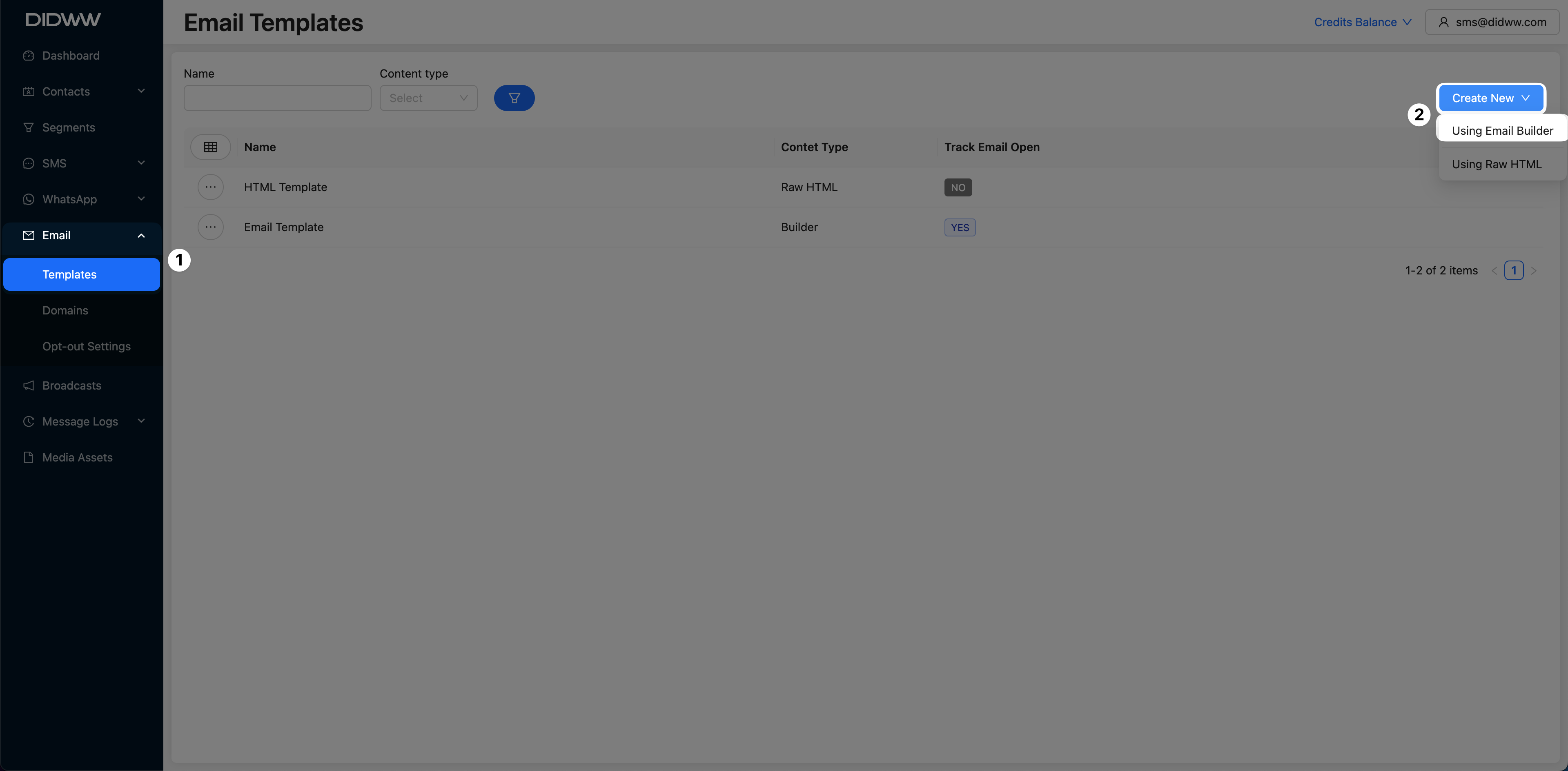
Fig. 1. Create New Email Template Using Email Builder
Step 2: Configure Template Details
From the dropdown menu, select a placeholder contact to enable the use of workspace and contact placeholders in your template configuration.
Then, configure the following fields:
Name: Enter a name for your email template. This name is for internal reference and will help you identify the template later.
Subject: Specify the subject line of the email, which will be displayed to recipients.
Preview Text: Enter a short preview text that appears next to the subject line in recipients’ inboxes. This is optional but recommended for better engagement.
Personalize Send To: Toggle this option on if you want to personalize the email based on contact-specific attributes.
Track Email Open: Enable this option to track whether recipients open the email. Tracking can provide valuable engagement metrics.
In the left pane, you’ll find Workspace Placeholders and Contact Placeholders that can be used to personalize the email. Click on a placeholder to insert it into the Subject, Preview Text, or the email body.
Placeholders like
{{contact.first_name}}or{{company_address}}dynamically insert information based on each contact’s details.
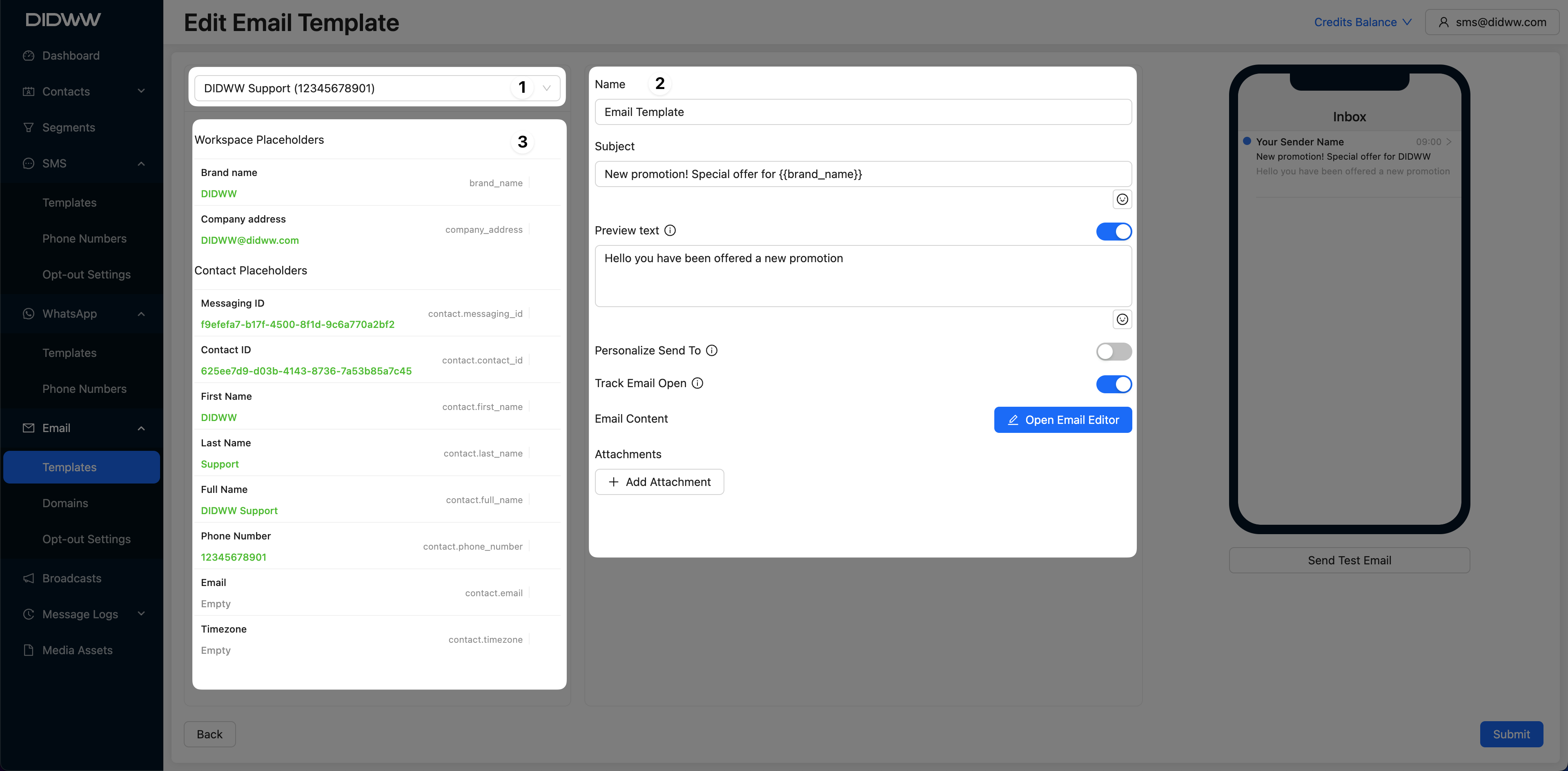
Fig. 2. Template Properties.
Step 3: Add Attachments (Optional)
Attachments can be added in the Email Builder to enhance your template by including supporting documents such as PDFs, images, or other files that complement the message content.
To include attachments in your email, click the Add Attachment button.
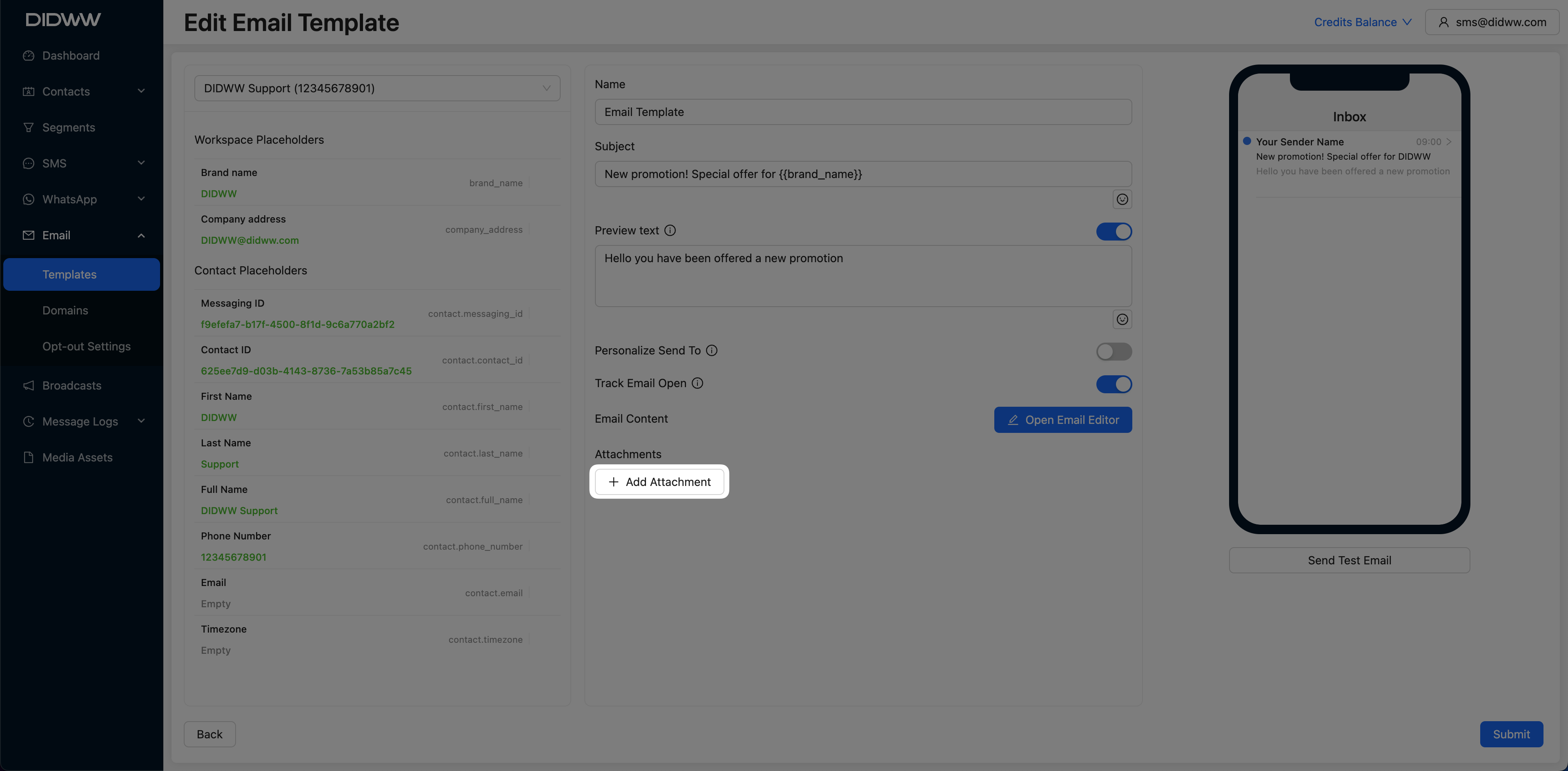
Fig. 8. Add Attachment Button.
Select the file you want to attach, and then click Insert to add it to your email.
Note
File size must not exceed 15 MiB.
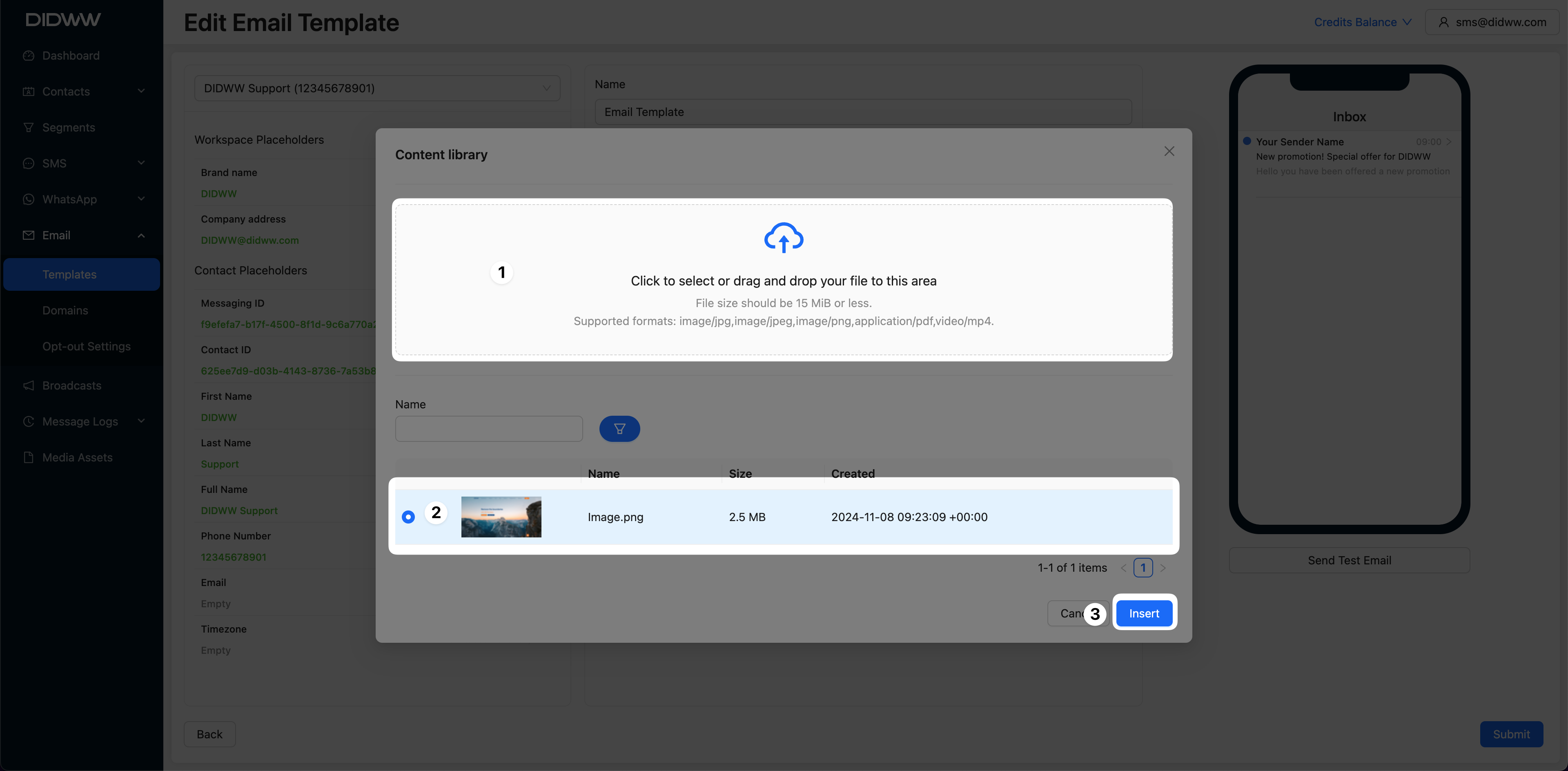
Fig. 9. Selecting Attachment.
Step 4: Create the Email Content
Click the
 button to open the Email Builder.
The panel provides various Content Blocks that can be added to your template to build your email content, as described in the table below:
Block Type |
Description |
|---|---|
Text |
Add text blocks to include your main message or personalized content. |
Image |
Insert images to enhance visual engagement, such as logos, product images, or promotional graphics. |
Button |
Add call-to-action buttons, allowing recipients to take actions like visiting a website or making a purchase. |
Divider |
Separate different sections of content with lines to improve readability. |
Navigation |
Include a navigation menu with links to your website or key sections. |
Social |
Add social media icons linked to your profiles to boost social engagement. |
Hero |
Create a prominent section that typically includes an image and headline to capture attention. |
Wrapper |
Group multiple elements together for more organized layout design. |
Footer |
Add a footer with essential information, such as contact details or unsubscribe links. |
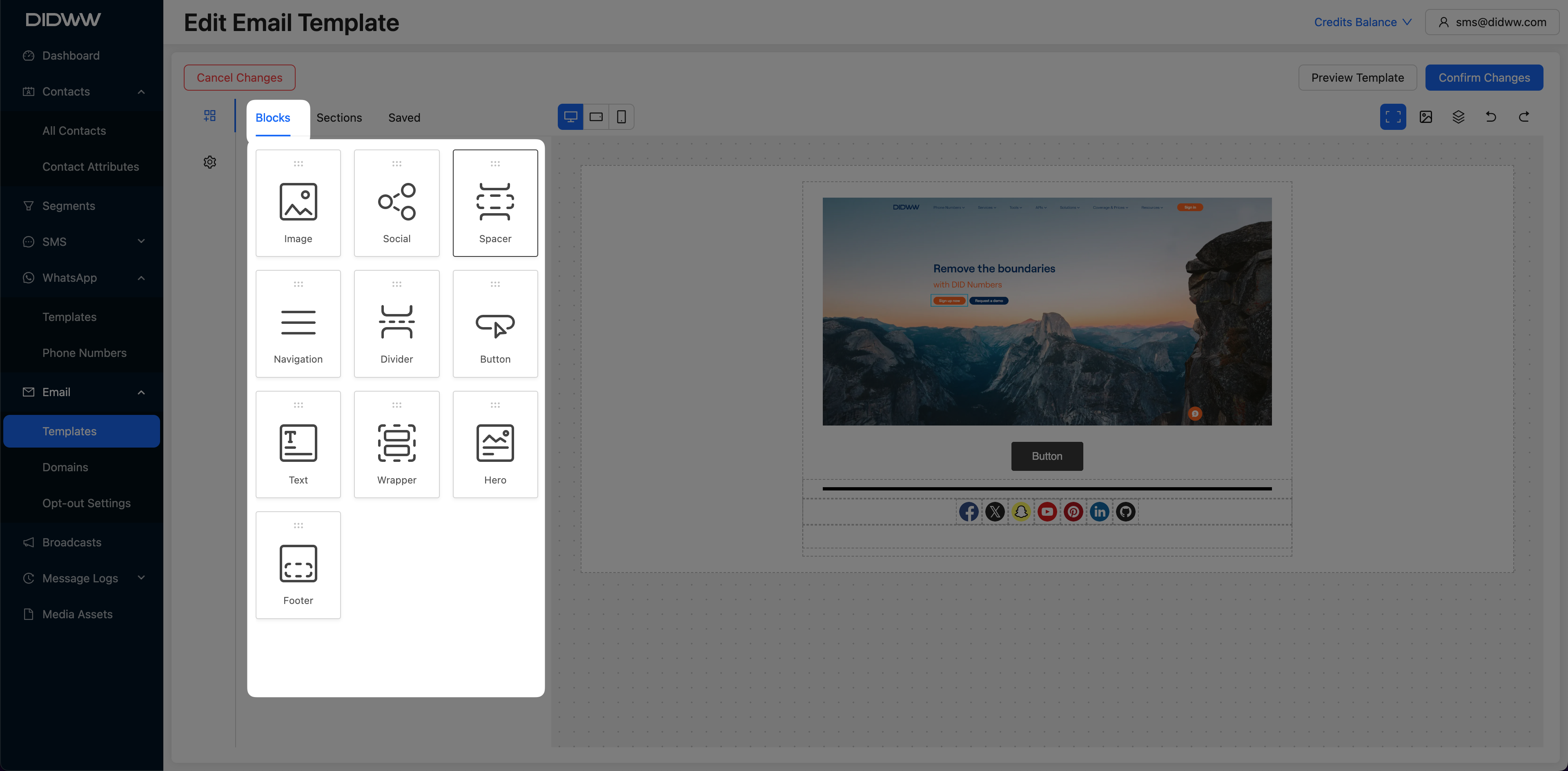
Fig. 3. Content Blocks.
The Sections in the Email Template Builder allows you to quickly create and organize different parts of an email layout. It offers a range of pre-designed layouts, grouped into categories for specific purposes, to streamline the template design process. Below are the available section types:
Section Type |
Description |
|---|---|
Columns |
Provides various column layouts for flexible content arrangement. |
Footers & Signatures |
Includes predefined footer sections containing typical elements like social media links, contact information, and unsubscribe links. |
Headers |
Adds header sections that usually contain branding elements such as logos, navigation links, or introductory text. |
Take Actions |
Provides action-oriented sections with buttons or calls-to-action, like “Shop Now” or “Read More.” |
Image & Text |
Offers pre-arranged layouts for combining images with text. |
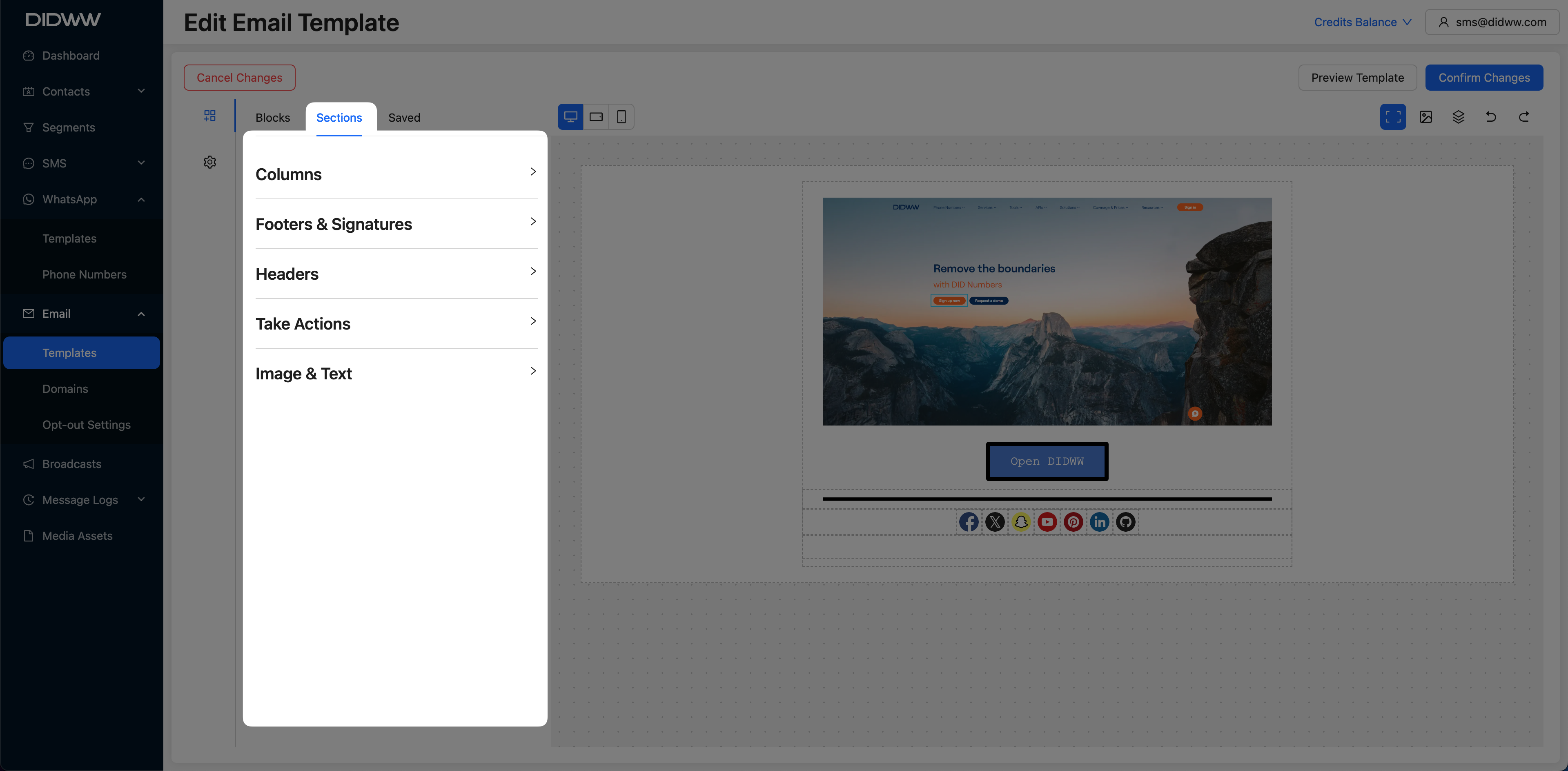
Fig. 4. Sections.
The Saved column provides access to blocks you’ve previously saved, allowing you to easily add them to your template design area. To save a block, select it and click the
 button.
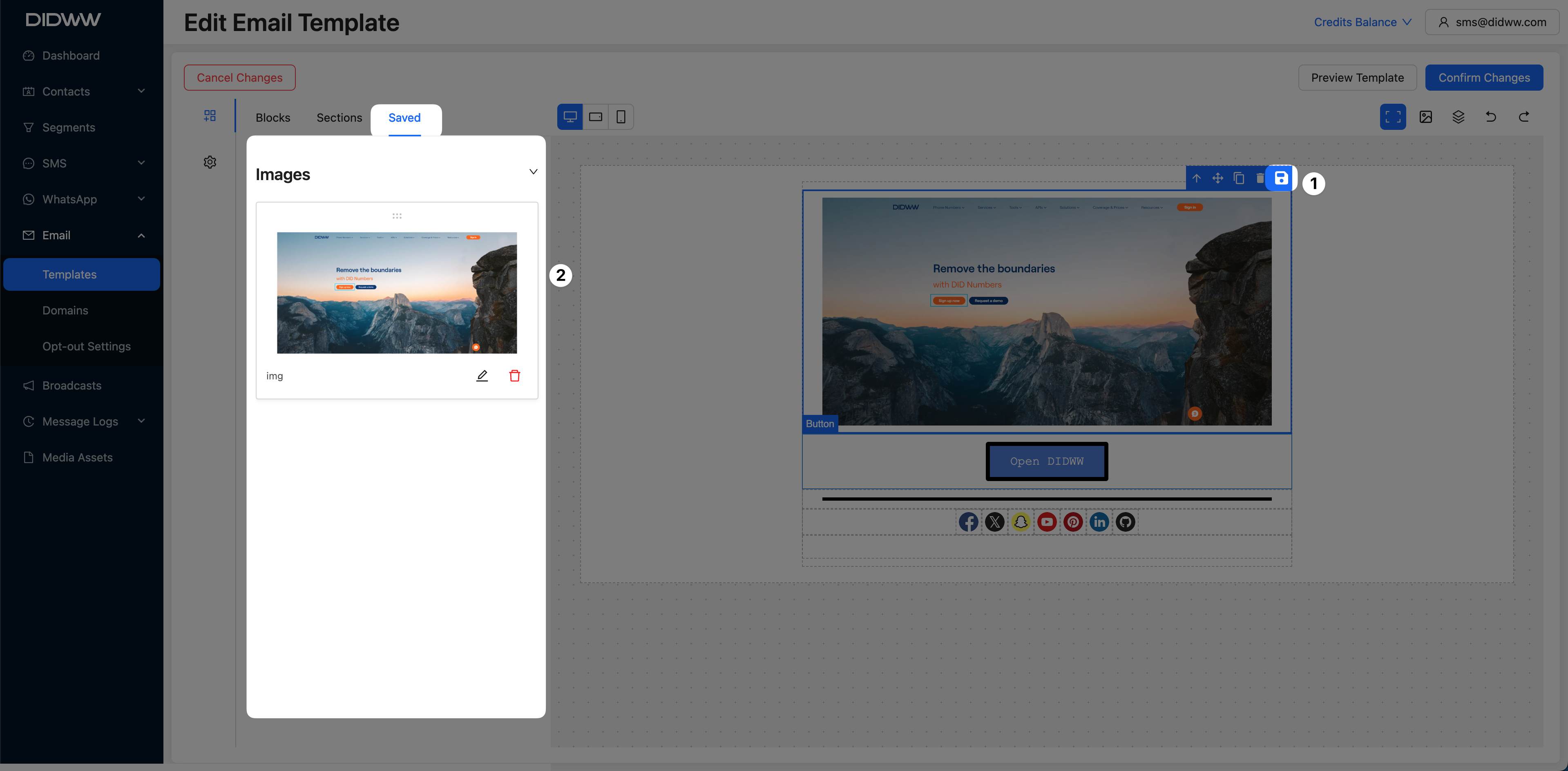
Fig. 5. Saved Blocks.
To add an object to your template, drag it from the left panel and drop it into the template design area on the right. You can arrange objects to create a custom layout and adjust settings for each object to fit your branding.
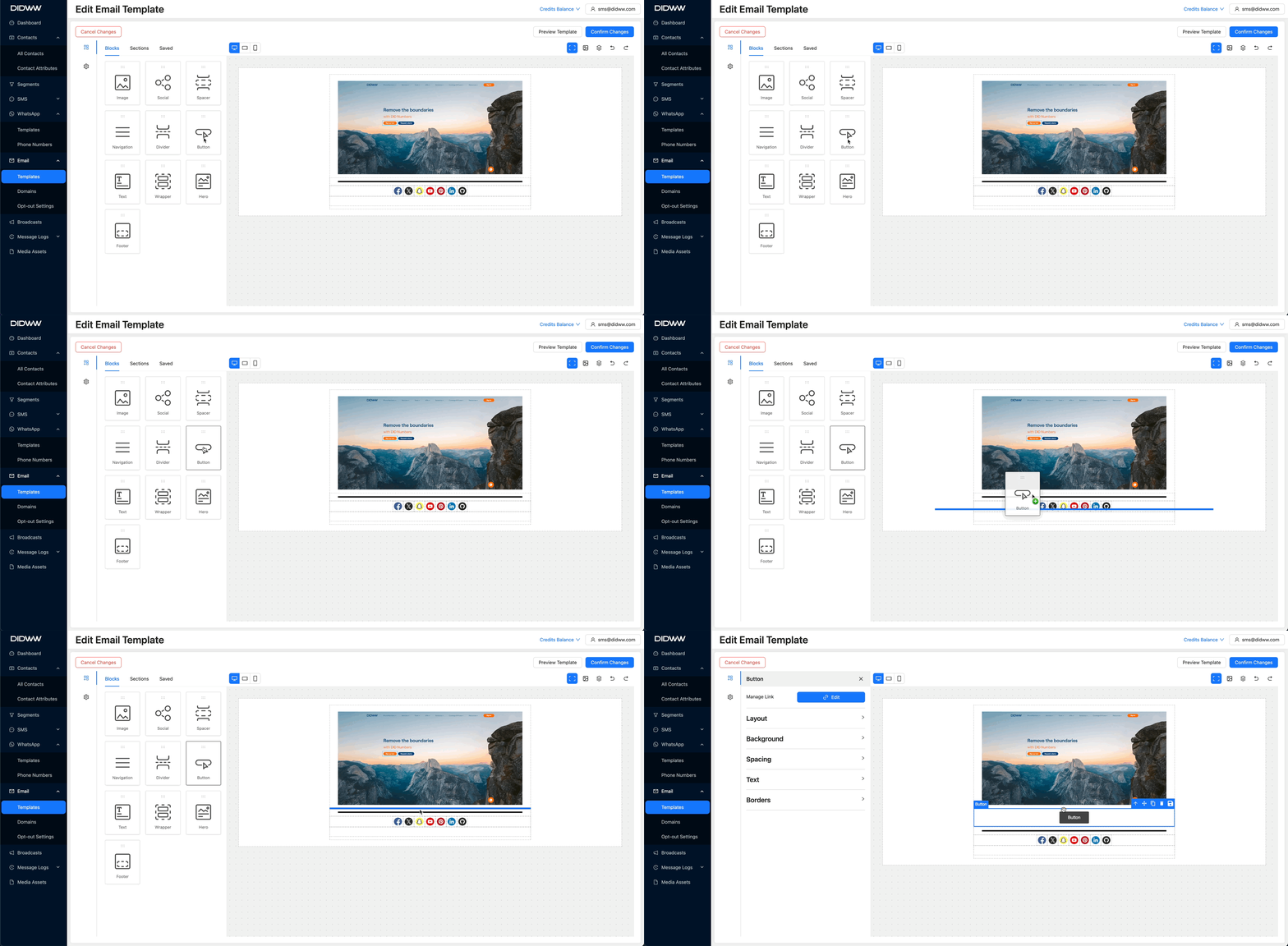
Fig. 6. Email Template.
Click
 in the top-right to to open the preview window and click on
 buttons to swap between PC, Tablet, and Mobile devices view.
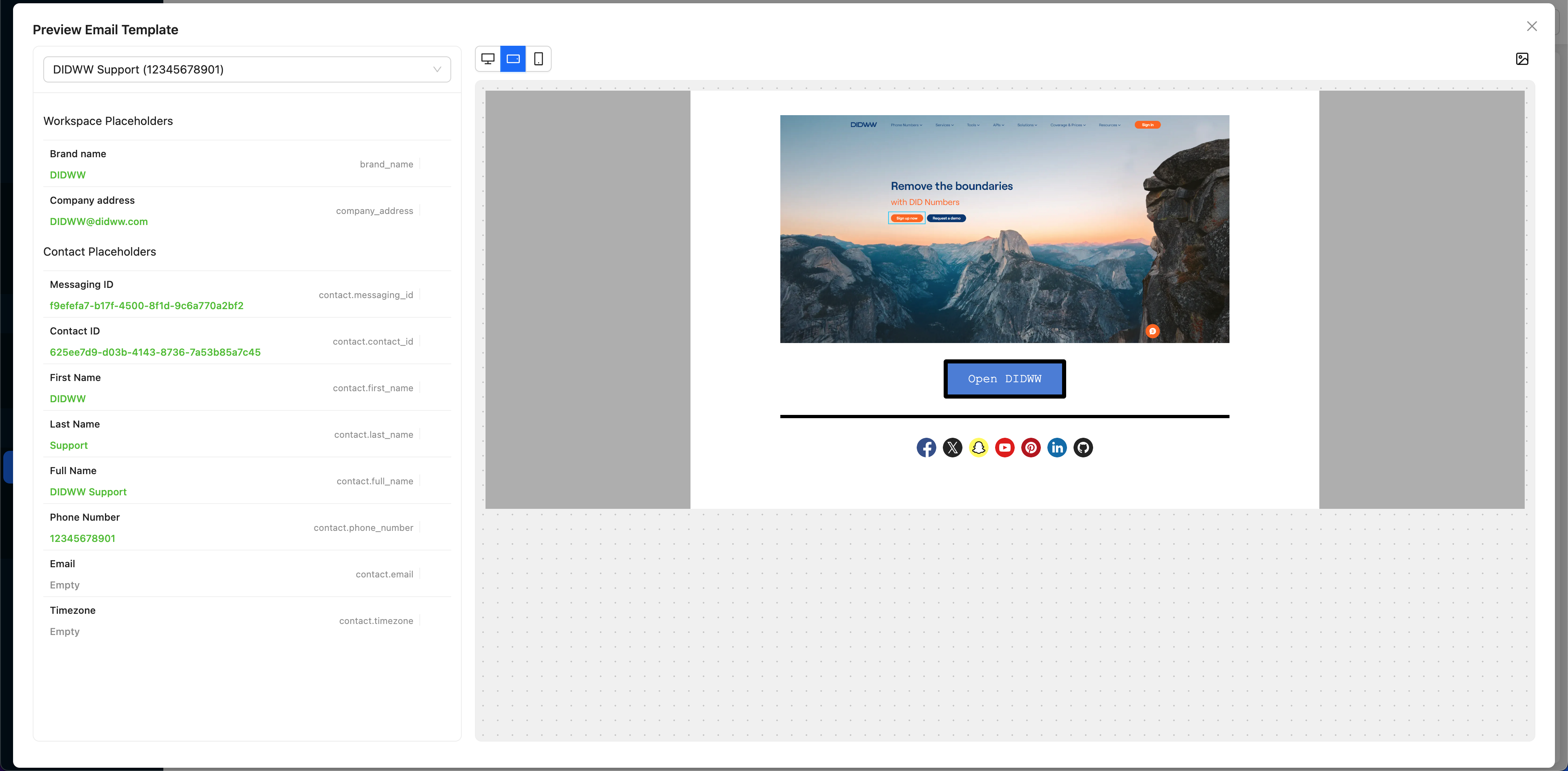
Fig. 7. Preview.
Click Confirm Changes to save the email content.
Step 5: Send a Test Email (Optional)
To preview the email’s appearance and content before saving the template, you can send a test email. On the create email template page, click Send Test Email.
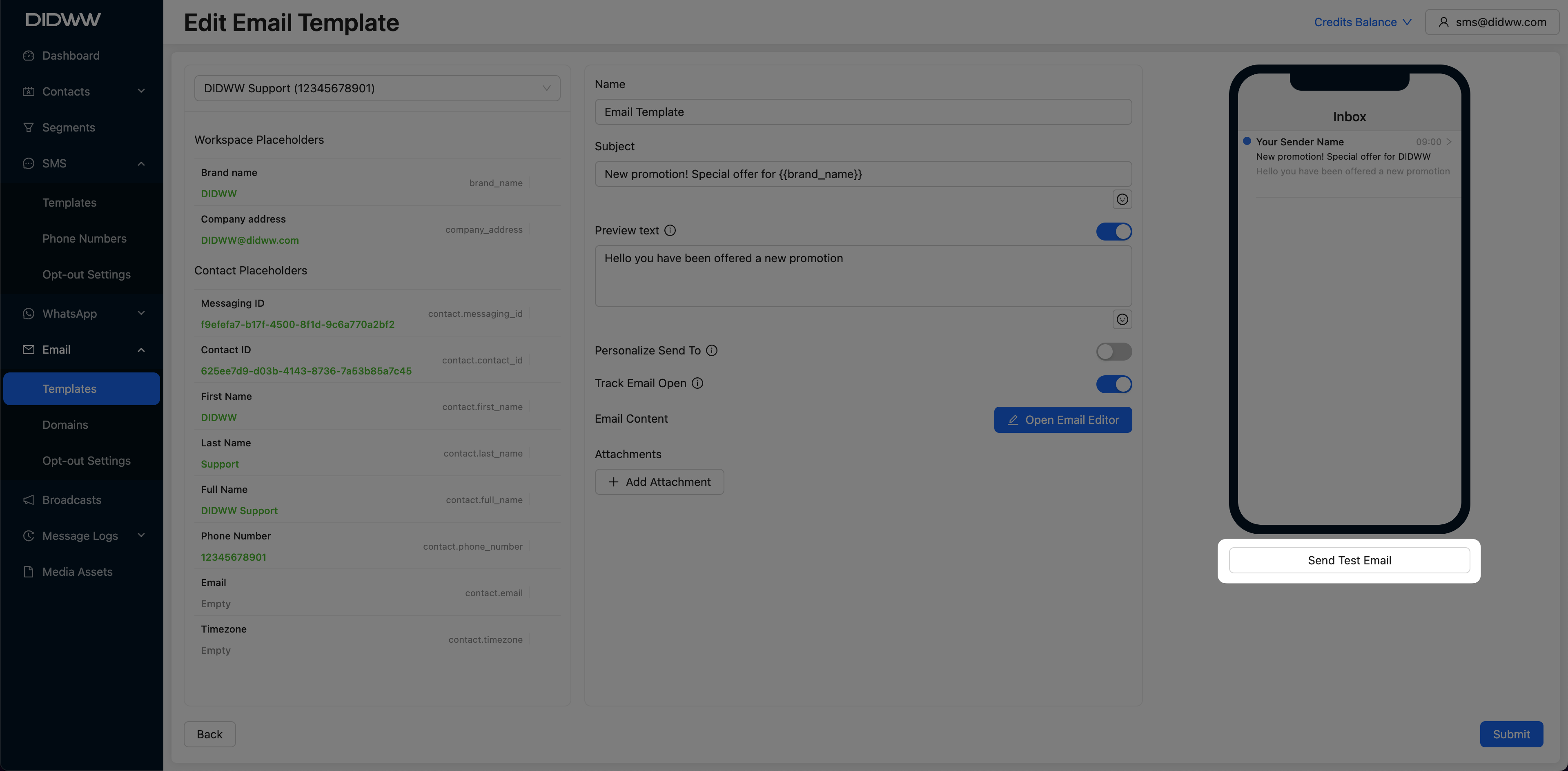
Fig. 10. Send Test Email Button.
A pop-up window appears for entering test email delivery details.
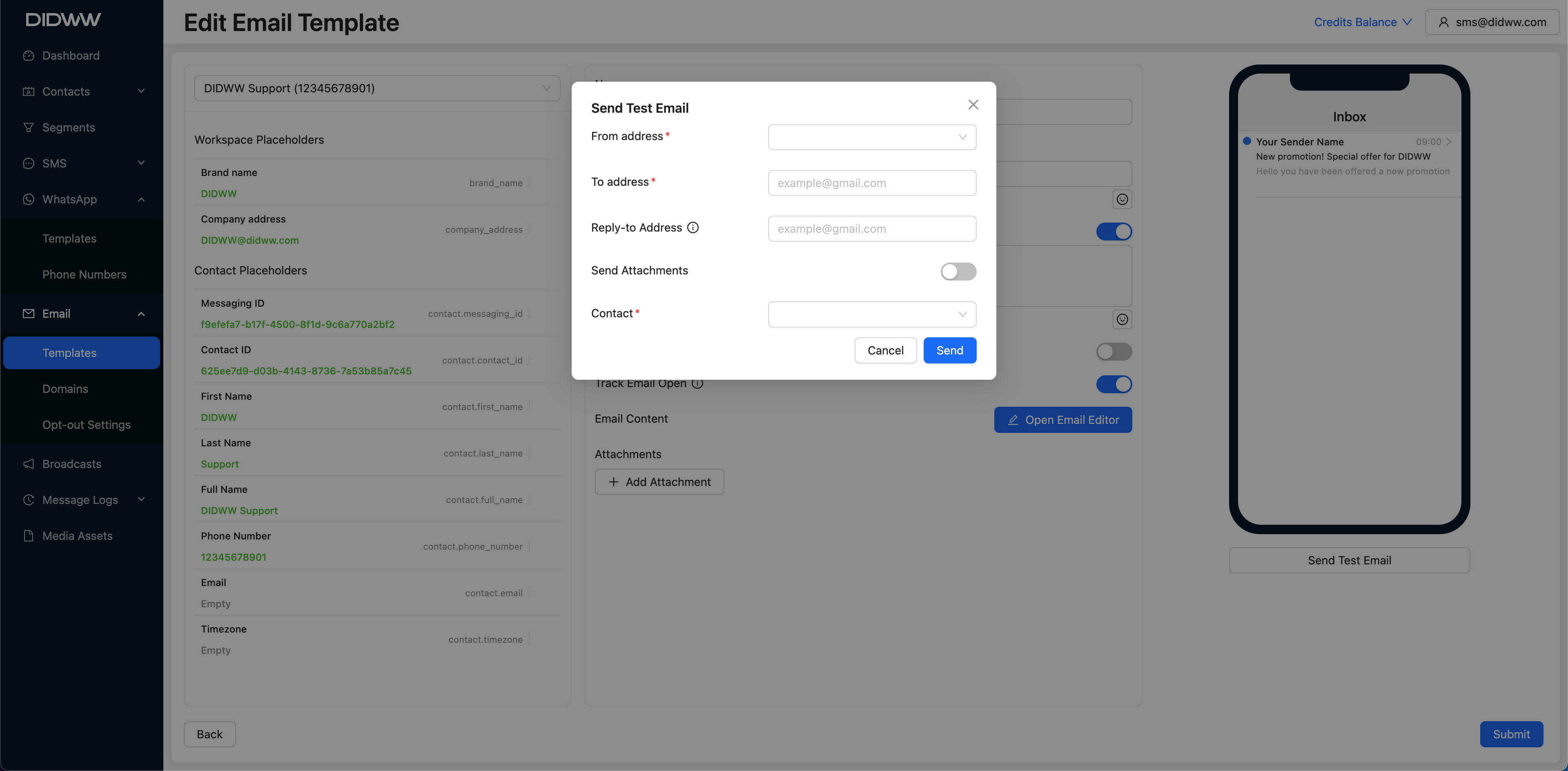
Fig. 11. Send Test Email.
In the Send Test Email window, enter the following details:
From address: Select the email address you want to display as the sender.
To address: Enter the recipient’s email address where the test email will be sent.
Reply-to Address: Specify the email address to which replies will be directed. If left empty, the reply-to address will be the same as the sender’s email address.
Send Attachments: Toggle this option on if you want to include any attachments that are part of the email template.
Contact: Choose a contact from the dropdown list if you want to populate placeholders with actual contact data.
After filling in the fields, click Send to deliver the test email.
Step 6: Submit the Template
To create the template click Submit.
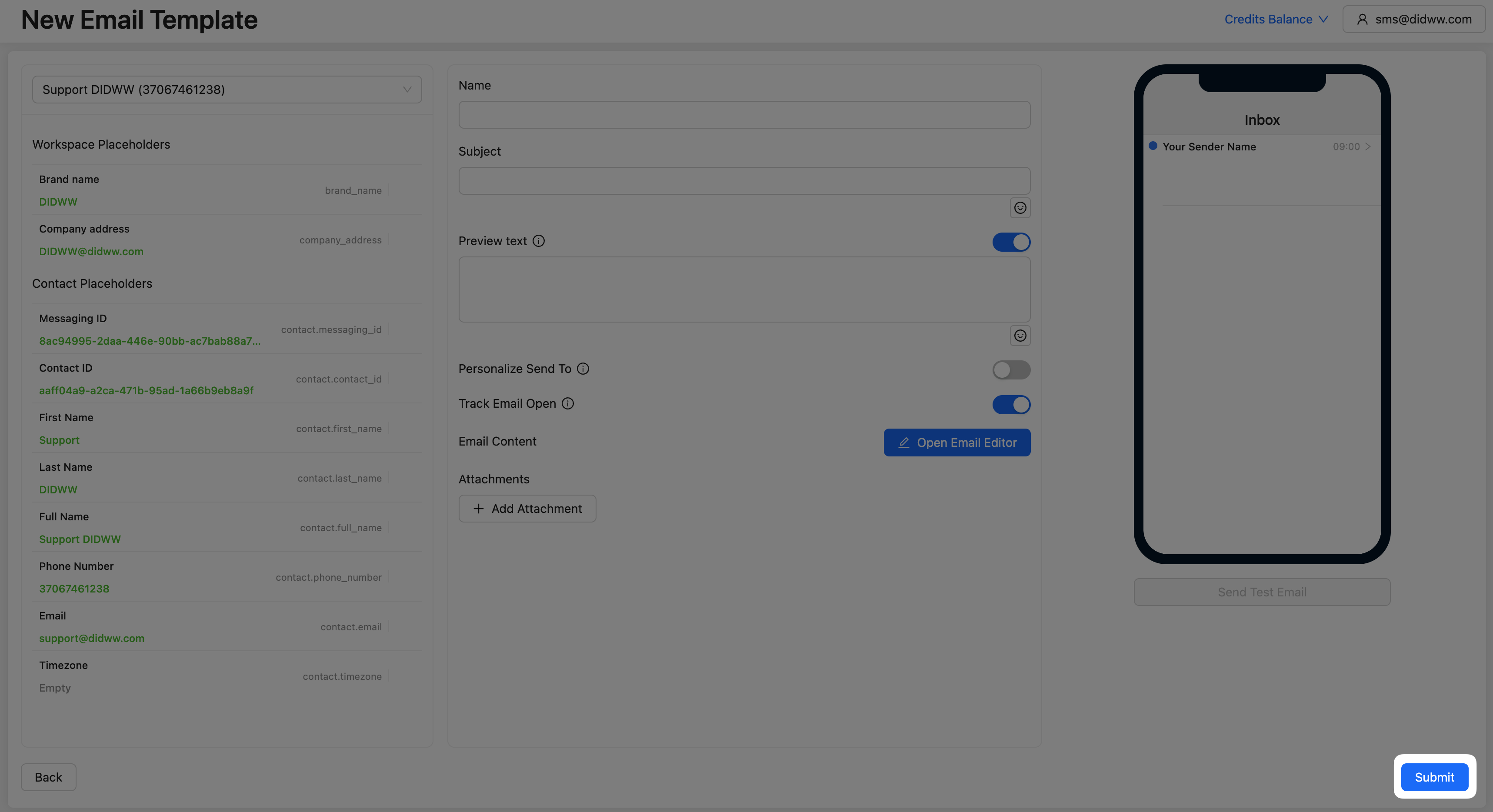
Fig. 12. Submit Email Template.
Your new Email Builder template is now created and ready to use in broadcasts or automations.
Creating a New Email Template Using Raw HTML
To create a new email template with HTML, use the contact.center™’s code editor, which includes syntax highlighting and HTML beautification for easier editing. This option is ideal for users needing full control over design or working with pre-written HTML code. Follow the steps below to set up your template.
Step 1: Create the Raw HTML template
In the main menu, select Email > Templates.
Click Create New and select Using Raw HTML.
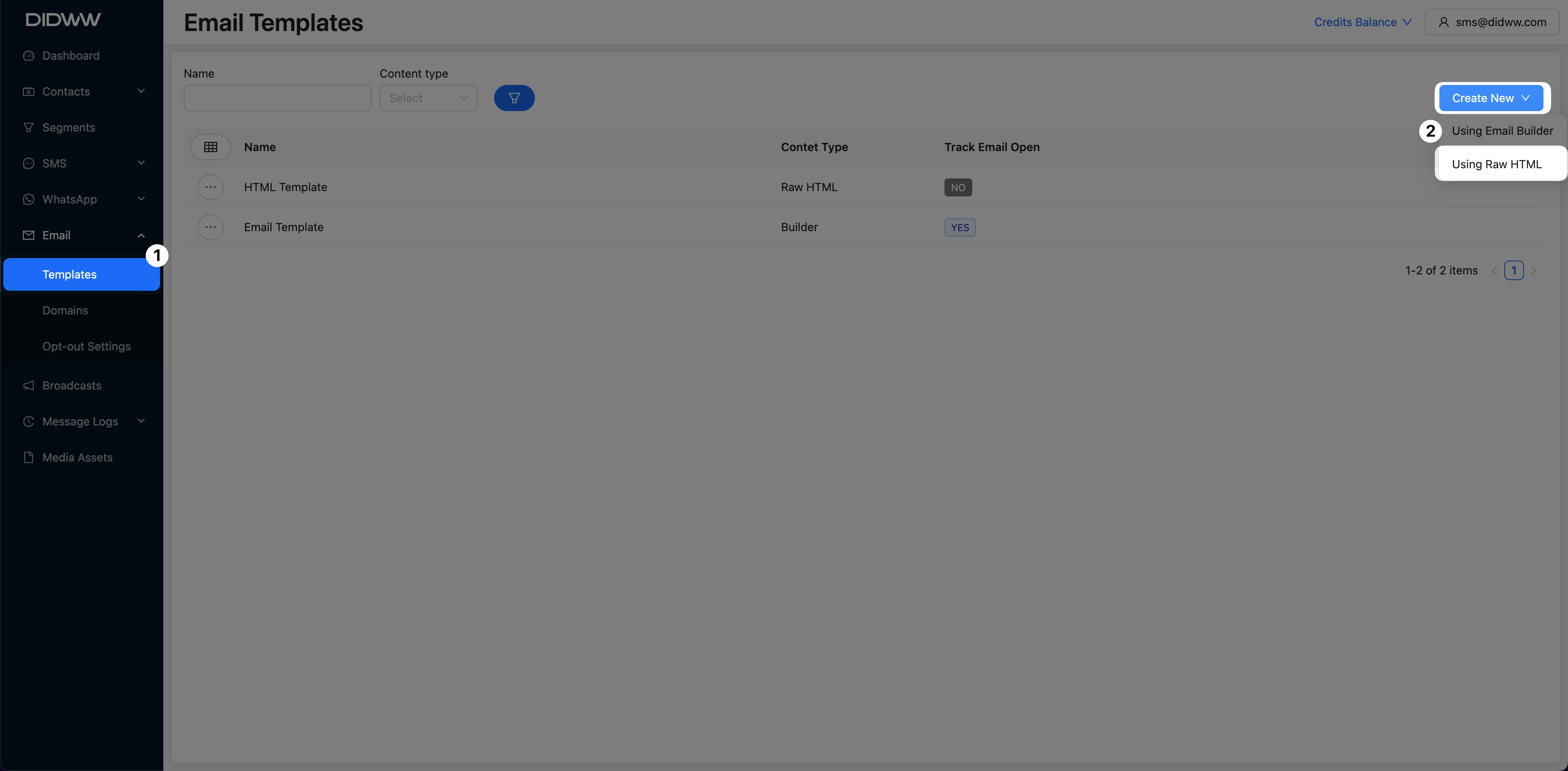
Fig. 1. Email Templates.
Step 2: Configure Template Details
From the dropdown menu, select a placeholder contact to enable the use of workspace and contact placeholders in your template configuration.
Then, configure the following fields:
Name: Enter a name for your email template for internal reference.
Subject: Specify the subject line that recipients will see in their inboxes.
Preview Text: (Optional) Add preview text that appears next to the subject line in recipients’ inboxes.
Personalize Send To: Toggle this option on if you want to personalize the email based on contact attributes.
Track Email Open: Enable this option to track whether recipients open the email, providing valuable engagement metrics.
In the left pane, you’ll find Workspace Placeholders and Contact Placeholders that you can use to personalize the HTML template. To insert a placeholder, click on a placeholder from the list, and it will be added at the cursor’s position in the HTML code. Placeholders like
{{contact.first_name}}or{{company_address}}dynamically insert information based on each contact’s data.
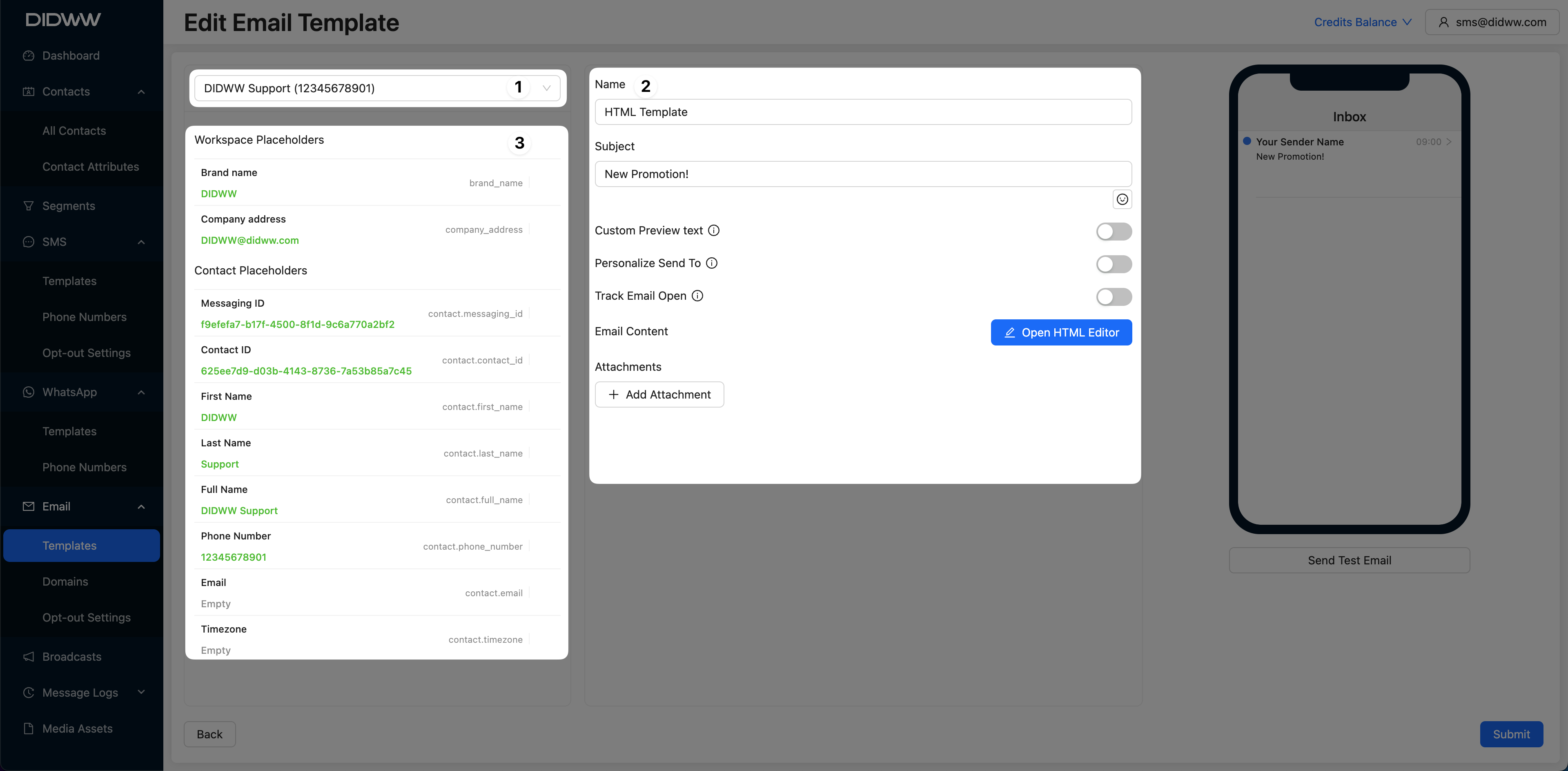
Fig. 2. Template Properties.
Step 3: Add Attachments (Optional)
To include attachments in your email, click the Add Attachment button.
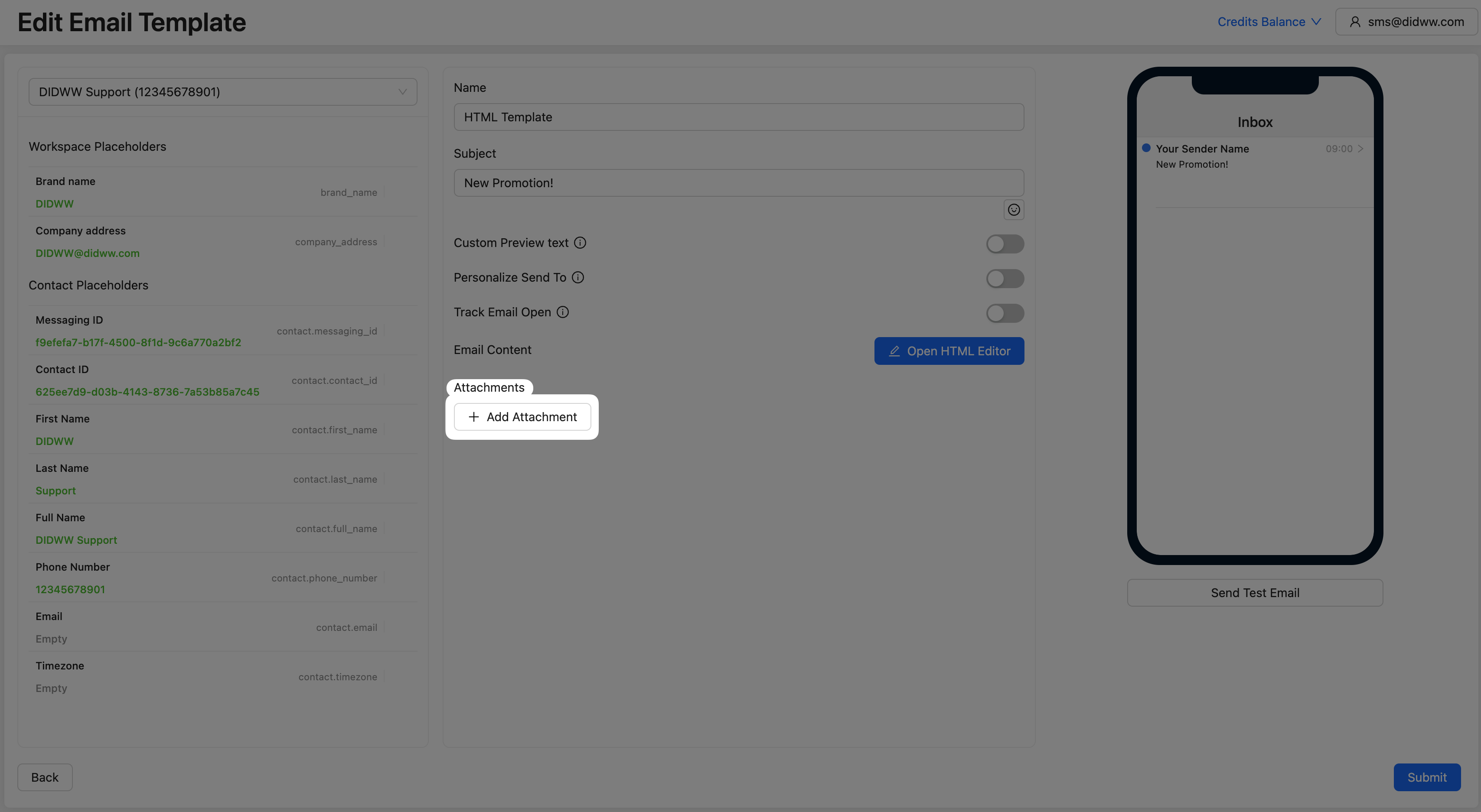
Fig. 7. Add Attachment Button.
Select the file you want to attach, and then click Insert to add it to your email.
Note
File size must not exceed 15 MiB.
Fig. 8. Selecting Attachment.
Step 4: Enter HTML Code
In the right pane, use the code editor to enter your HTML code. The editor supports syntax highlighting, making it easier to structure and read your code.
The Beautify HTML option is available to automatically format your HTML for better readability.
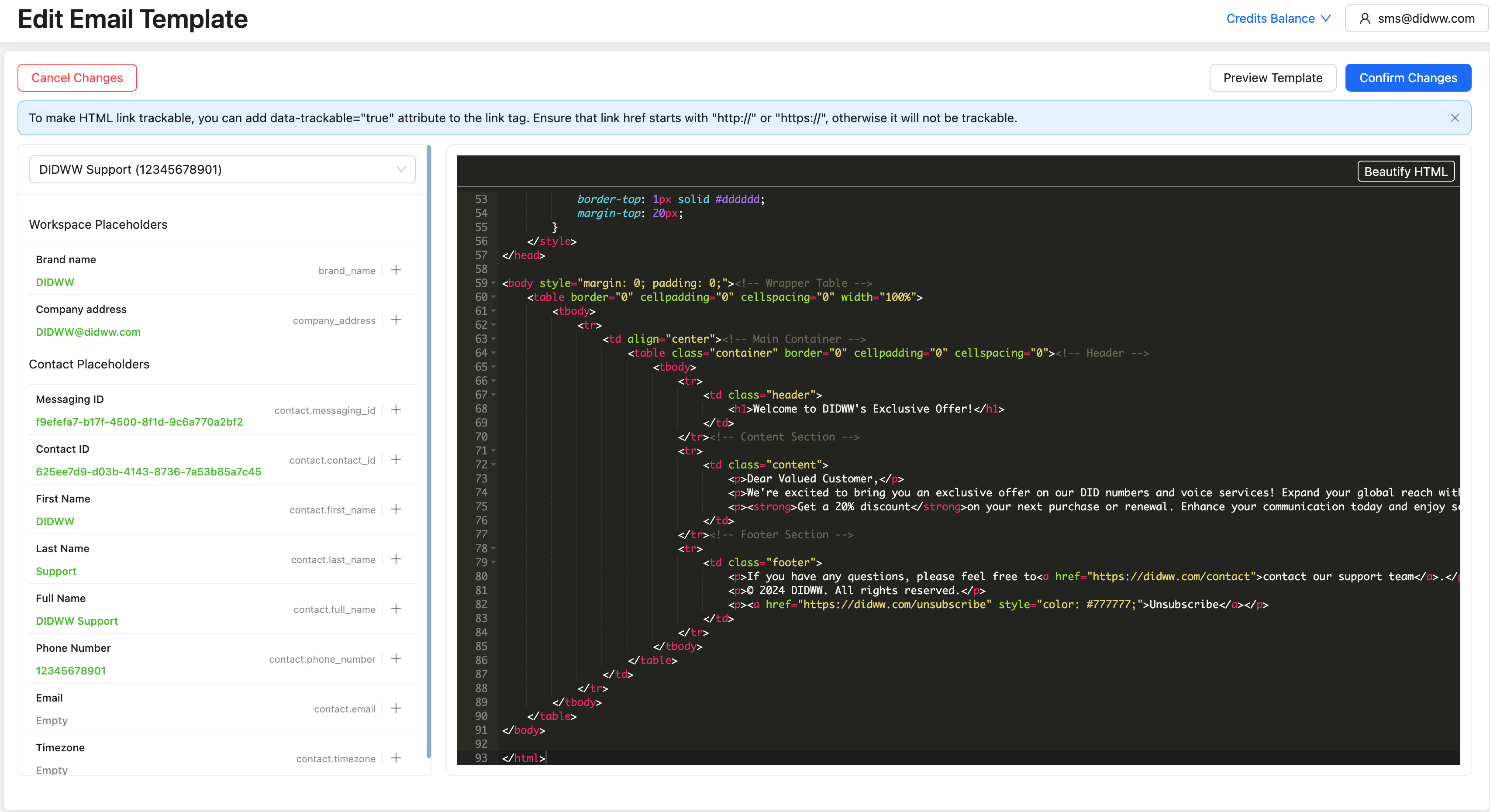
Fig. 3. HTML Code Editor.
Step 5: Adding Trackable Links (Optional)
To make a link trackable, add the attribute data-trackable="true" to the link tag. This allows the platform to track link clicks.
Note
Ensure that the link href starts with http:// or https://, otherwise, the link will not be trackable.
Step 6: Previewing the HTML Template
To preview the template, click Preview Template in the top-right corner of the page.
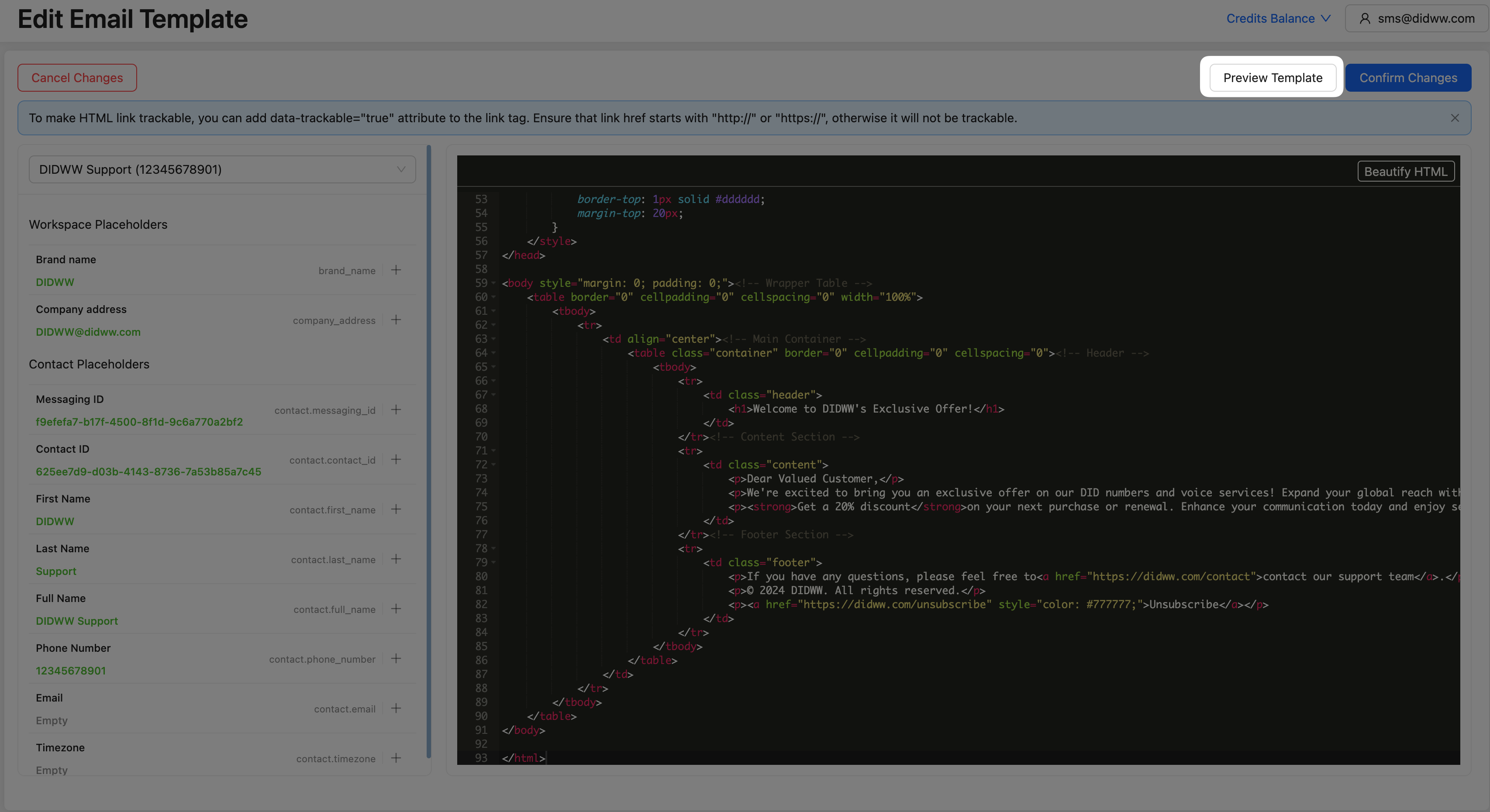
Fig. 4. Preview Template Button.
The preview feature allows you to see how the email will appear on both desktop and mobile devices. This is especially useful for checking the layout, styling, and overall appearance to ensure the HTML renders as expected across different devices.
In preview mode, you can interact with links and view the layout as recipients will see it, allowing you to make adjustments before finalizing the template.
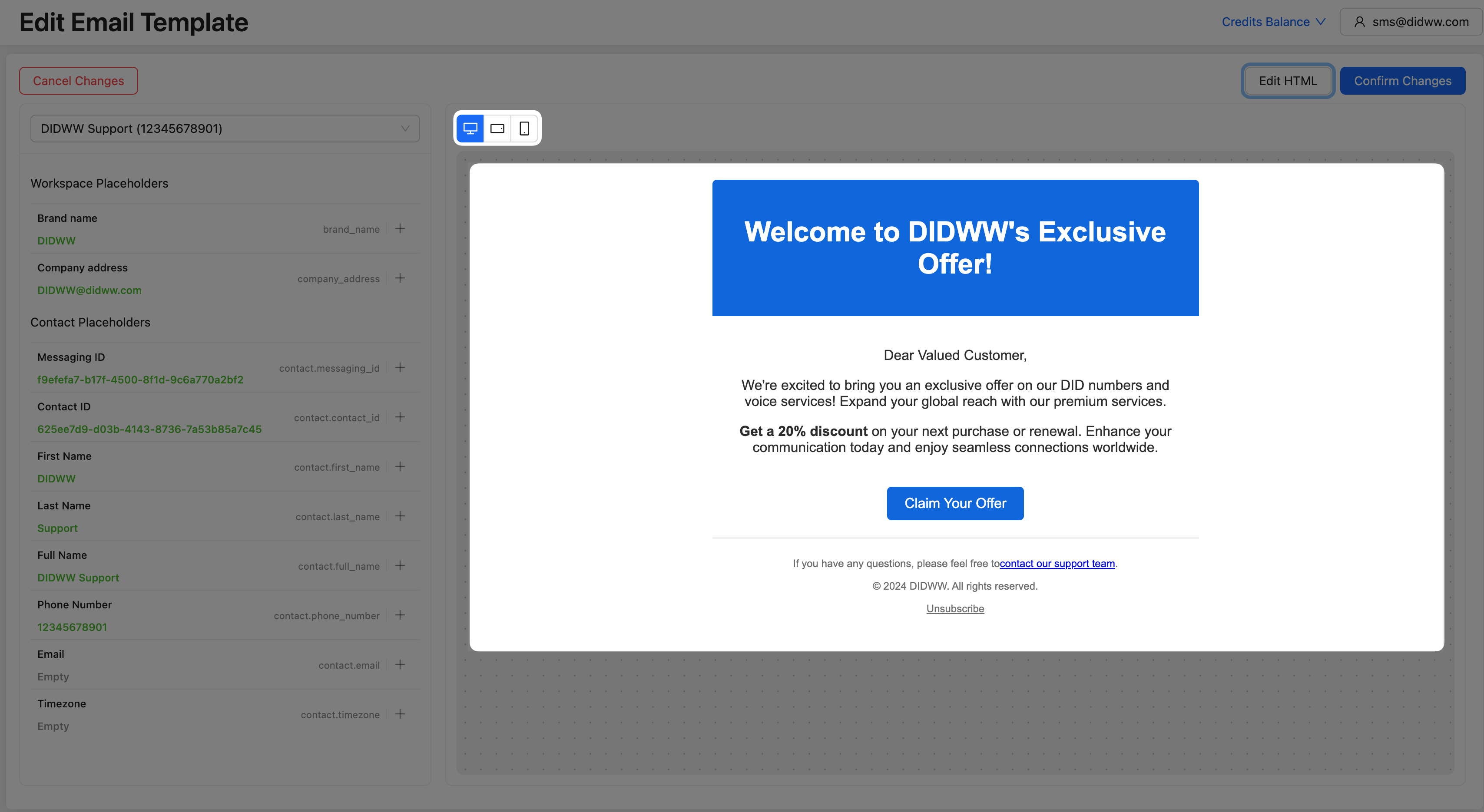
Fig. 5. Preview Template.
Step 7: Confirming Changes
Once you are satisfied with your HTML template, click Confirm Changes to save the template.
Fig. 6. Confirm Changes Button.
Step 8: Send a Test Email (Optional)
To preview the email’s appearance and content before saving the template, you can send a test email. On the create email template page, click Send Test Email.
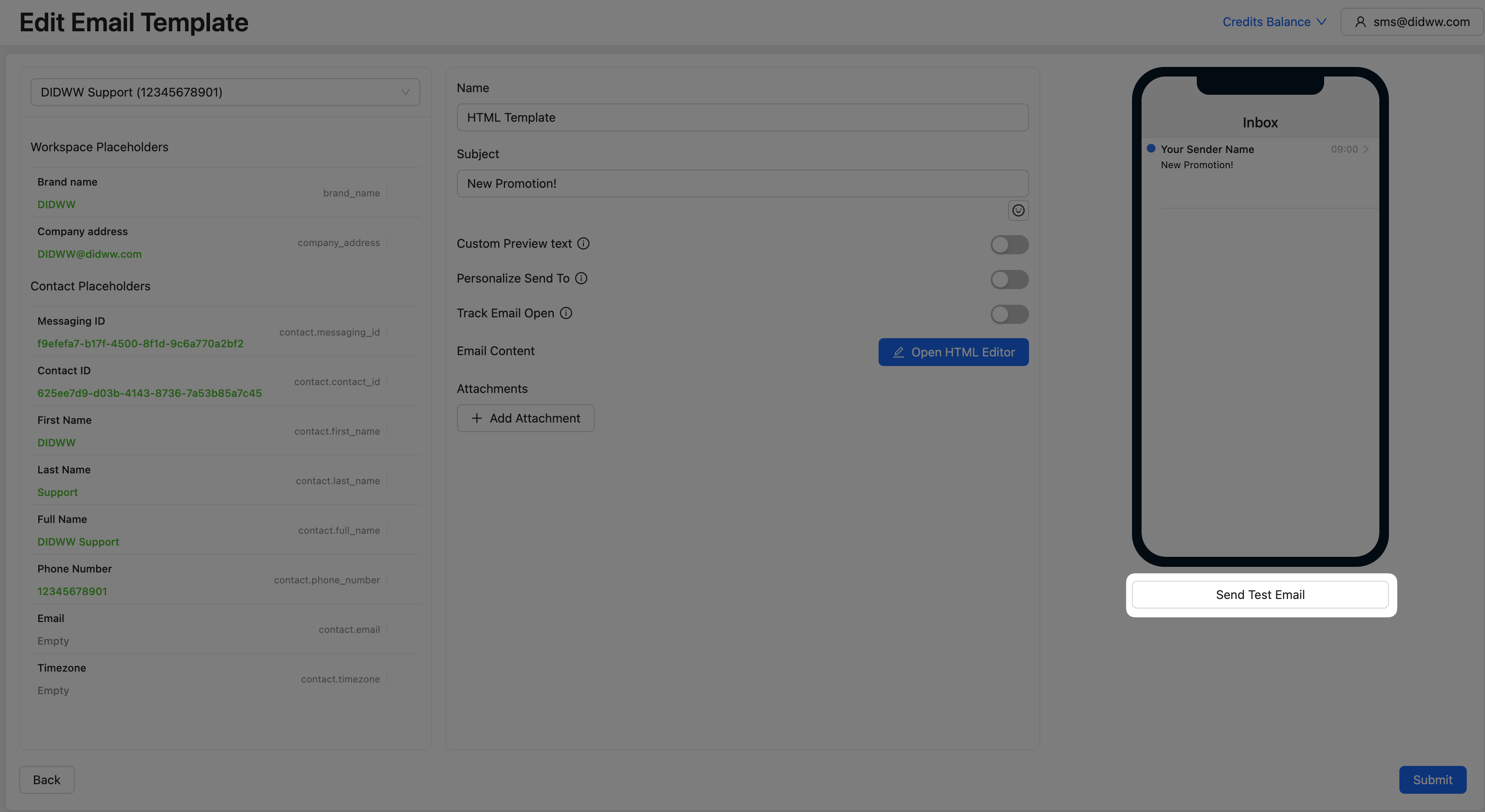
Fig. 9. Send Test Email Button.
A pop-up window appears for entering test email delivery details.
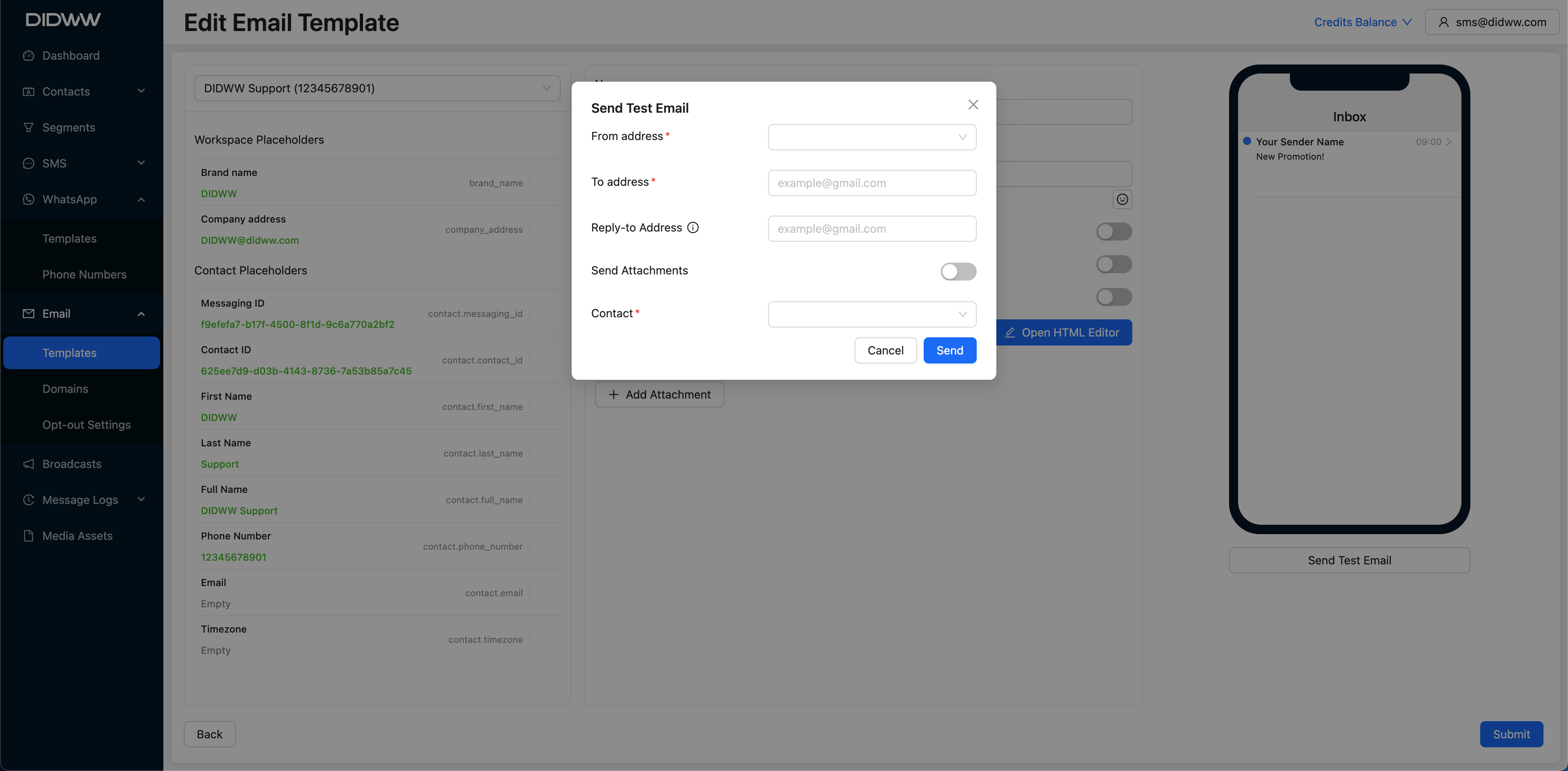
Fig. 10. Send Test Email.
In the Send Test Email window, enter the following details:
From address: Select the email address that will appear as the sender.
To address: Enter the recipient’s email address where the test email will be sent.
Reply-to Address: (Optional) Specify an address for replies.
Send Attachments: Toggle this option if you want to include attachments with the test email.
Contact: Select a contact to populate placeholders in the test email.
After filling in the fields, click Send to deliver the test email.
Step 9: Submit the Template
To create the template click Submit.
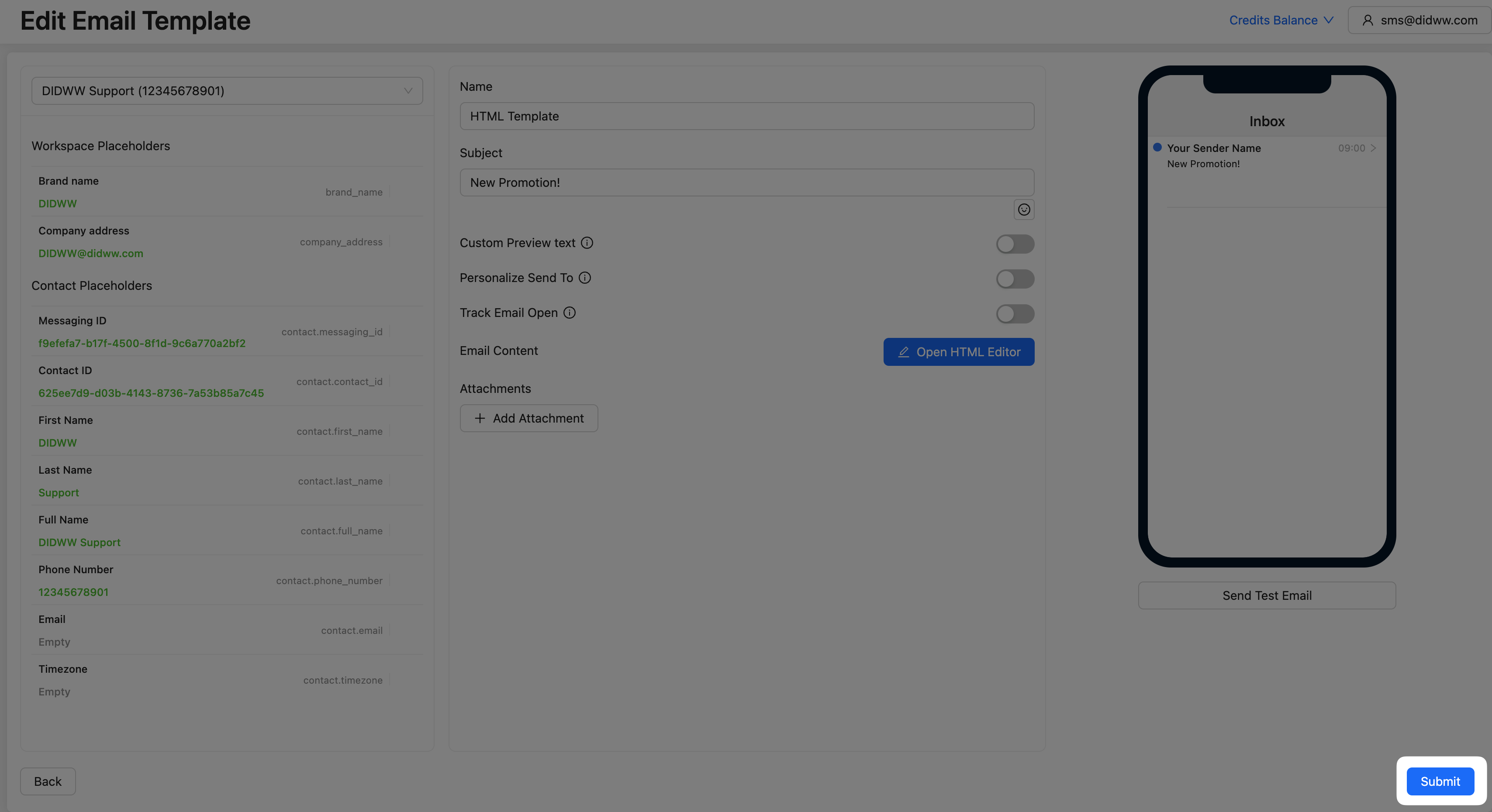
Fig. 11. Submit Email Template.
Your new Email template is now created and ready to use in broadcasts or automations.
Learn More
Learn how to configure opt-out settings and customize unsubscribe messages in your email templates.