
 contact-center
Webhook Received Automation Flows
Webhook Received triggered automation flows execute when an external system sends a webhook request to your platform. This enables real-time automation based on external activities, making it ideal for third-party integrations, CRM syncs, and responsive workflows based on real-time data.
By using webhook triggers in your flows, you can respond to external events as they happen—whether it’s a user registration, transaction update, or signal from another system—enabling timely and personalized automation.
Here are a few ways you can use the Webhook Received Trigger automation type:
User sign-ups – Automatically send a welcome message when a webhook is received for a new registration.
Transaction events – Trigger emails or updates in response to payments, refunds, or order status changes.
External CRM updates – Sync contact records or trigger flows based on updates from your CRM or data platform.
Real-time alerts – Send notifications based on data from IoT devices, monitoring tools, or web-based services.
Build a new automation triggered when an external system sends a webhook request.
Open the Flow Builder to modify webhook trigger settings, mapping, or actions.
Temporarily pause an active webhook automation without deleting or resetting it.
Resume a paused webhook automation and continue processing incoming requests.
Before You Begin
Ensure that your system or third-party platform is capable of sending properly formatted webhook requests.
Create a Webhook Received Automation Flow
Use the steps below to create an automation flow triggered when an external system sends a webhook request to the provided URL endpoint.
Step 1: Open the Create Flow Panel
Navigate to Automations > Flows.
Click the + Create Flow button.
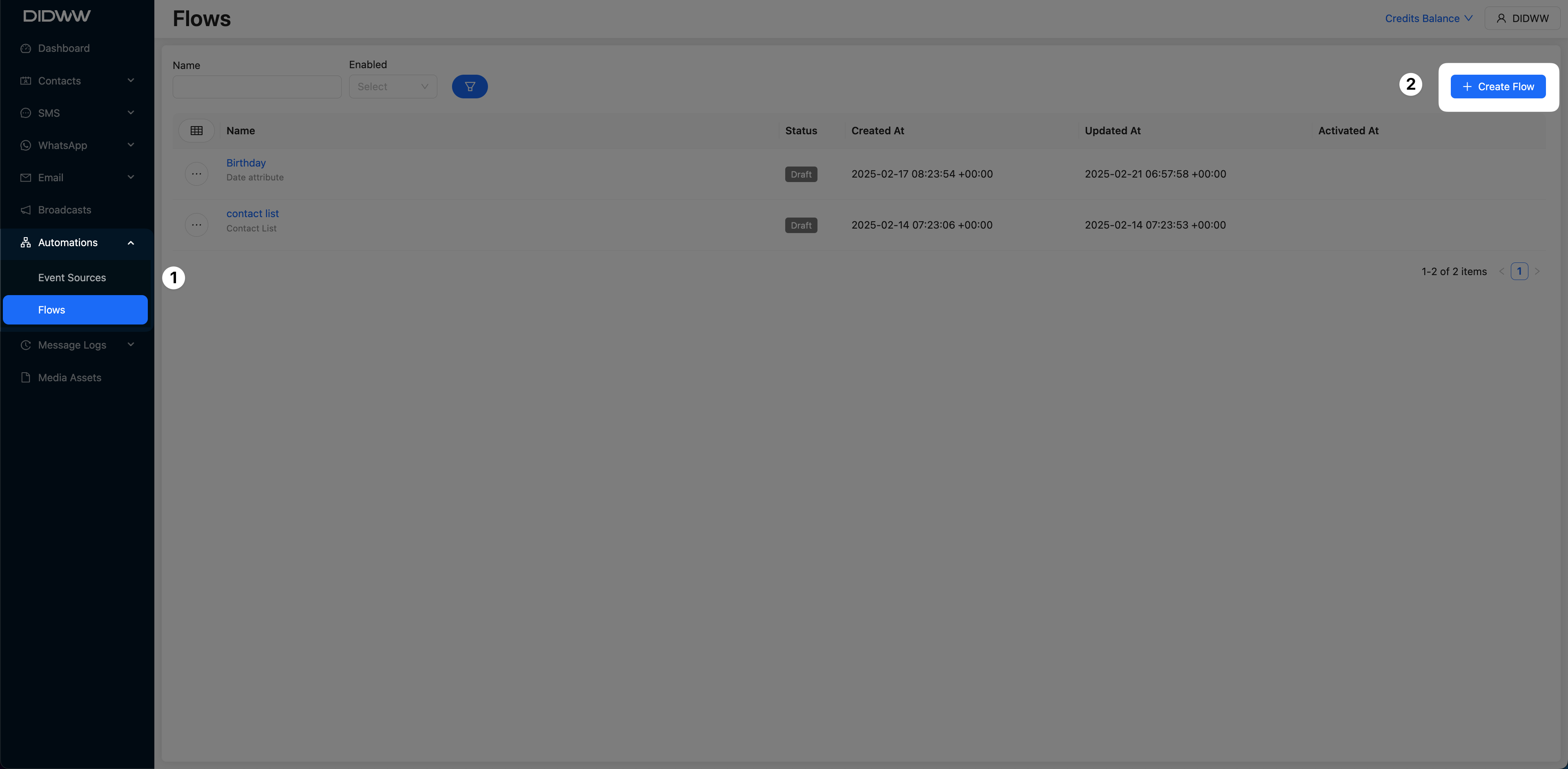
Fig. 1. Open the Create Flow Panel.
Step 2: Select the Webhook Received Trigger
Enter a descriptive name for your flow.
In the Select a trigger window, choose Webhook Received.
Click OK to confirm.
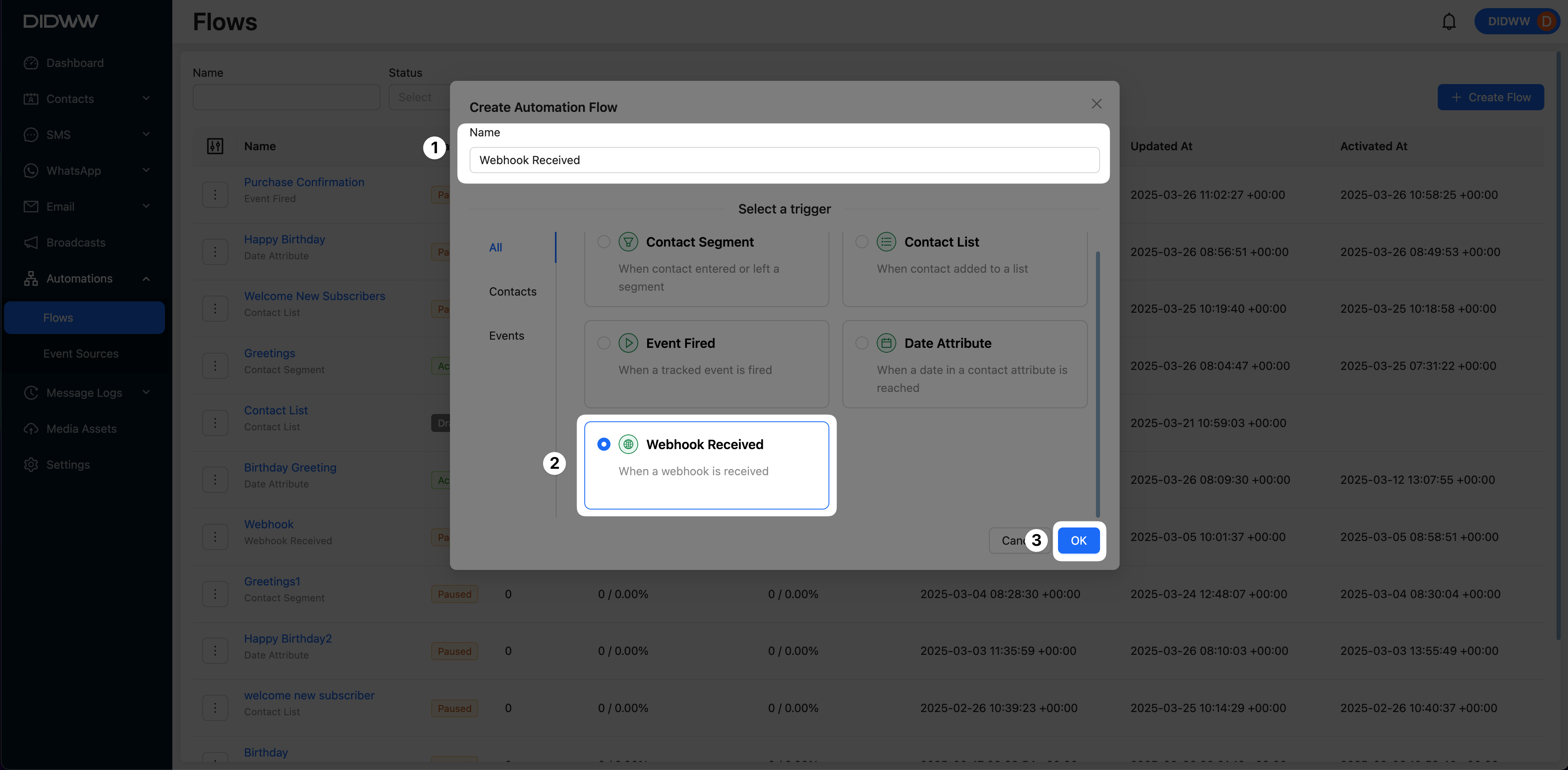
Fig. 2. Select the Webhook Received Trigger.
Step 3: Edit the Webhook Received Trigger
To proceed with the automation setup, the Webhook Received Trigger must be configured. This is a required step before the flow can be activated.
You can edit the Webhook Received Trigger using one of the following methods:

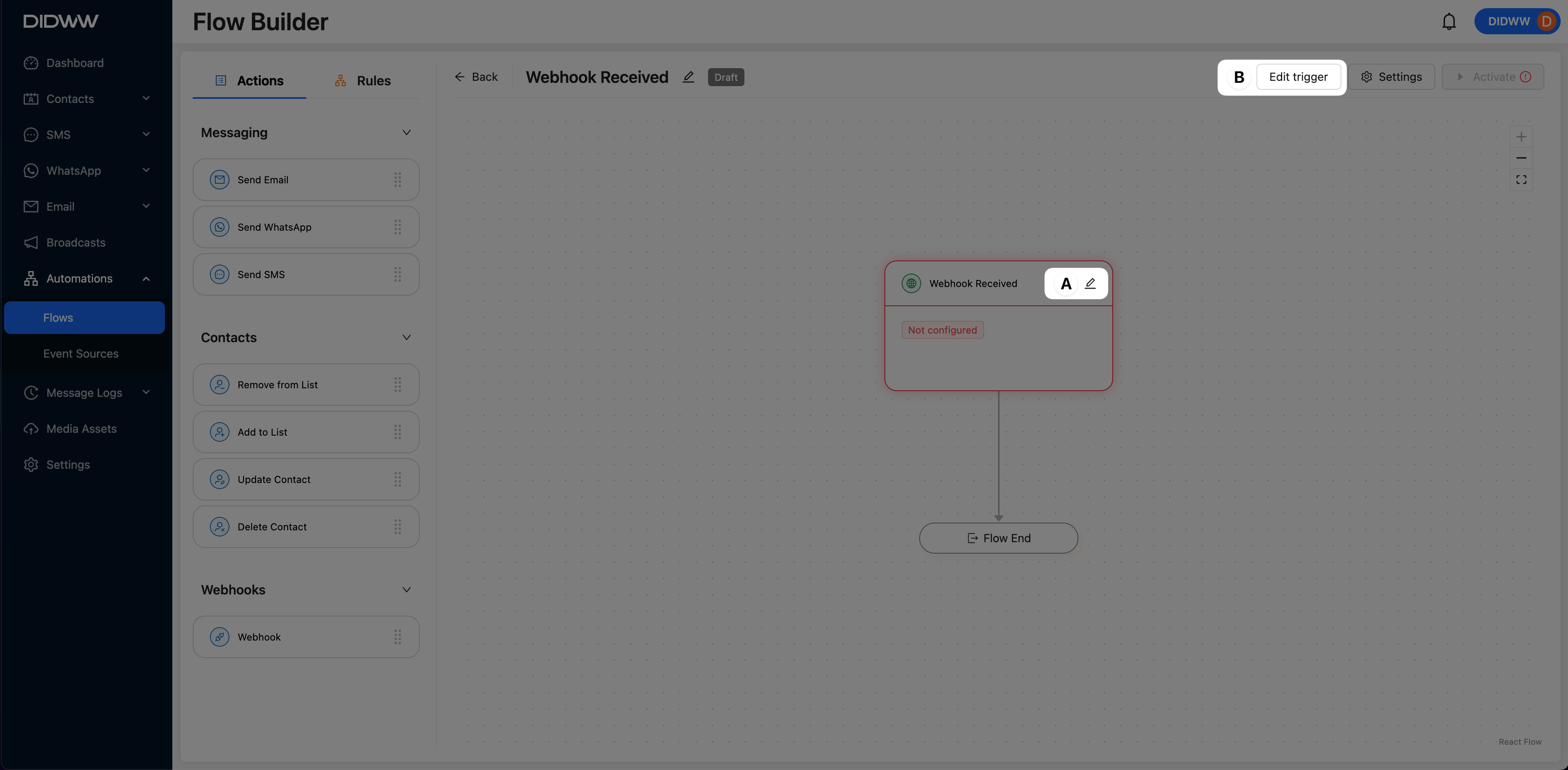
Fig. 3. Edit the Webhook Received Trigger.
Step 4: Configure the Webhook Received Trigger
In the Edit Webhook Received Trigger panel, complete the following steps:
Copy the Webhook URL – Use this URL to send POST requests with a JSON payload from your external system.
Send a Test Request - Use the following cURL command to simulate a webhook request. This example includes default Contact Attributes.
curl -X POST https://messaging.didww.com/messaging/v1/webhook/3bb11111405b19531edf311111308967 \
-H "Content-Type: application/json" \
-d '{
    "messaging_id": "123",
    "contact_id": "456",
    "first_name": "John",
    "last_name": "Doe",
    "full_name": "John Doe",
    "phone_number": "+1234567890",
    "email": "john.doe@example.com",
    "timezone": "UTC+0",
    "country": "US",
    "sms_subscribed": true,
    "email_subscribed": true,
    "wa_subscribed": false,
}'
Note
Replace the example Webhook URL with your unique Webhook Endpoint as displayed in the trigger configuration panel.
Review Sample Data – After a successful webhook call, the incoming JSON payload will appear as sample data in the panel. You can also select the timestamp of the most recent log that was received.
(Optional) Apply Filters – Define conditions to control which webhook events trigger the automation:
Use All of (AND) or At least one (OR) logic to group multiple conditions.
Click + Add Condition / Group.
Select a condition, such as Contact Attribute: SMS Subscribed = True.
Identify or Create Contact – Match incoming webhook data to an existing contact, or create a new one if no match is found.
Select an identifier type (e.g., Contact ID, Email, Phone Number, Messaging ID).
Specify the source of the identifier:
Trigger data attribute – Match values from the webhook payload.
Static: Overwrite the incoming data in the POST request with predefined static values.
Enable Create contact if not found to allow automatic contact creation, and click Add Attributes to map additional data fields from the payload.
Example
When a POST request includes the
phone_numberfield, the system checks if a contact with that number exists. If contact does not exist, a new contact is created using the provided data such asfirst_name,last_name,email, and subscription statuses.Static fields (e.g.,
email_subscribed,sms_subscribed) can be set to Yes by default.Click Save to proceed to the flow builder configuration.
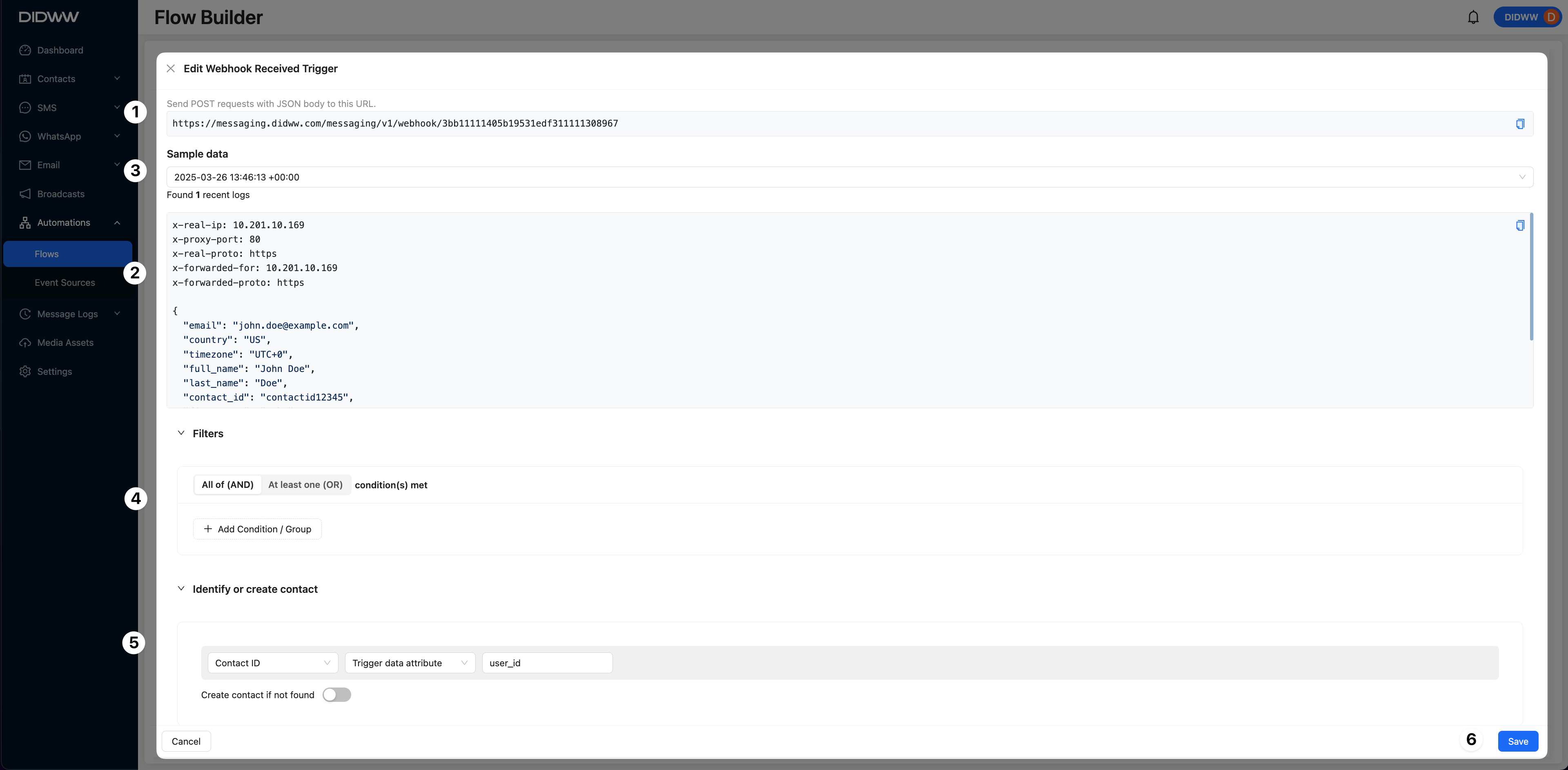
Fig. 4. Webhook Received Trigger Configuration.
Step 5: Build the Automation Flow
After configuring the Webhook Received trigger, proceed to build the automation flow using available Actions and Rules in the drag-and-drop interface.
To build your automation flow, you will use two types of components:
Actions – Define what should happen when the webhook is received (e.g., send a message, update a contact attribute).
Rules – Add logic-based conditions to control how and when actions are executed (e.g., wait, branch, check contact attributes).
Start by adding an action. For example, to send a confirmation email:
From the Actions panel, select Send Email.
Drag the Send Email object to the + rectangle in the automation flow canvas.
Once placed, a configuration window will appear where you can customize the email content and sender information.
Repeat this process to include additional messaging actions or conditional logic based on your use case and the webhook data.
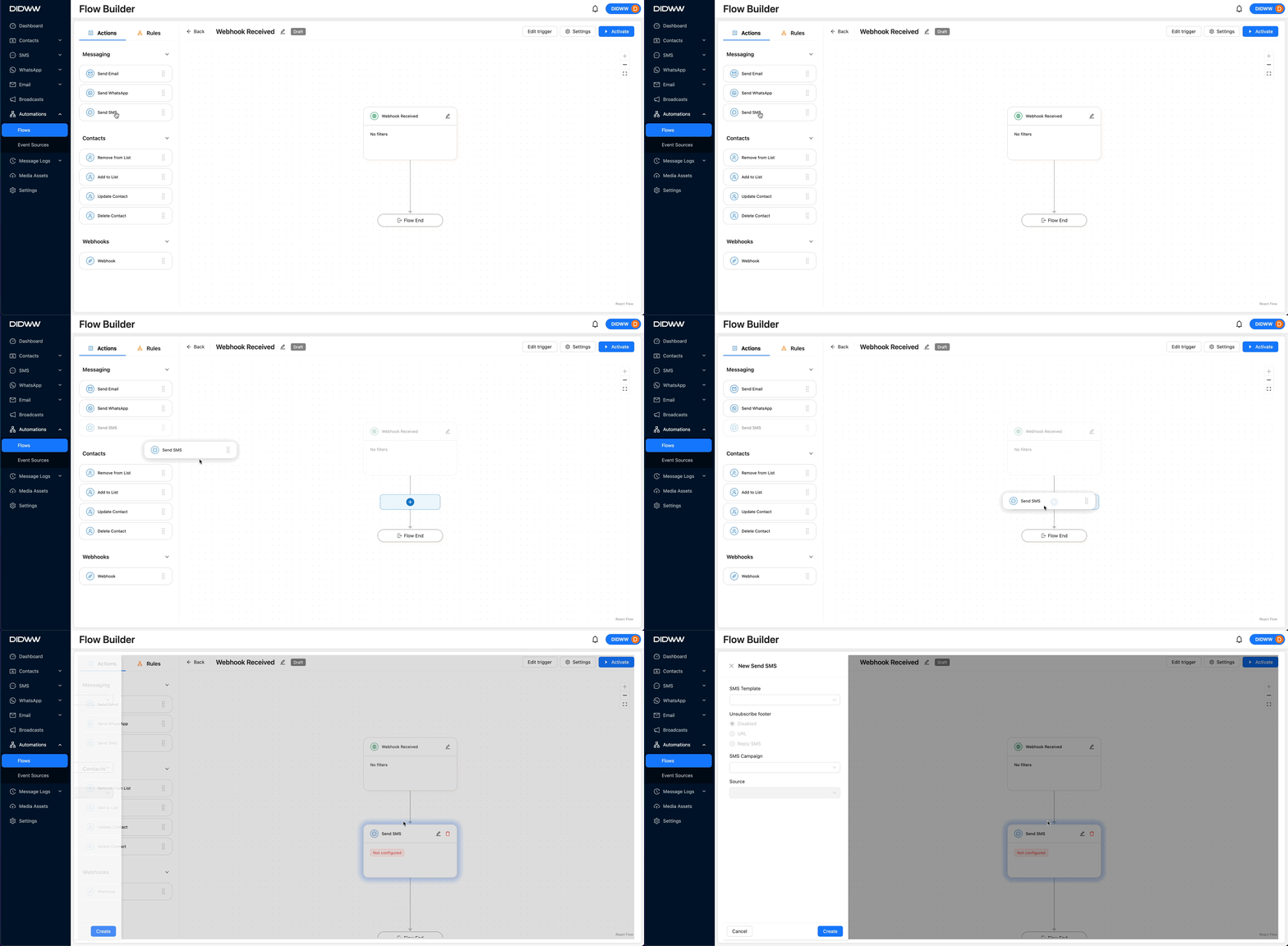
Fig. 5. Flow Builder.
Once you’re familiar with the drag-and-drop interface, explore the available Actions and Rules using the link below to configure your automation logic in detail:
Actions in Flow Builder
Actions define what happens when a flow is triggered. These actions allow you to send messages, update contact information, manage lists, or interact with external systems.
The table below outlines each available action, including a description, required inputs, and common usage examples.
Action |
Description |
Inputs Required |
Usage Examples |
|---|---|---|---|
Sends an email to the contact using a predefined template. |
|
|
|
Sends a WhatsApp message via the WhatsApp Business API using |
|
|
|
Sends an SMS message using a selected template and Sender ID. Supports opt-out footers for compliance. |
|
|
|
Removes a contact from a specified list. Useful for segmentation and managing opt-outs. |
|
|
|
Adds a contact to a specified list. Used for managing subscriptions or categorizing contacts. |
|
|
|
Updates a contact’s attributes such as name, |
|
|
|
Permanently deletes a contact from the system. Used for compliance or list cleanup. |
|
|
|
Sends structured data to external systems via an HTTP request. Enables real-time integrations. |
|
|


Rules in Flow Builder
Rules define the logic that controls how and when actions are executed within an automation flow. They are used to introduce delays, evaluate conditions, and create decision branches based on contact data or behavior.
The table below describes the available rules, including what each rule does, the configuration inputs required, and examples of when to use them.
Rule |
Description |
Inputs Required |
Usage Examples |
|---|---|---|---|
Pauses the flow for a specified duration before executing |
|
|
|
Splits the flow into two paths based on whether a condition |
|
|


For detailed configuration steps and advanced usage, see the full documentation:
View the full guide on how to configure each available automation flow Action and Rule in the Flow Builder.
Step 6: Activate the Automation Flow
Once you’ve configured the main trigger object and built the flow based on your use case, you’re ready to activate the automation.
Note
The Activate button will be disabled if the trigger object (shown at the top of the flow) has not been configured. To complete this setup, click Edit Trigger or refer to Step 3.
After activation, you can pause the automation at any time if you need to make changes or temporarily stop the flow.
Follow these steps to activate the flow:
Click Activate in the top-right corner of the automation flow builder.
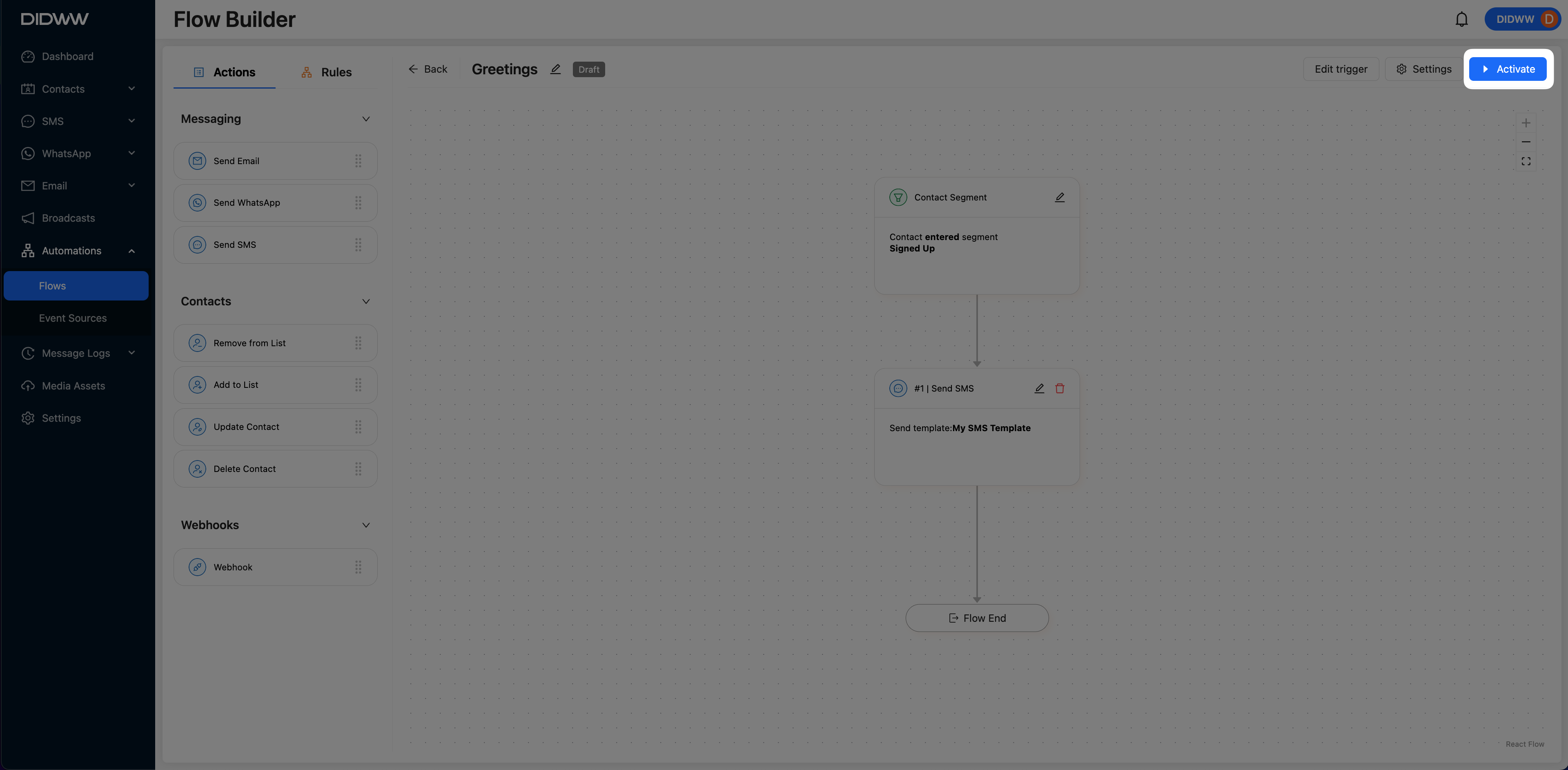
Fig. 6. Activate Button in the Flow Builder.
A modal window appears with optional settings you can configure before activating the flow:
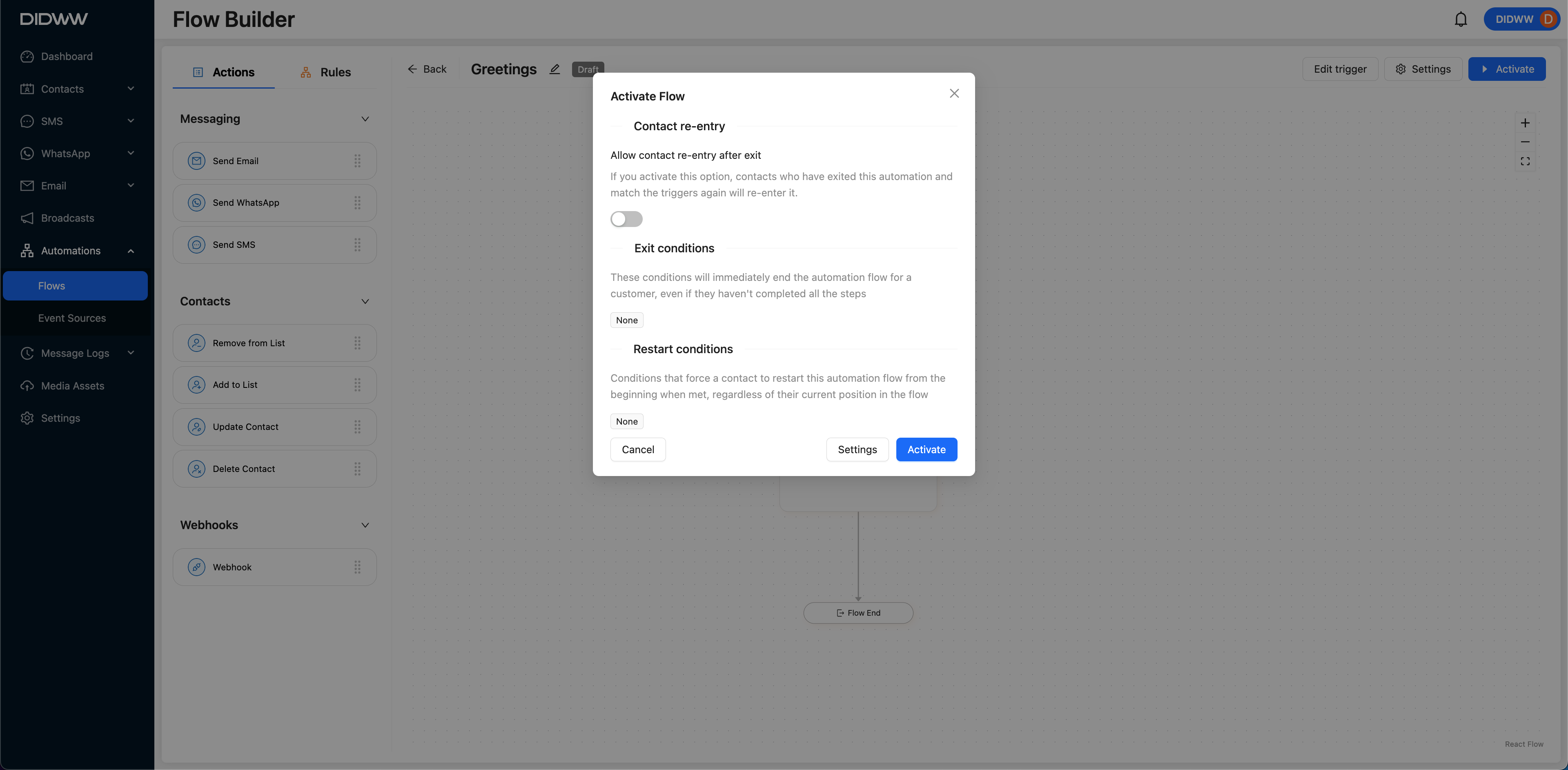
Fig. 7. Activate Flow Confirmation Window.
In the Activate Flow window, you can configure optional settings to control how contacts enter, exit, or restart the automation:
Option |
Description |
|---|---|
Allow contact re-entry after exit |
Allows contacts to re-enter the automation if they meet the trigger conditions again after exiting. |
Set up wait time (only visible if re-entry is enabled) |
Specifies how long the system should wait before checking if the contact matches the trigger conditions again. |
Exit conditions |
Defines when a contact should immediately exit the flow. For example, when they leave the target segment. |
Restart conditions |
Forces a contact to restart the flow from the beginning, regardless of their current progress. |
Note
To configure Exit Conditions and Restart Conditions, click the Settings button inside the modal. These settings are optional and depend on your flow logic.
Tip
Adding the exit condition “contact exits the segment” is recommended when you want to stop contacts from continuing through the flow if they no longer belong to the segment. This helps ensure the automation behaves as intended.
Once you’ve reviewed or configured the optional settings, click Activate to launch the automation.
The flow status will change from
 to
to
 and will automatically run based on the defined segment entry and exit conditions.
Edit the Webhook Received Automation Flow
To update an existing webhook received automation flow, use the Flow Builder to access and modify its configuration. Follow the steps below to edit the flow, including its trigger, actions, and other components.
Navigate to Automations > Flows.
Find the flow in the list.
Click the flow name or the Action button (…) and select Builder.
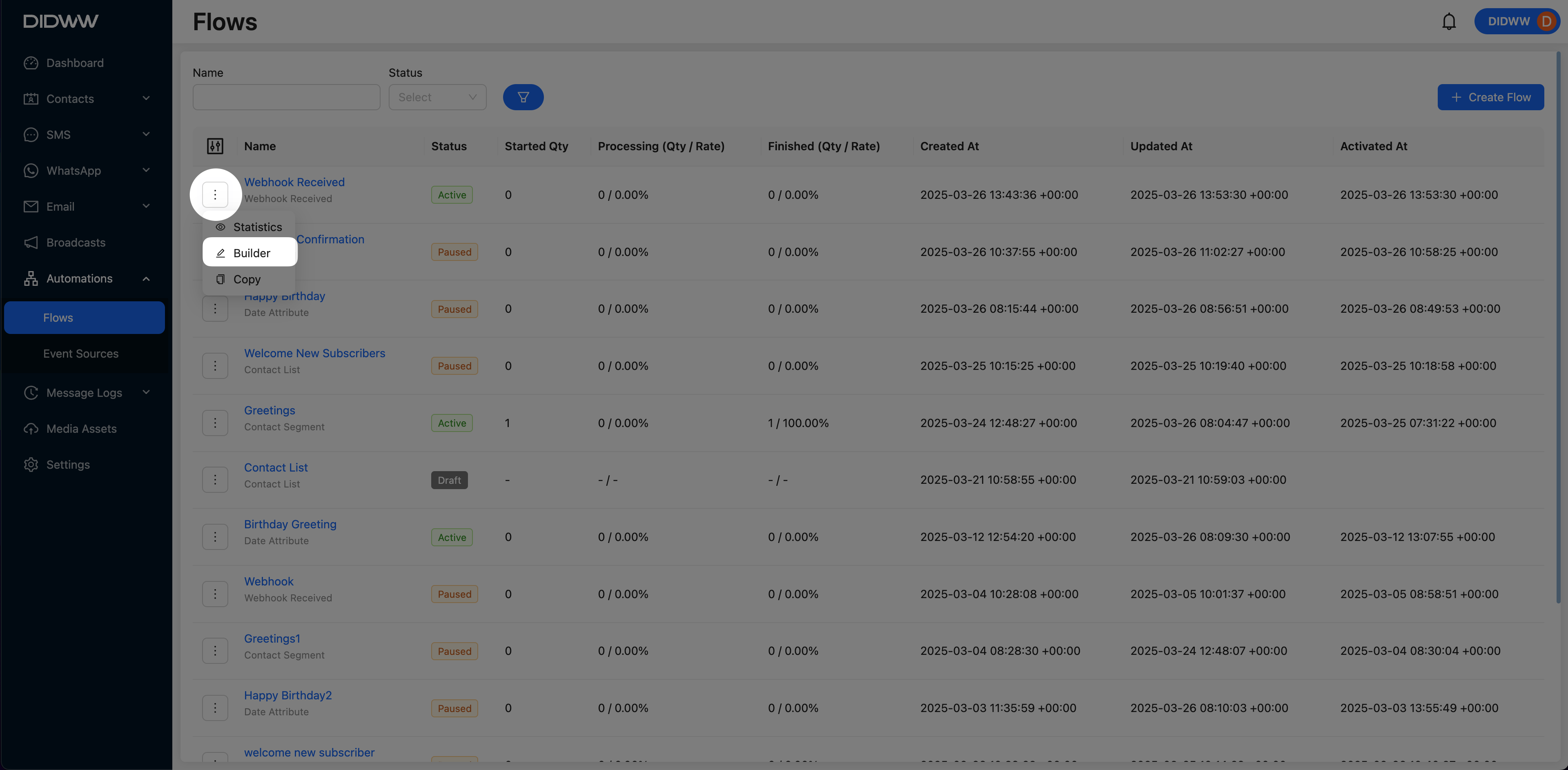
Fig. 8. Edit the Webhook Received Automation Flow.
Pause an Active Webhook Received Automation Flow
To temporarily stop an automation from running, you can pause the webhook received automation flow. Follow the steps below to access the Flow Builder and pause the active flow.
Navigate to Automations > Flows.
Find the flow in the list.
Click the flow name or the Action button (…) and select Builder.
In the Flow Builder, click the Pause button to stop the automation flow.
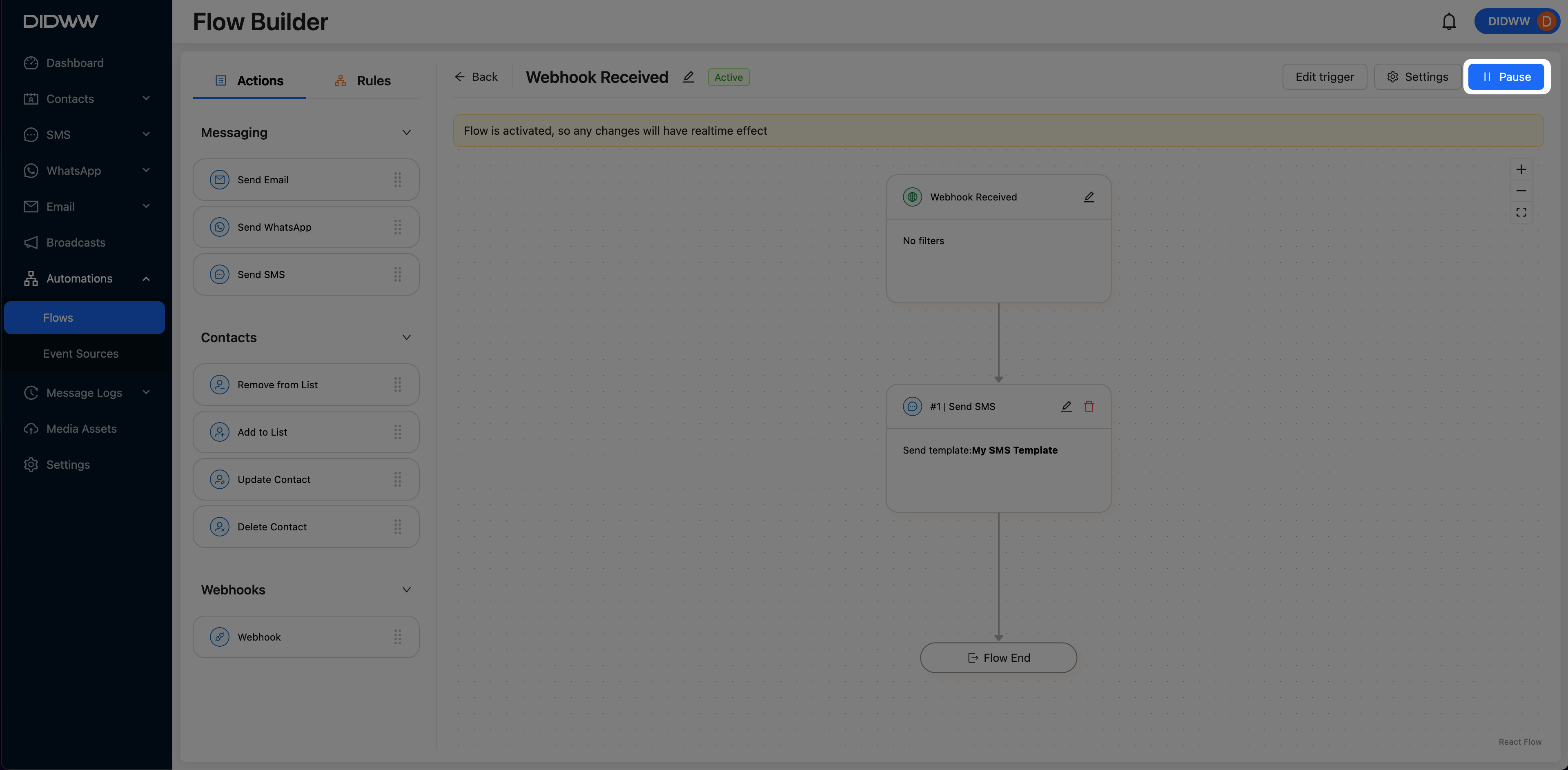
Fig. 9. Pausing Webhook Received Automation Flow.
Activate a Paused Webhook Received Automation Flow
To resume a previously paused webhook received automation flow, follow the steps below. During activation, you can review and adjust settings such as re-entry rules, wait times, and exit or restart conditions before reactivating the flow.
Navigate to Automations > Flows.
Find the flow in the list.
Click the flow name or the Action button (…) and select Builder.
In the Flow Builder, click Activate to reactivate the automation flow.
A modal window appears with optional settings you can configure before activating the flow. These settings control how contacts enter, exit, or restart the automation. Adjust them as needed before proceeding. To learn more about optional settings, see Step 6: Activate the Automation Flow.
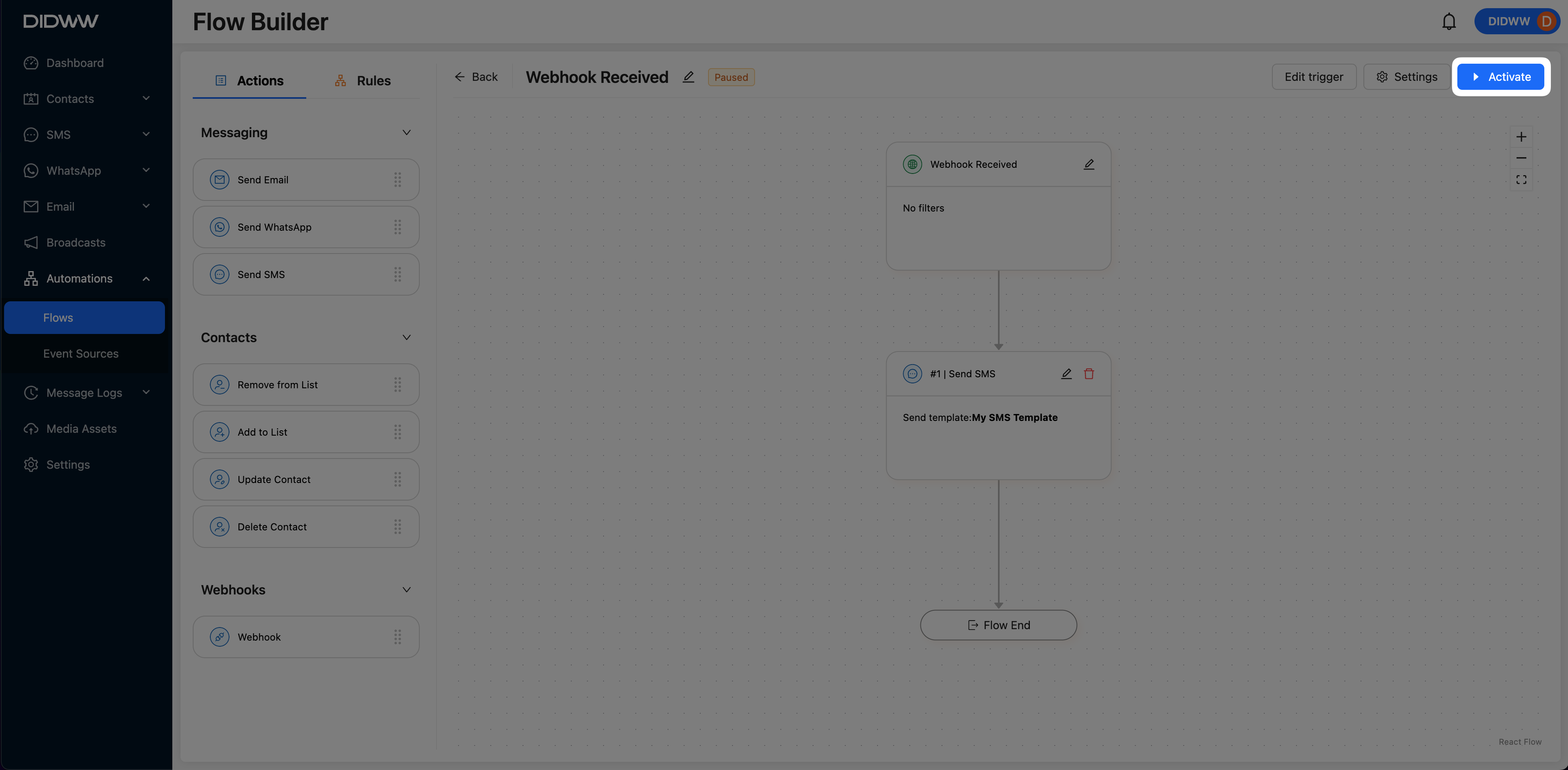
Fig. 10. Activating Webhook Received Automation Flow.
Explore Other Automation Flow Trigger Types
Automate messaging when a contact enters or exits a segment. Ideal for lifecycle marketing, engagement campaigns, and audience-based automation.
Automate messaging when a contact is added to a list. Useful for welcome sequences and segmentation.
Run automations based on date-based attributes, such as birthdays, subscription renewals, or appointment reminders.
Trigger flows based on external events, such as purchases, cart abandonments, or user interactions. Requires event tracking configuration.