
 contact-center
Payments
Use the Payments page to review payment transactions in your workspace, check payment statuses, and download receipts.
Payments Overview
On the Payments page, you can filter payment records and review detailed information in the payments table.
Payments Filters
Use filters to narrow down the payment records displayed in the Payments table based on date range and status.
Filter |
Description |
|---|---|
Date |
Select a predefined or custom date range to display payments created within the selected timeframe. |
Status |
Filter payments by their current status. |
Note
The table is updates only after you select Filter.
Payments Table
The payments table shows recorded payment transactions in your workspace.
Column |
Description |
|---|---|
Actions |
Download the receipt for the selected payment record. |
Reference |
Unique payment reference used to identify the transaction. |
Created At |
Date when the payment record was created. |
Paid At |
Date when the payment was processed. |
Status |
Current payment status. |
Amount |
Payment amount in USD. |
Payment Statuses
The Status column may include the following values:
Status |
Description |
|---|---|
Completed |
The payment was successfully processed. |
Pending |
The payment is currently being processed. |
Requires Action |
Additional action is required to complete the payment. |
Canceled |
The payment was canceled and not completed. |
Download a Payment Receipt
You can download a receipt for any payment record in the table.
In Billing → Payments, locate the payment record.
Click the download icon under the Actions column.
The receipt opens in a new browser window, where you can download or print it.
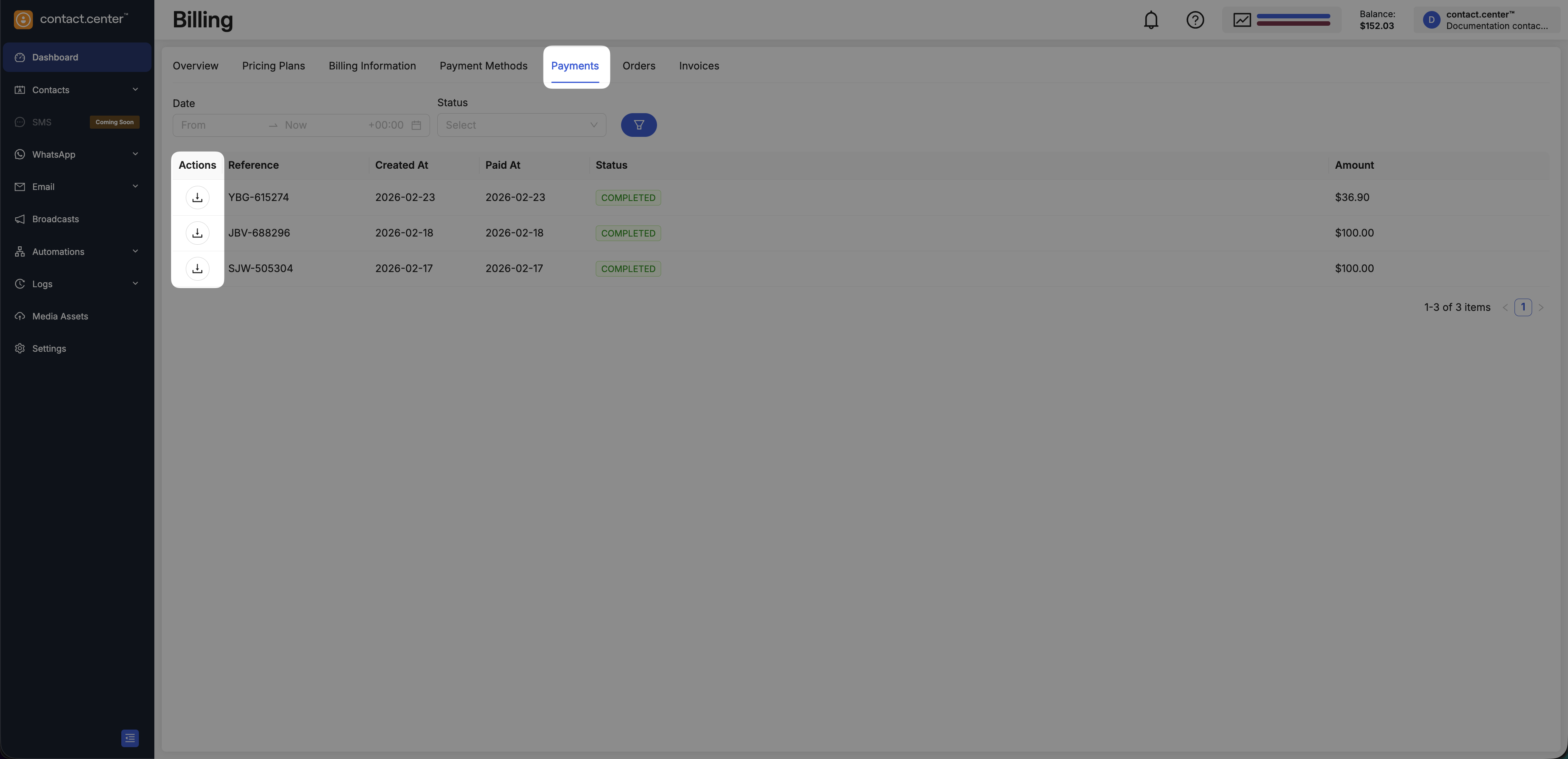
Fig. 3. Download receipt