
 contact-center
JavaScript Event Sources
A JavaScript Event Source enables tracking and sending of user interactions directly from a website or web application. This is achieved by embedding a JavaScript snippet into the website’s code. The snippet loads a lightweight analytics library that listens for predefined events such as page views, button clicks, and form submissions. These events are then transmitted to the contact.center™ for further processing.
Use JavaScript Event Sources as an example to:
Track page views as users navigate a website.
Capture button clicks, such as “Sign Up” or “Purchase” interactions.
Monitor form submissions to collect user input, like email addresses or feedback.
Identify user sessions and behaviors to improve customer engagement.
Often, when events occur, you may want to perform an action in response. JavaScript enables you to execute code dynamically when events are detected.
Add & Configure JavaScript Event Source
To configure JavaScript Event Source, follow these steps:
Go to Automations -> Event Sources.
Click Add Event Source and select JavaScript.
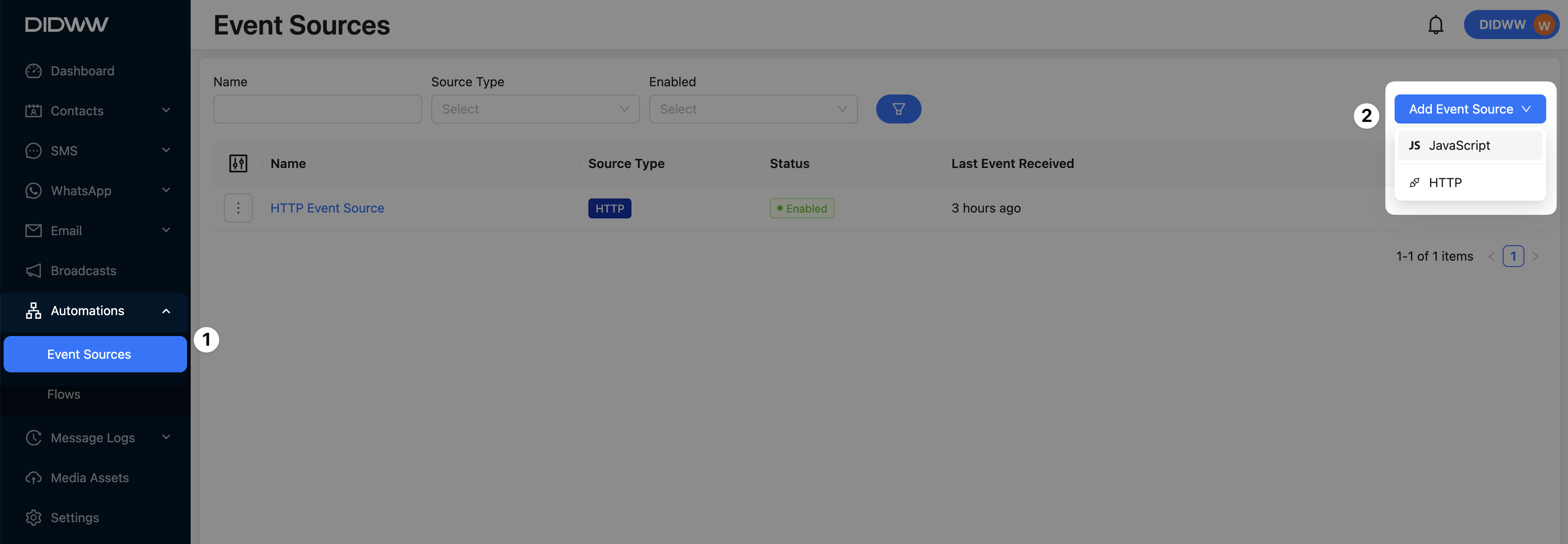
Fig. 1. Add Event Source.
Enter a name for the JavaScript event source and click OK.
On the details page, follow the configuration instructions.
Copy the JavaScript snippet provided in the configuration page.
Paste the JavaScript snippet inside the
<head>section of your website. Example:
<head>
    <title>My Website</title>

    <script>
        !function(){var i="analytics",analytics=window[i]=window[i]||[];if(!analytics.initialize)if(analytics.invoked)window.console&&console.error&&console.error("Snippet included twice.");else{analytics.invoked=!0;analytics.methods=["trackSubmit","trackClick","trackLink","trackForm","pageview","identify","reset","group","track","ready","alias","debug","page","screen","once","off","addSourceMiddleware","on","setAnonymousId"];analytics.factory=function(e){return function(){if(window[i].initialized)return window[i][e].apply(window[i],arguments);var n=Array.prototype.slice.call(arguments);if(["track","screen","alias","group","page","identify"].indexOf(e)>-1){var c=document.querySelector("link[rel='canonical']");n.push({__t:"bpc",c:c&&c.getAttribute("href")||void 0,p:location.pathname,u:location.href,s:location.search,t:document.title,r:document.referrer})}n.unshift(e);analytics.push(n);return analytics}};for(var n=0;n<analytics.methods.length;n++){var key=analytics.methods[n];analytics[key]=analytics.factory(key)}analytics.load=function(key,n){var t=document.createElement("script");t.type="text/javascript";t.async=!0;t.setAttribute("data-global-msg-analytics-key",i);t.src="https://messaging.didww.com/analytics/cdn/" + key + "/analytics.min.js";var r=document.getElementsByTagName("script")[0];r.parentNode.insertBefore(t,r);analytics._loadOptions=n};analytics._writeKey="your_writeKey";;analytics.SNIPPET_VERSION="5.2.0";analytics._cdn = "https://messaging.didww.com";
            analytics.load("your_writeKey");
            analytics.page();
        }}();
    </script>
</head>
Note
If you copy the snippet from the documentation page, instead of the contact.center™, replace
your_writeKeywith the actualwriteKeyprovided in your Event Source configuration.The
writeKeyis unique per event source and is required for data tracking.
Open your website and refresh the page. This will automatically send a Page event.
Go back to the Event Source Details page and click Check Connection to confirm that data is being received.
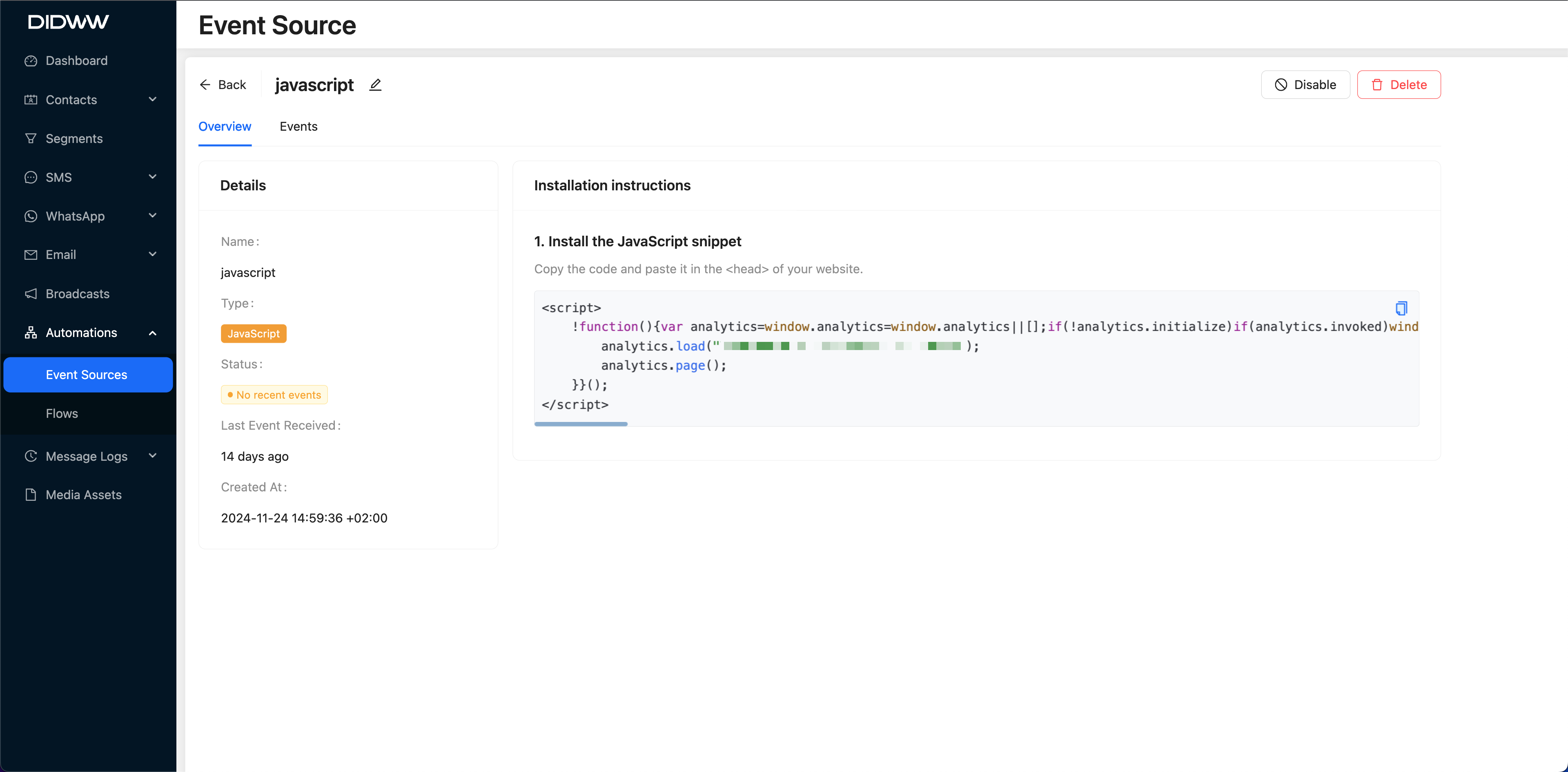
Fig. 2. JavaScript configuration.
Note
When you click the Check Connection button, the server verifies whether the code snippet has been added correctly:
If the connection is successful, the status will change from No activity to No recent events.
If the connection fails, you will see the message:
“Source is not connected. We haven’t received any data. Please verify that the Source is installed correctly.”
Event Source Statuses
JavaScript Event Source can have one of the following statuses:
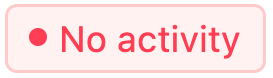 : The event tracking script is installed and added, but no events have been received yet.
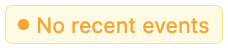 : The Event Source is enabled, but no activity has been detected within the designated time period.
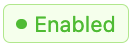 : The Event Source is enabled, and events are being received.
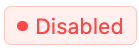
View Captured JavaScript Events
To view the events associated with a source, follow the steps below:
Go to Automations > Event Sources.
Select the event source, click the Actions (…) button, and choose Details, or click the source name.
In the Details page, click the Events tab. If events were sent, the latest event appears at the top.
Click an event to expand it and view additional details, including attributes that were delivered.
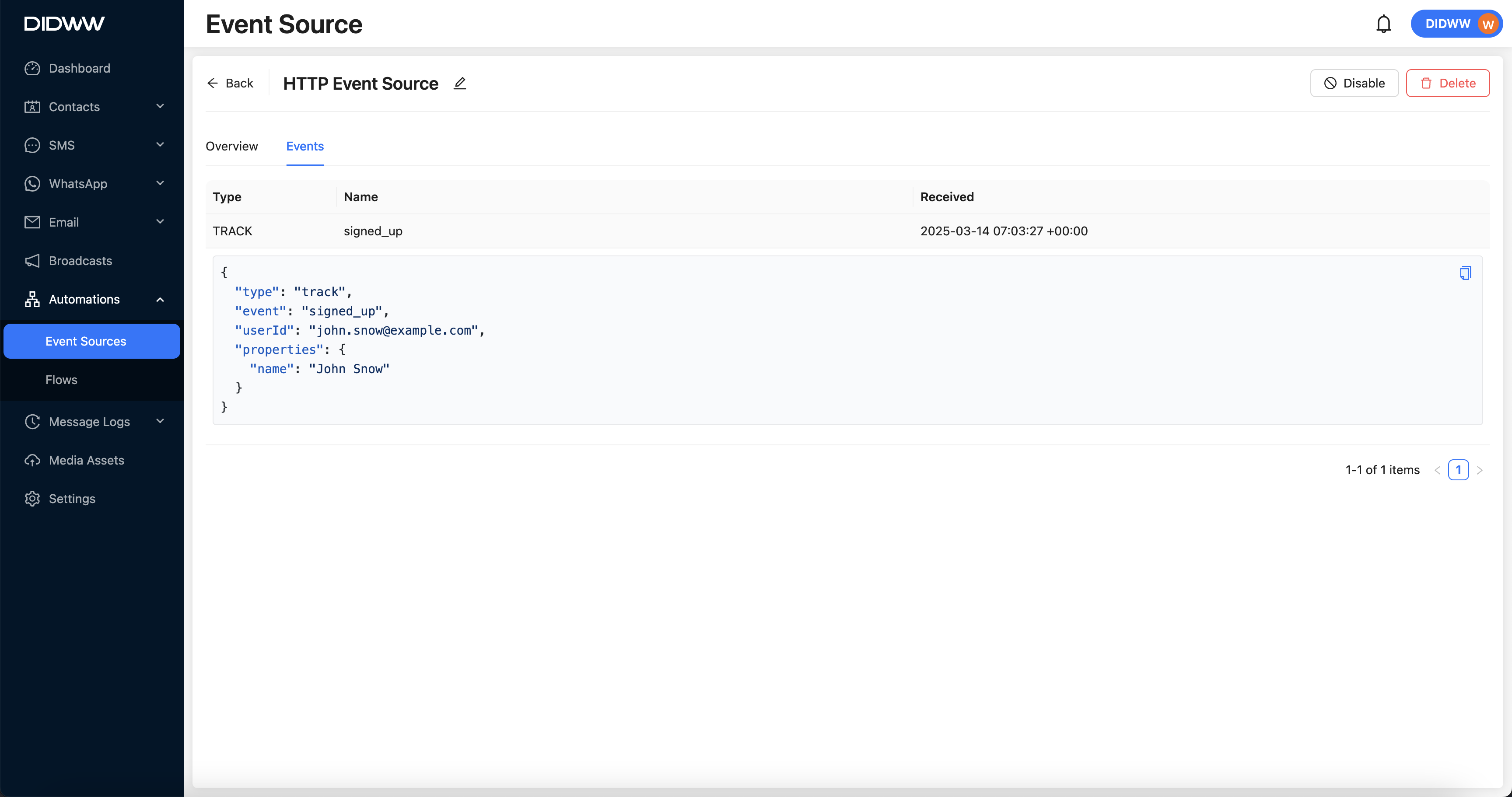
Fig. 3. Viewing events.
How Does JavaScript Event Tracking Work?
JavaScript event tracking involves listening for user interactions, either through built-in event handlers or analytics libraries. The specific events tracked depend on how the tracking is implemented and how the website’s elements are structured.
To effectively track events, consider these two key factors:
Code implementation
Event tracking can be implemented in JavaScript using native event listeners or third-party analytics tools, for example:
Use
analytics.page();to automatically track page views.Use
analytics.track("Button Clicked");to track button clicks.Use
addEventListenerto manually capture events before sending them to the analytics library.
Website structure
The structure of your website affects how events are tracked and how easily they can be managed:
The way HTML elements are named and structured determines what data can be collected. Assigning clear and unique identifiers (IDs and classes) to elements ensures accurate tracking.
Properly structured elements make it easier to attach event listeners and send meaningful data to analytics platforms.
Example 2: Tracking Form Submissions
Track form submissions by detecting when a user submits a form and sending the event data to the analytics platform. This ensures user interactions with important forms are recorded for insights.
document.getElementById("signup-form").addEventListener("submit", function(event) {
    event.preventDefault(); // Prevent default form submission
    window.analytics.track("Sign Up Form Submitted", {
        form_name: "Newsletter Signup",
        user_email: document.getElementById("email-input").value,
        page_url: window.location.href,
        referrer: document.referrer
    });
});
In this example, the script tracks when a user submits the form and records key details:
It captures when the form with
id="signup-form"is submitted.It sends a
Sign Up Form Submittedevent using window.analytics.track().It includes additional details such as form name, user email, page URL, and referrer information.
Troubleshooting JavaScript Event Sources
To ensure the JavaScript tracking script is working correctly, follow these steps:
1. Check Connection in the Event Sources Dashboard
Open the Event Sources Dashboard.
Click Check Connection to verify that event data is being received.
If no events appear, proceed with the following troubleshooting steps based on your operating system.
2. Open the Developer Console
Use the browser’s Developer Console to inspect whether the script is loaded:
Windows/Linux (Chrome, Edge, Firefox): Press F12 or Ctrl + Shift + I
macOS (Chrome, Safari, Edge, Firefox): Press Cmd + Option + I
3. Verify if `window.analytics` is defined
Open the Console tab.
Type the following command and press Enter:
window.analyticsCheck the output:
If it returns a value, the script is loaded correctly.
If it returns undefined, ensure the script is properly included on the page.
4. Check Network Requests
Go to the Network tab.
Select Fetch/XHR to filter network requests.
Look for a request to
analytics.load(...).If no request is found, verify that the script is running on the page.
Note
These steps apply to most operating systems (Windows, macOS, Linux) with a compatible browser.
If using Safari on macOS, ensure Developer Features are enabled (Safari → Settings → Advanced → Show features for web developers).
Additional Troubleshooting Steps
If the event source is not working, follow these troubleshooting steps:
Check for JavaScript Errors: Open the browser’s Developer Console and look for any JavaScript errors.
Verify the WriteKey: Ensure that the correct
writeKeyis being used in the tracking script.Inspect Network Requests: Check the Network tab in Developer Tools to confirm that requests are being sent to the event tracking API.
Disable Ad Blockers and Tracking Prevention: Some browser settings or extensions may block JavaScript execution.
Test in an Incognito Window: This helps rule out conflicts caused by browser extensions or cached scripts.
Note
If none of these steps resolve the issue, contact our technical support team at support@didww.com .
Additional Resources
Explore JavaScript event handling concepts, including event listeners and interactions.
Read the API documentation for Event Sources HTTP integration, including setup and request structure.