
 contact-center
Top Up Balance
Use your account balance to pay for subscription upgrades, plan changes, and other chargeable services in contact.center™.
Before You Begin
Make sure you have at least one valid credit card.
Note
You can add a credit card in Payment Methods or during Step 2: Enter Amount and Choose Payment Method.
Step 1: Open the Top Up Balance Window
In the upper-right corner, select your balance.
In the panel that opens, select Top up balance.
Note
If this is your first payment, you may be asked to confirm or complete your Billing Information before you continue.
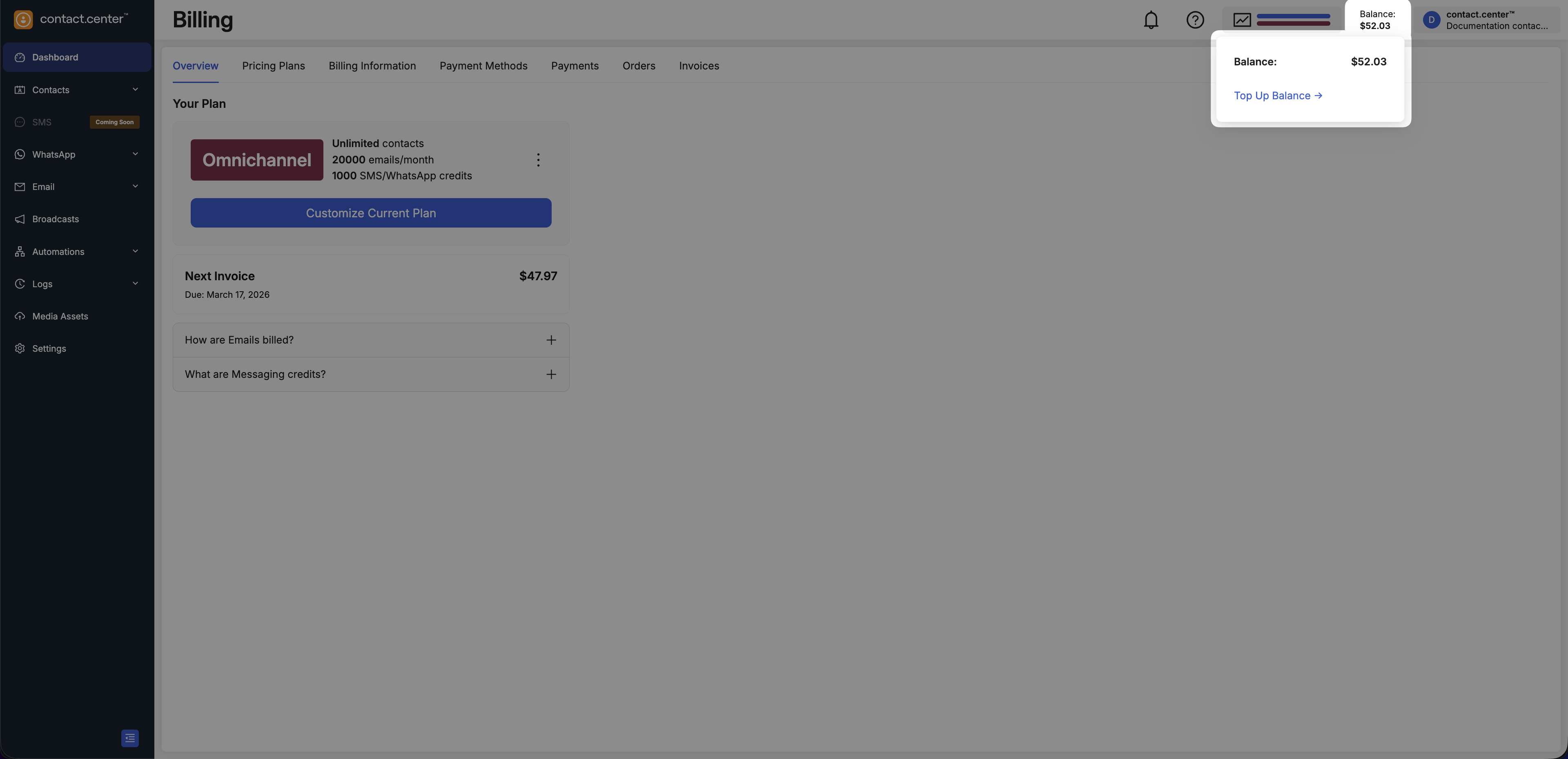
Fig. 1. Open the Top Up Balance window.
Step 2: Enter Amount and Choose Payment Method
In the Add funds window:
Enter the amount in the Amount field.
Select a credit card for payment.
Important
The minimum top-up amount is 30 USD.
Top-ups are processed in USD.
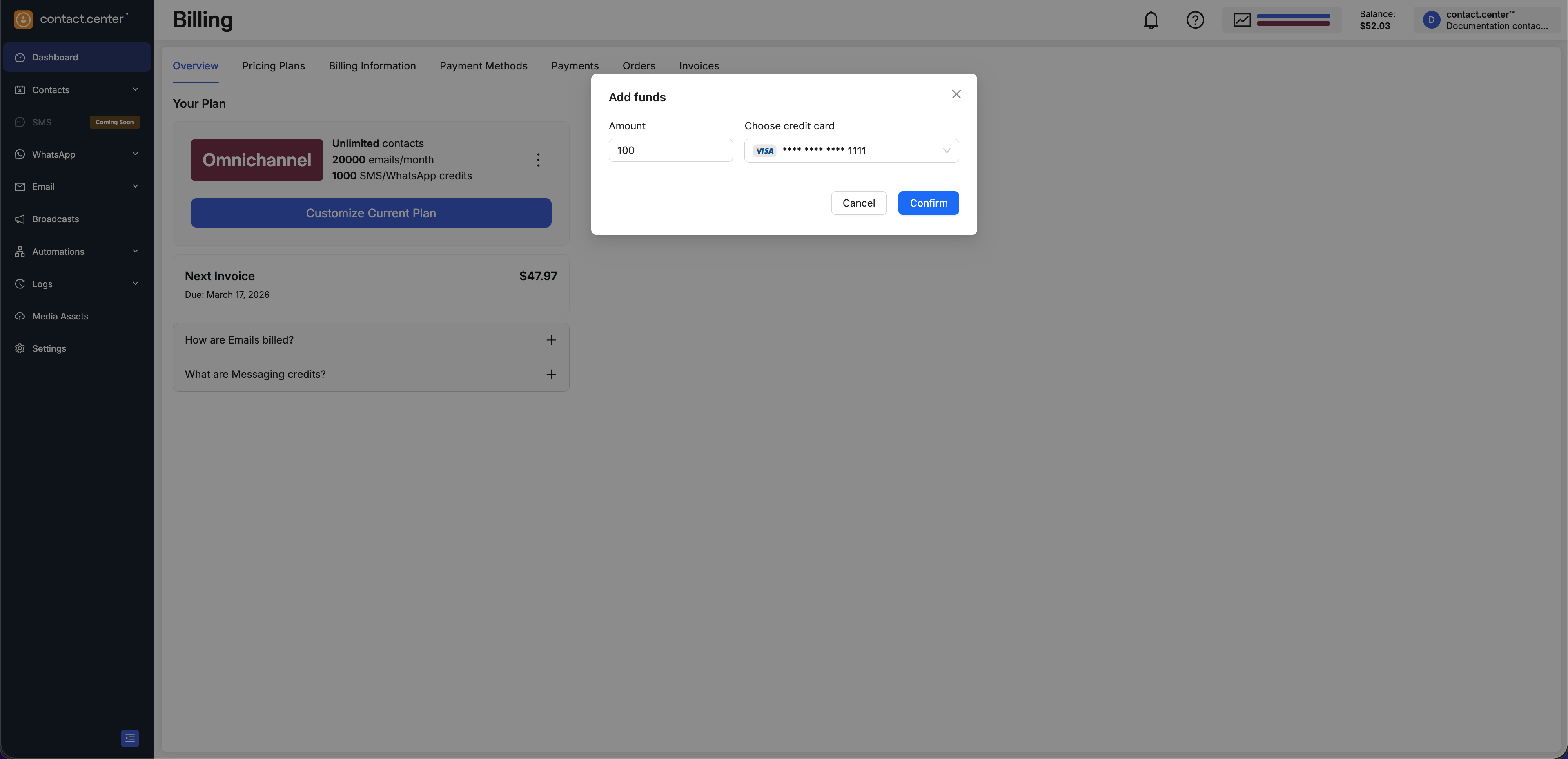
Fig. 2. Add funds window.
Open the Choose credit card dropdown.
Select a previously-saved credit card.
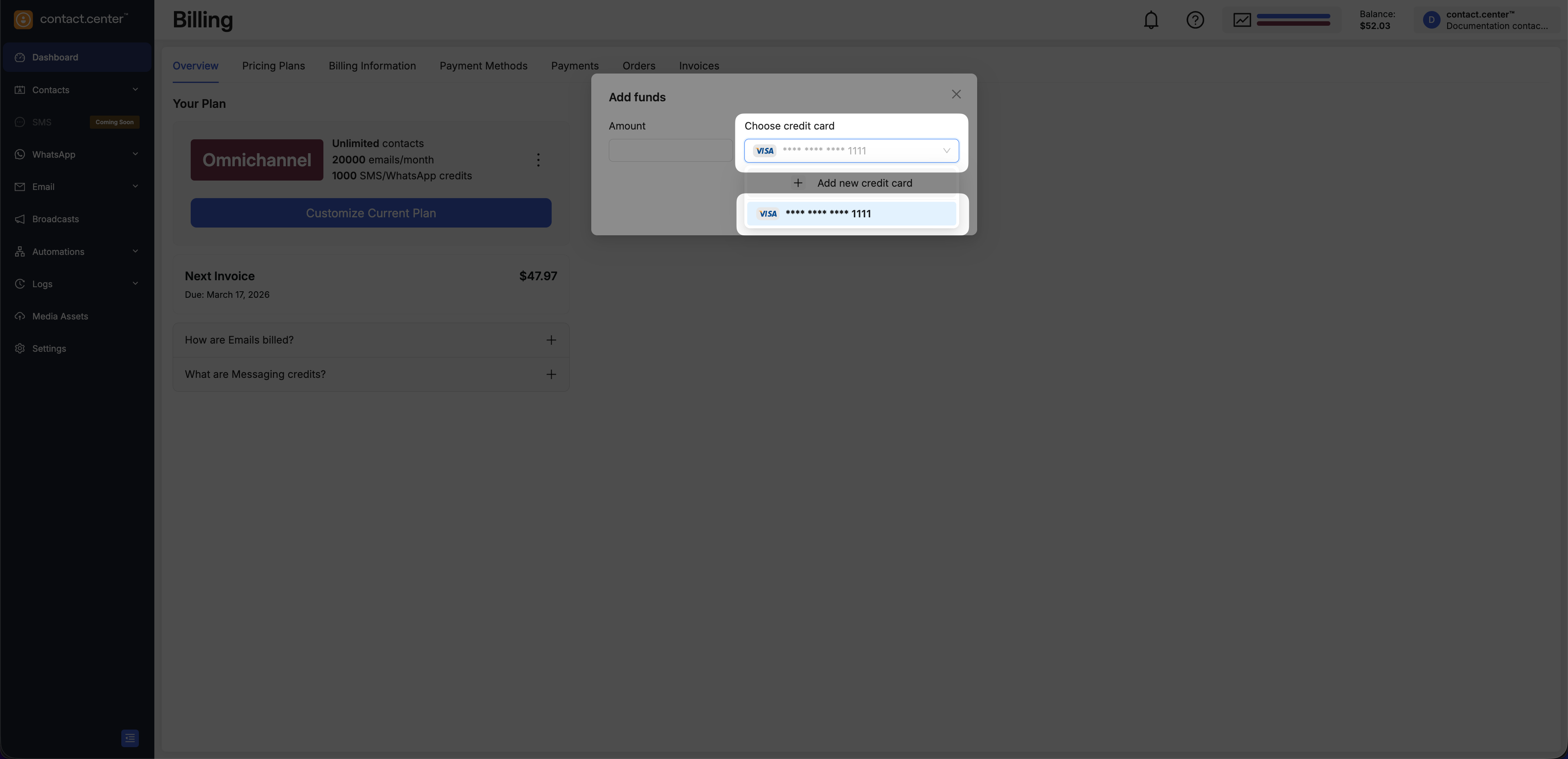
Fig. 3. Select an existing credit card in the Add funds window.
Open the Choose credit card list.
Select Add new credit card.
Enter the required card details.
Complete the Card billing address section.
Select Add card.
Select the new card in the Choose credit card list.
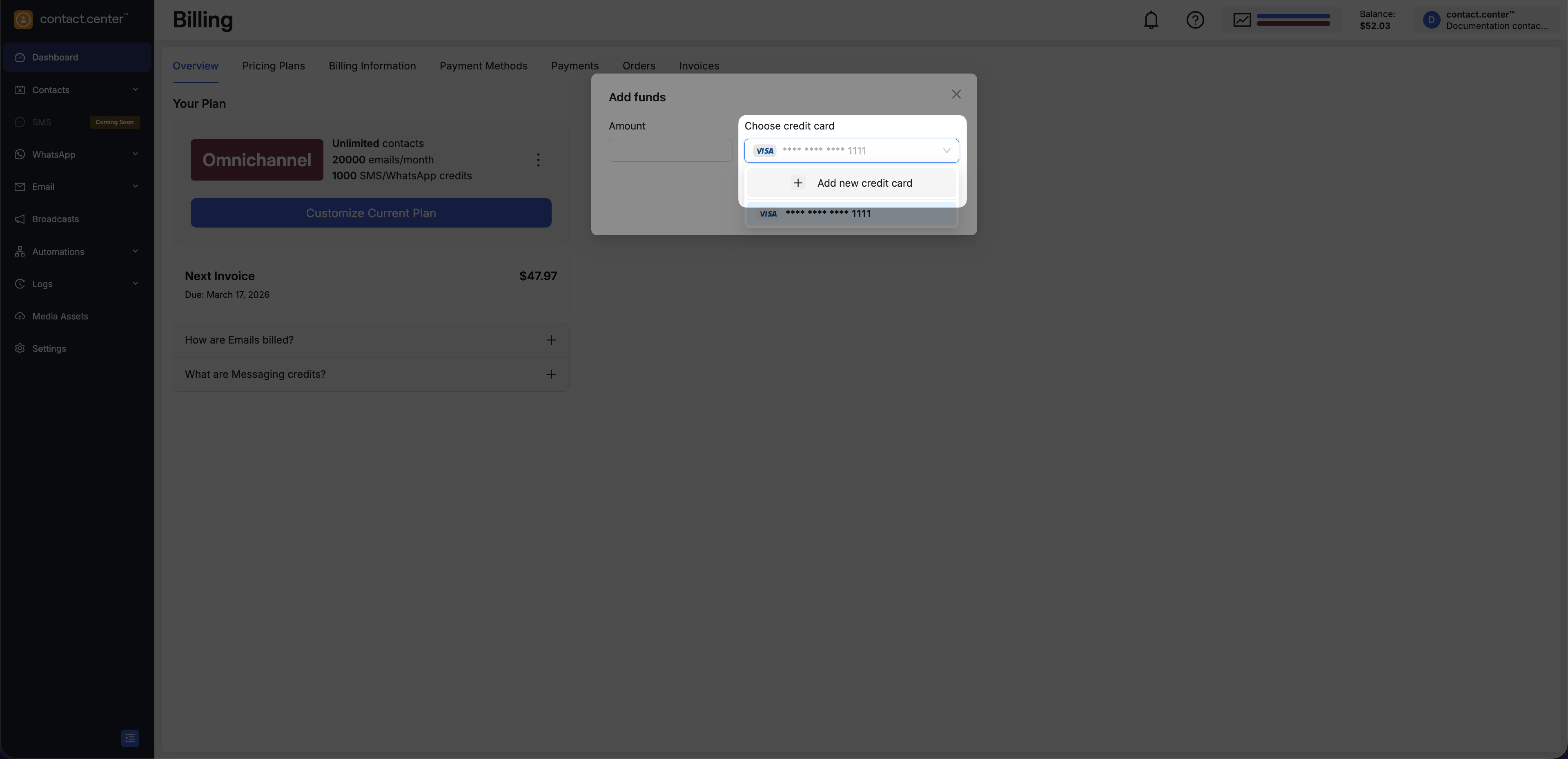
Fig. 4. Add new credit card option.
Step 3: Confirm Payment
Review the amount.
Verify the selected credit card.
Select Confirm.
After successful payment:
The funds are added to your account balance immediately.
The updated balance appears in the upper-right corner.
A confirmation message is displayed.
Note
If the payment fails, verify your card details or try a different payment method.