
 contact-center
SMS Templates
The SMS Templates in the contact.center™ allows you to create, edit, and manage standardized SMS messages for efficient and personalized communication.
In this section you can:
Create Templates: Design message templates using dynamic attributes to tailor content to individual recipients.
Edit and Manage: Modify existing templates, update content, and remove outdated ones.
Preview and Test: Send test messages to ensure formatting, placeholders, and unsubscribe options are working as expected.
Before You Begin
Before creating SMS templates, make sure you have:
An Active Sender ID – Required to send test SMS messages. To enable one, see Sender Settings.
A Positive Balance – Your account balance must be positive to send SMS messages successfully.
Creating a New SMS Template
To create a new SMS template, follow these steps.
Step 1: Open Create SMS Template Page
In the navigation menu, go to SMS > Templates, and then click + Create SMS Template.
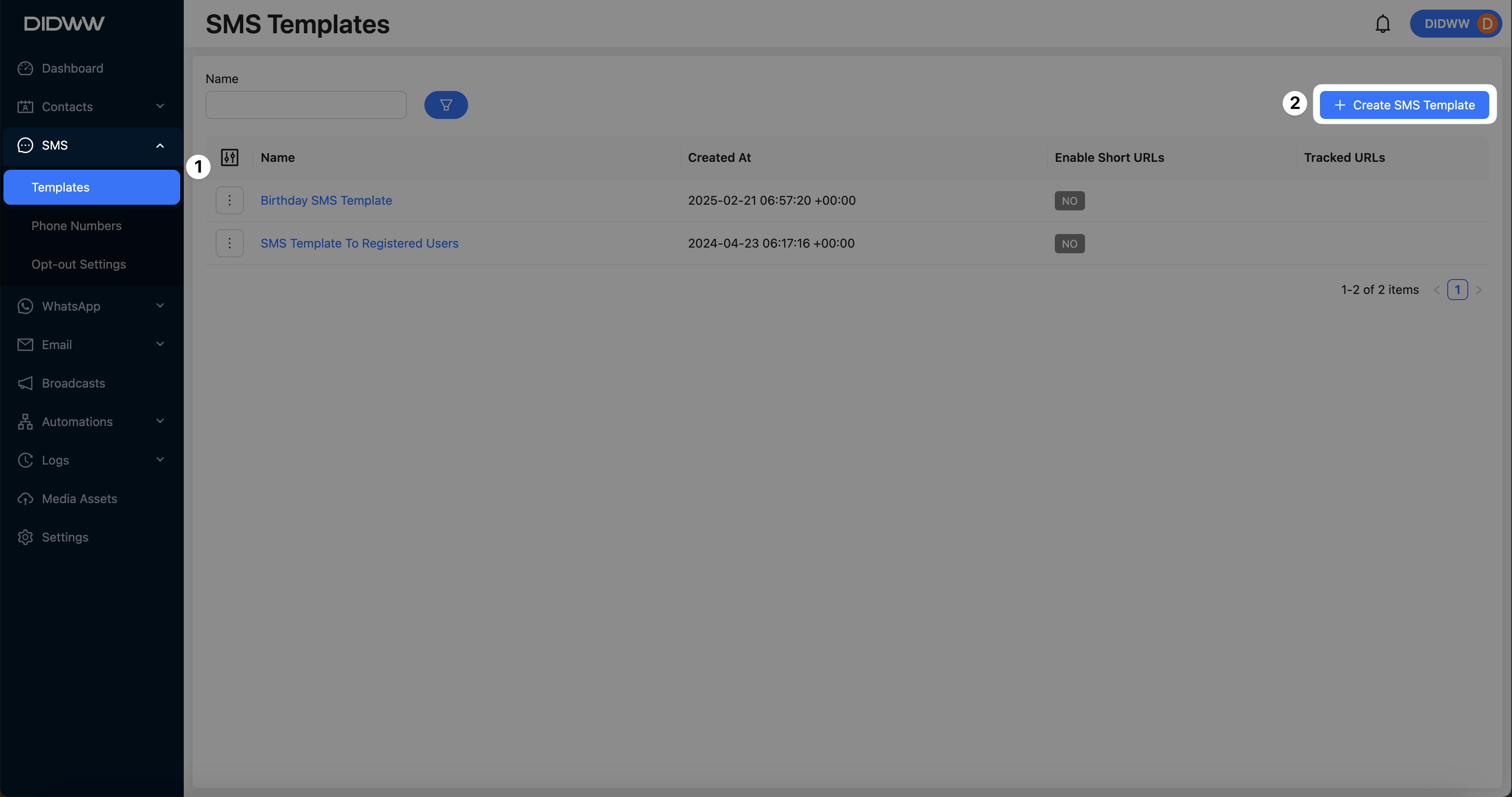
Fig. 2. Create SMS Template.
Step 2: Configure Template Details
Fill in the following fields on the template creation page:
Name: Enter a descriptive name for internal identification.
Template: Input the message content using plain text. Use dynamic attributes to personalize the message for each contact.
Workspace Placeholders: While entering the message content, click on the attribute icon to view and insert placeholders such as
{{contact.first_name}}.
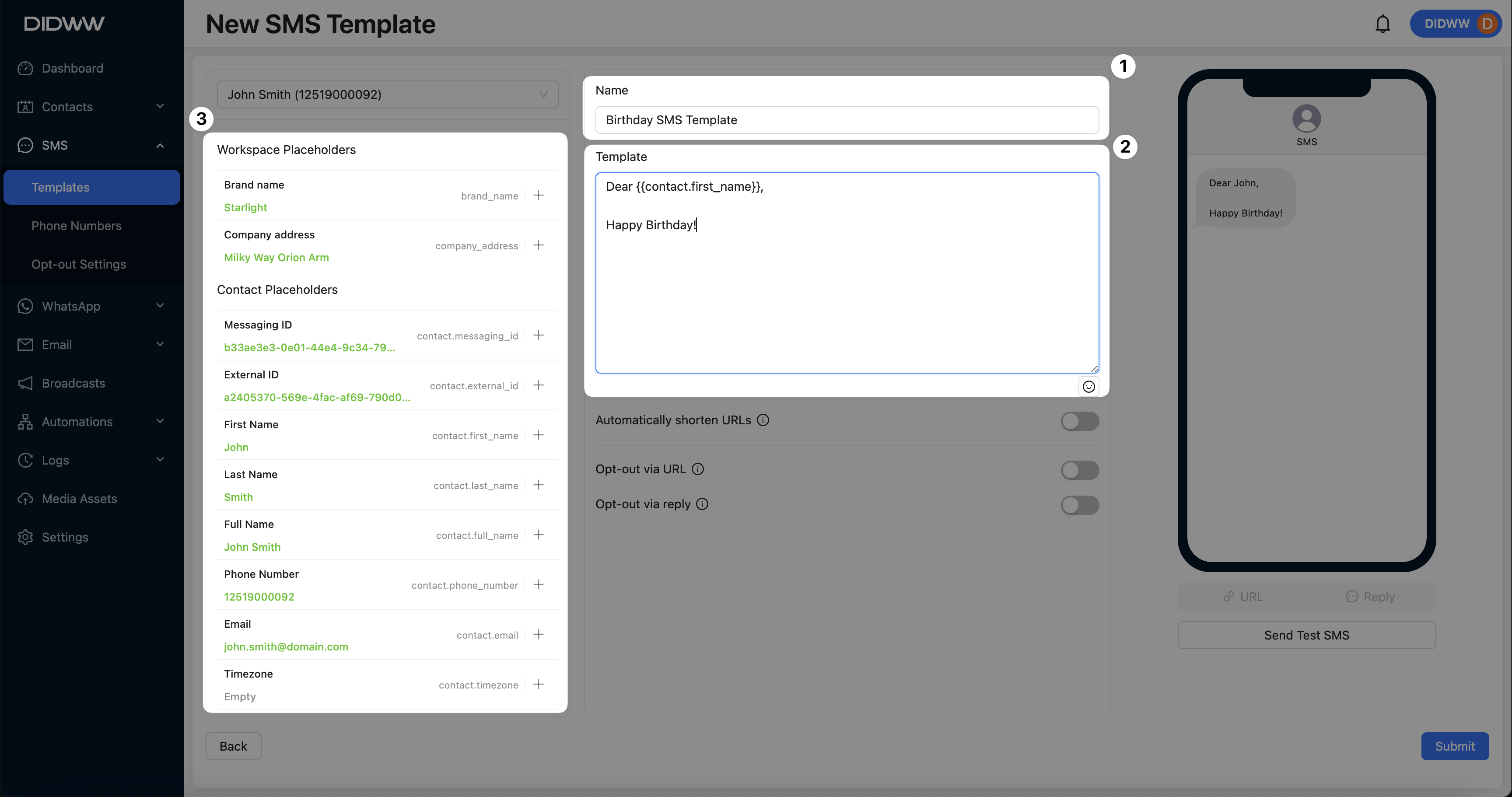
Fig. 2. fill in main.
Optional configuration fields:
Automatically Shorten URLs: Toggle on to auto-shorten URLs included in the message.
Opt-out via URL: Enable to insert an unsubscribe URL using the
{{unsubscribe_url}}placeholder.Opt-out via Reply: Enable to add an opt-out keyword with the
{{unsubscribe_keyword}}placeholder.
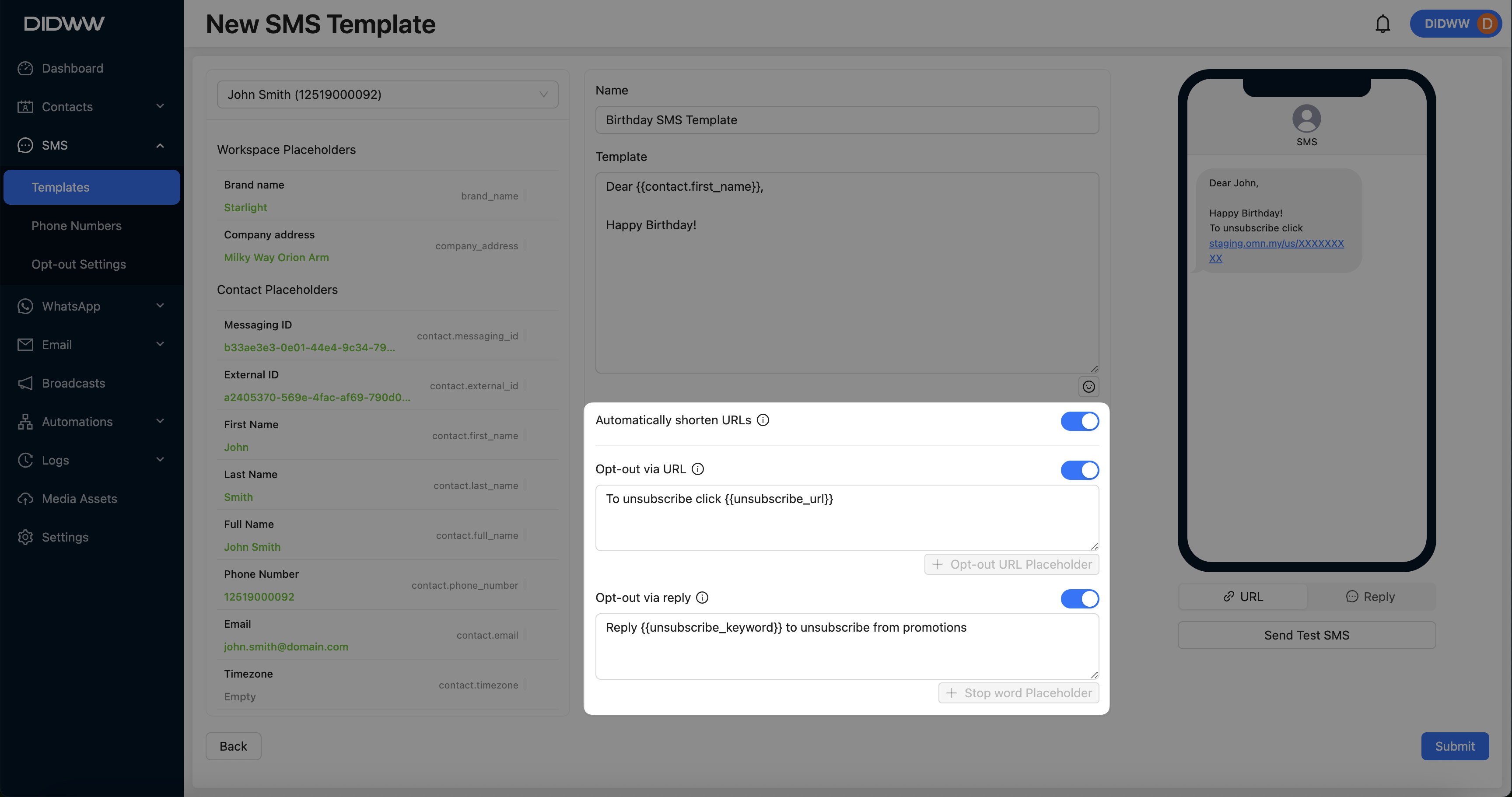
Fig. 3. Optional configuration fields enabled.
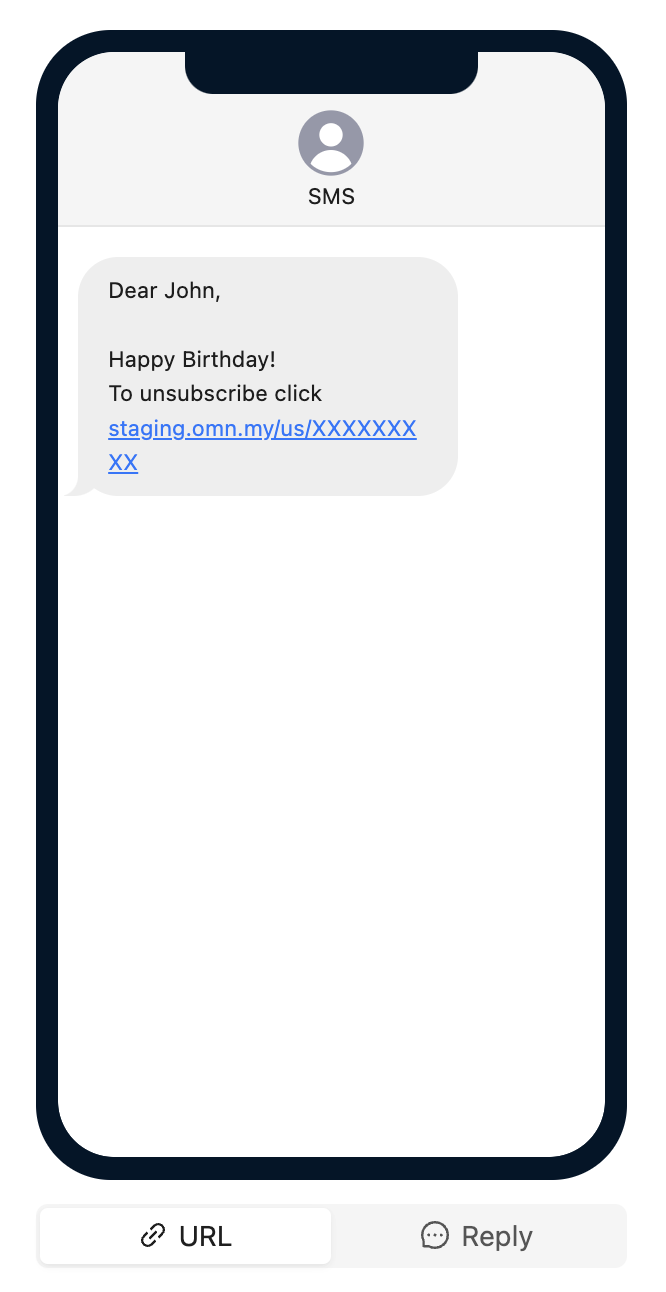
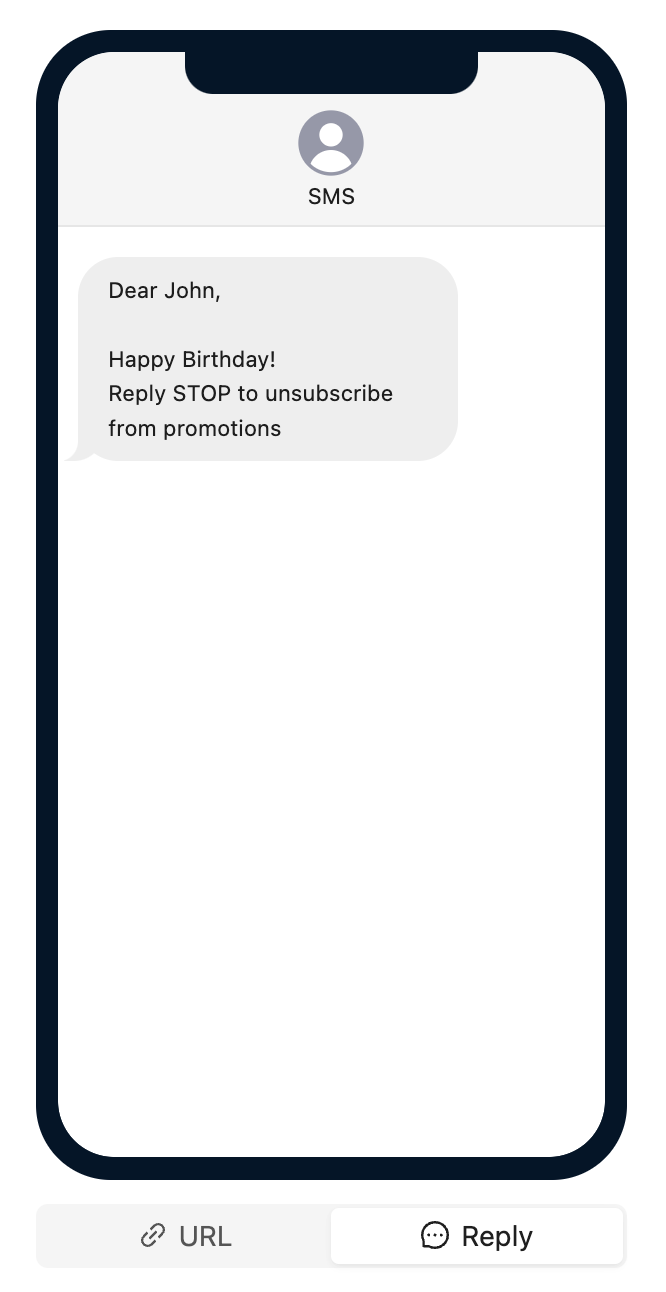
Step 3: Preview Opt-out Options
If opt-out options are enabled, verify the footer content by previewing the template.
Step 4: Send Test SMS
To test the message and ensure placeholder accuracy, click Send Test SMS.
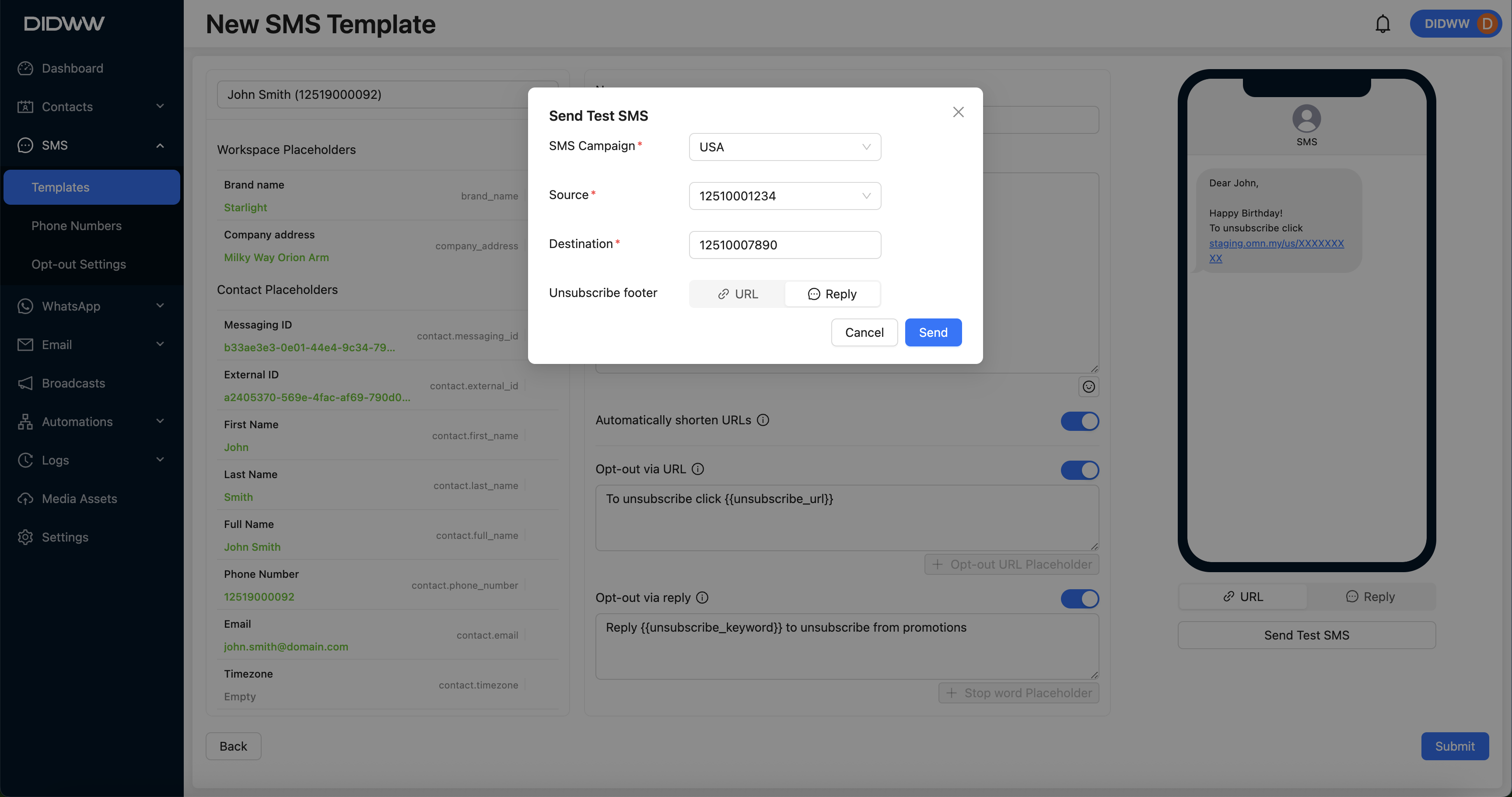
Fig. 6. Send Test SMS Button.
A Send Test SMS window will appear. Fill in the following required fields:
Sender ID: Select an active Sender ID.
Destination: Enter the test recipient’s phone number.
Unsubscribe Footer: Choose either a URL-based or reply keyword-based footer, depending on your configuration.
After entering all required information, click Send to deliver the test SMS.
Step 5: Save the Template
After configuring and testing, click Submit to save the SMS template.
Learn More
Learn how to enable and manage Sender IDs for A2P SMS.
Learn how to create and customize opt-out messages, configure reply keywords, and manage success responses for SMS broadcasts and automations.