
 contact-center
Payment Methods
Use the Payment methods page to manage the credit cards used for subscription renewals, plan upgrades, balance top-ups, and other billable services.
Before You Begin
Make sure you have a valid credit card.
Verify that your Billing Information is up to date.
Note
You can store a maximum of two credit cards per workspace.
Manage Payment Methods
Add a new credit card for subscription and balance payments.
Select which saved card is designated as the main payment method.
Remove a saved credit card from your payment methods.
Add a Payment Method
Follow these steps to add a credit card.
Step 1: Open Payment Methods
In the upper-right corner, select your account name.
Select Billing.
Open the Payment methods tab.
Select Add new credit card.
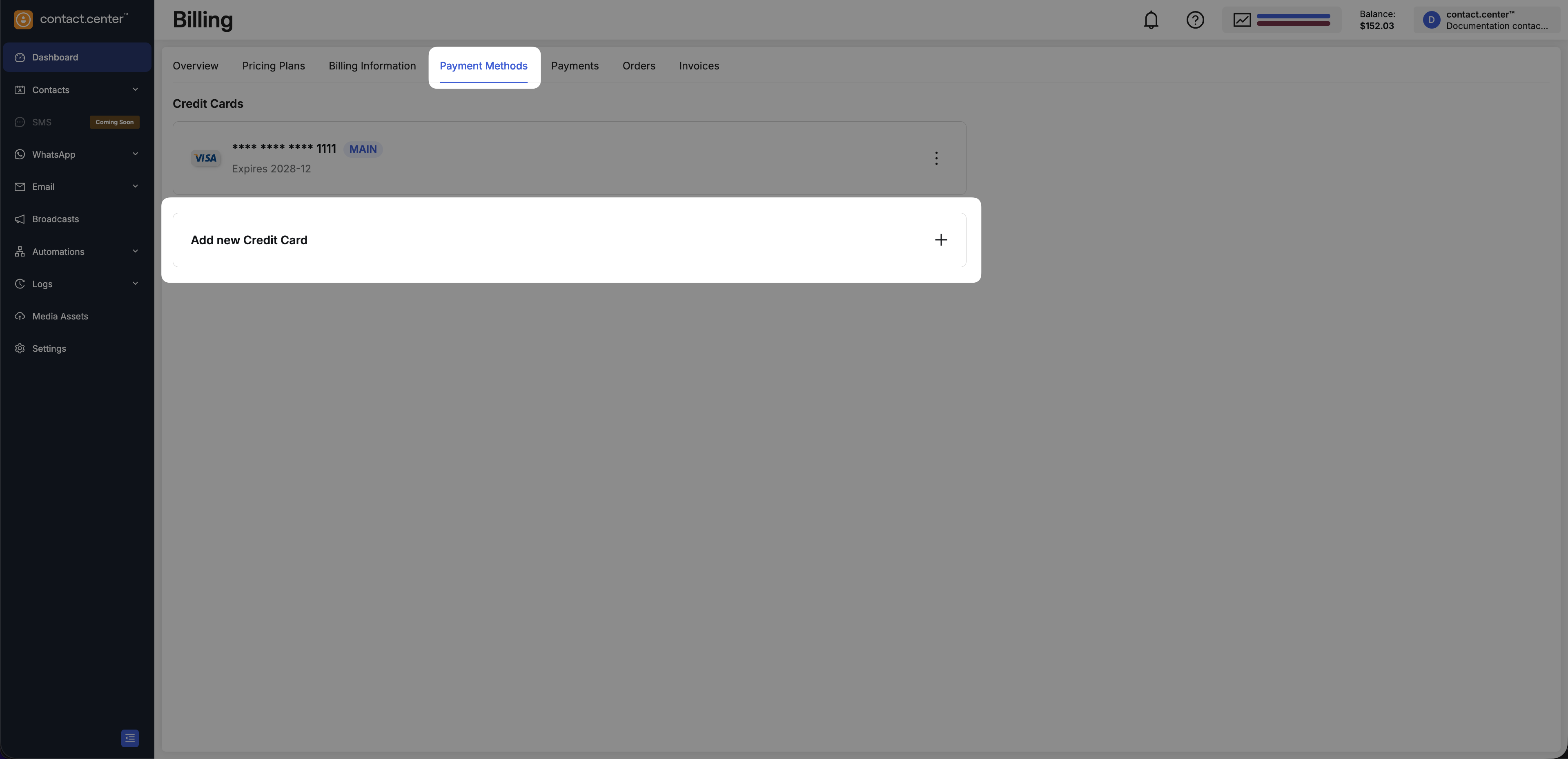
Fig. 1. Add a new credit card button
Step 2: Enter Card Information
Complete the required card details.
Field |
Description |
|---|---|
First Name |
First name of the cardholder. |
Last Name |
Last name of the cardholder. |
Card Number |
Credit card number as printed on the card. |
Expiry Date |
Card expiration date (MM / YY). |
Security Code (CVV) |
Card verification value printed on the card. |
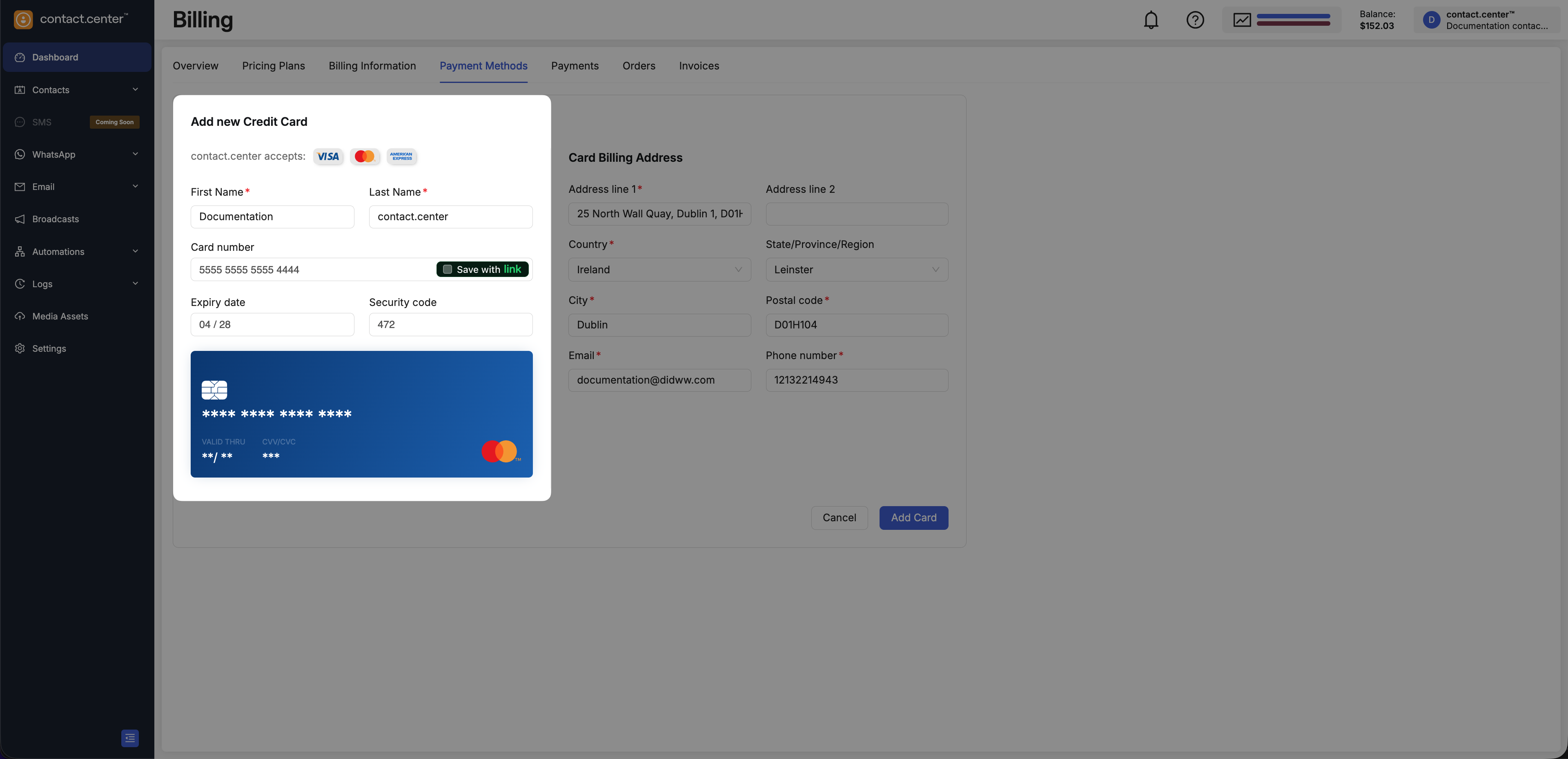
Fig. 2. Credit card details section
Step 3: Enter Card Billing Address
Provide the billing address associated with the credit card.
Field |
Description |
Mandatory |
|---|---|---|
Address Line 1 |
Primary street address linked to the card. |
Yes |
Address Line 2 |
Additional address information (apartment, suite, etc.). |
No |
Country |
Country of the card billing address. |
Yes |
State/Province/Region |
State, province, or region of the billing address. |
No |
City |
City of the billing address. |
Yes |
Postal Code |
Postal or ZIP code of the billing address. |
Yes |
Contact email associated with the billing address. |
Yes |
|
Phone Number |
Contact phone number associated with the billing address. |
Yes |
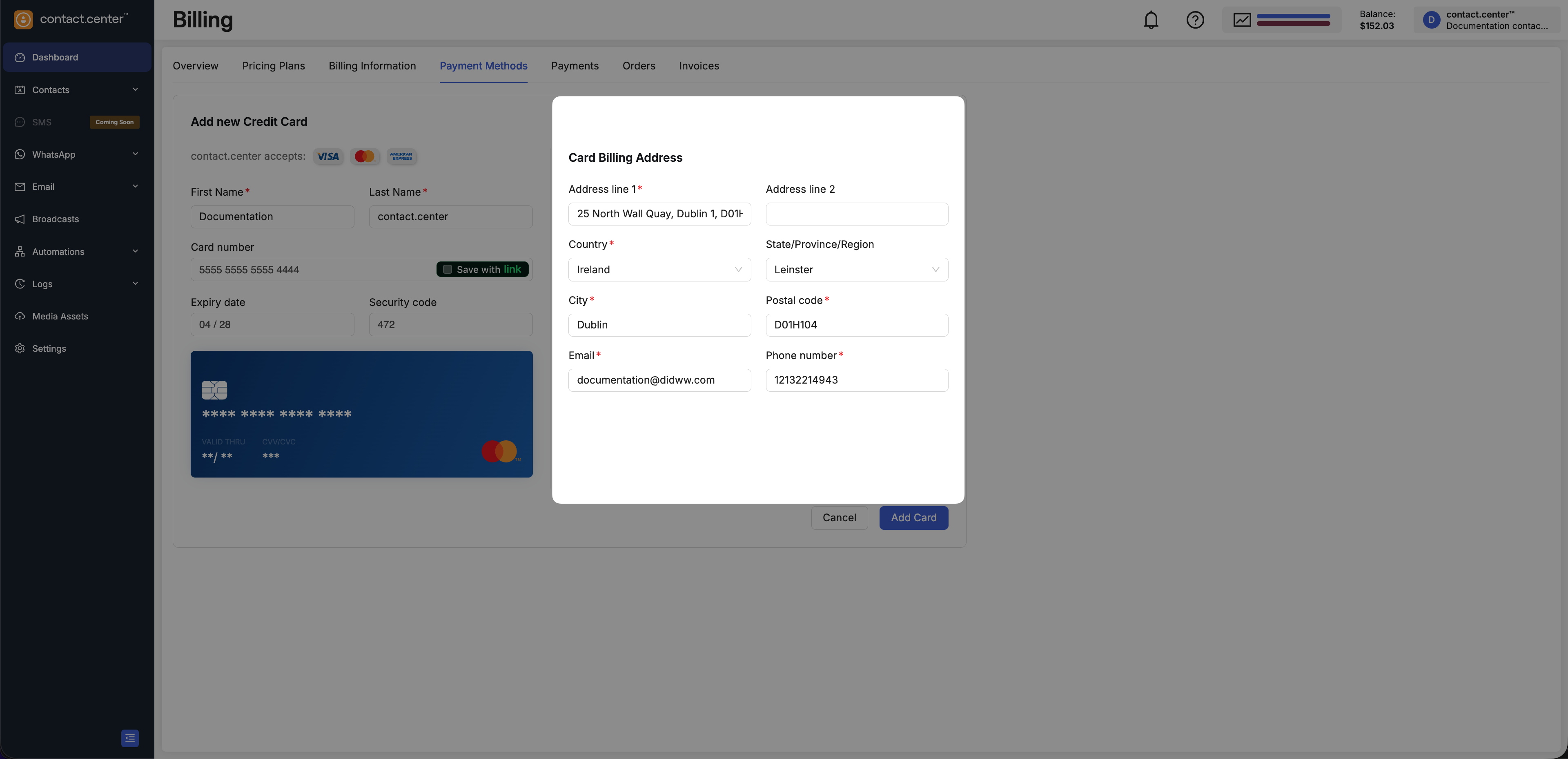
Fig. 3. Card billing address section
Step 4: Add the Card
Click Add Card to save the payment method.
Note
If this is your first card, it is automatically set as the main payment method.
If you already have a main payment method, the newly added card is saved as secondary.
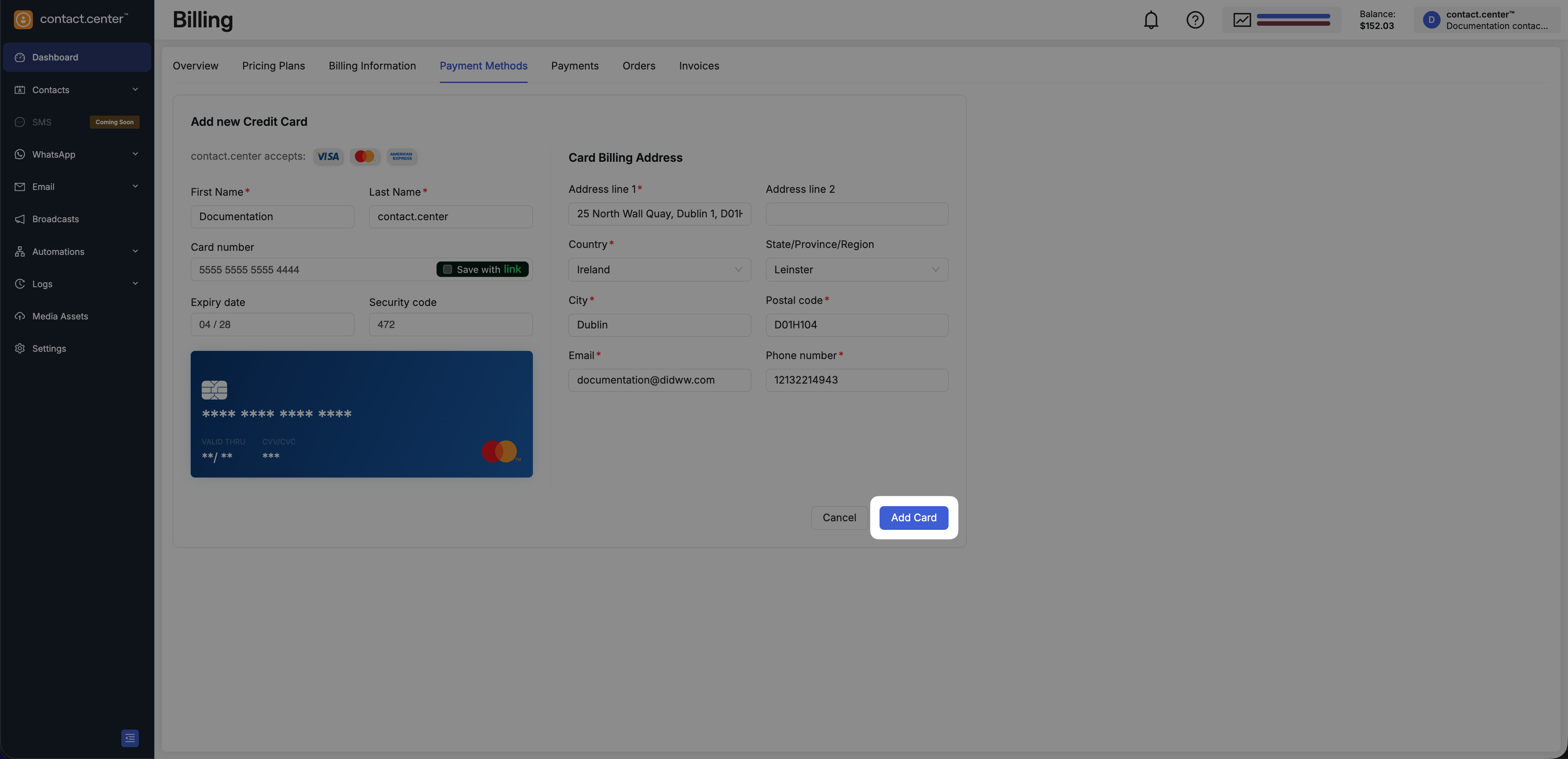
Fig. 4. Add a new credit card
Set as Main Payment Method
You can designate one saved credit card as your main payment method.
The main card is prioritized when a credit card payment is required.
In Billing → Payment Methods, locate the desired card.
Click the Actions menu.
Select Set as Main.
Note
The previously designated main card is automatically changed to a secondary payment method.
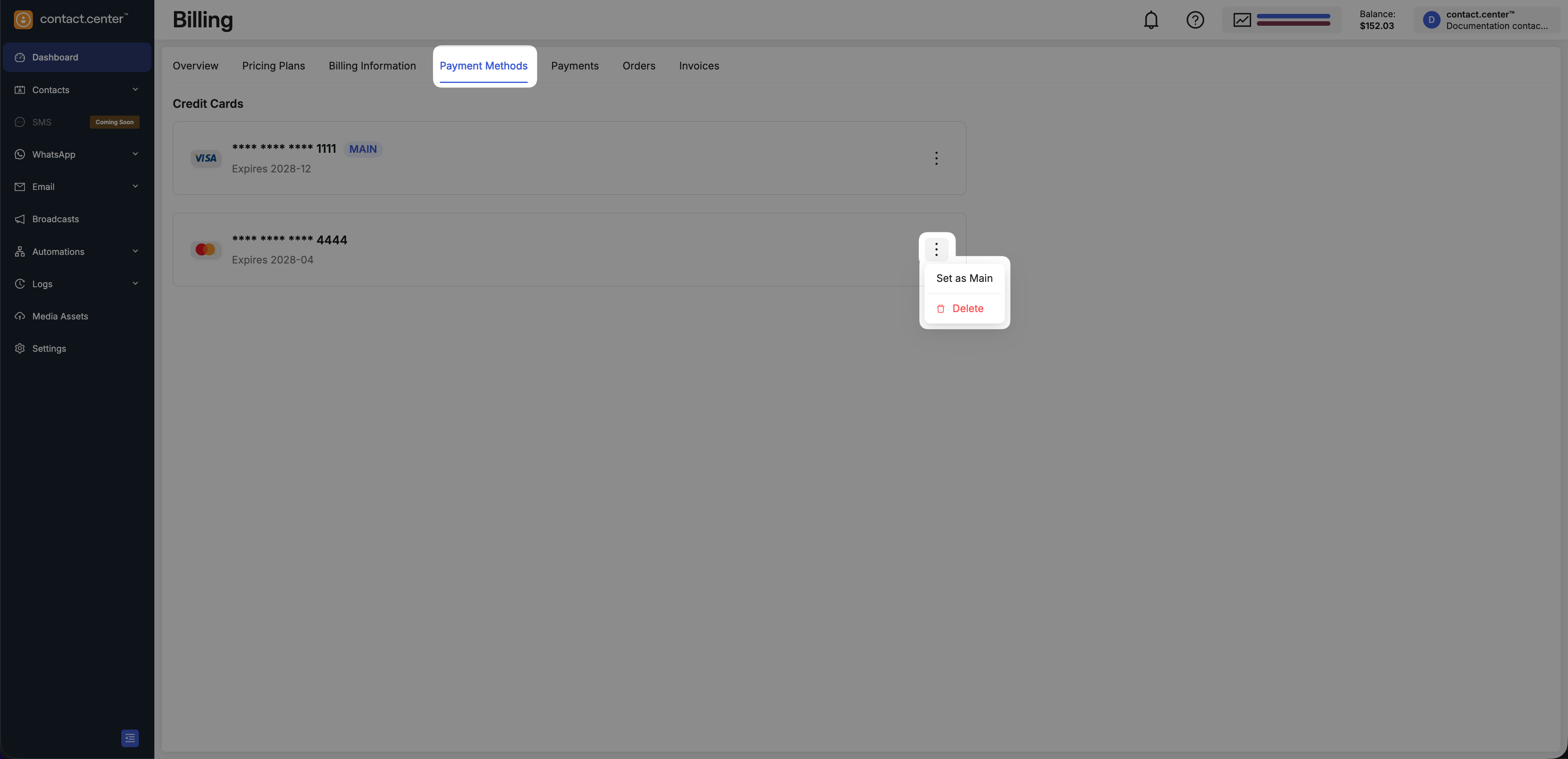
Fig. 5. Payment methods actions menu
Delete a Payment Method
You can remove a saved credit card if it is no longer needed.
In Billing → Payment Methods, locate the card you want to remove.
Click the Actions menu.
Select Delete.
Confirm the deletion.
Note
If you delete the main payment method and another card exists, the remaining card becomes the main payment method automatically. If no cards remain, no main payment method is designated.
Fig. 7. Payment methods actions menu