
 contact-center
Orders
Use the Orders page to review orders in your workspace, check order statuses, and download order confirmations.
Orders Overview
On the Orders page, you can filter orders and review detailed information in the orders table.
Filter Orders
Use filters to narrow down the order records displayed in the Orders table based on date range and status.
Filter |
Description |
|---|---|
Date |
Select a predefined or custom date range to display orders created within the selected timeframe. |
Status |
Filter orders by their current status. |
Note
The table is updated only after the Filter button is clicked.
Orders Table
The orders table provides an overview of all recorded orders in your workspace.
Column |
Description |
|---|---|
Reference |
Unique order reference used to identify the order. |
Created At |
Date when the order was created. |
Status |
Current order status. |
Subtotal |
Order amount before VAT. |
VAT |
VAT amount applied to the order. |
Total |
Final order amount including VAT. |
Order Statuses
The Status column may include the following values:
Status |
Description |
|---|---|
Completed |
The order was successfully processed. |
Pending |
The order is currently being processed. |
Canceled |
The order was canceled and not completed. |
Customize Visible Columns
You can customize which columns are displayed in the Orders table.
Click the Customize columns icon.
Enable or disable columns as needed.
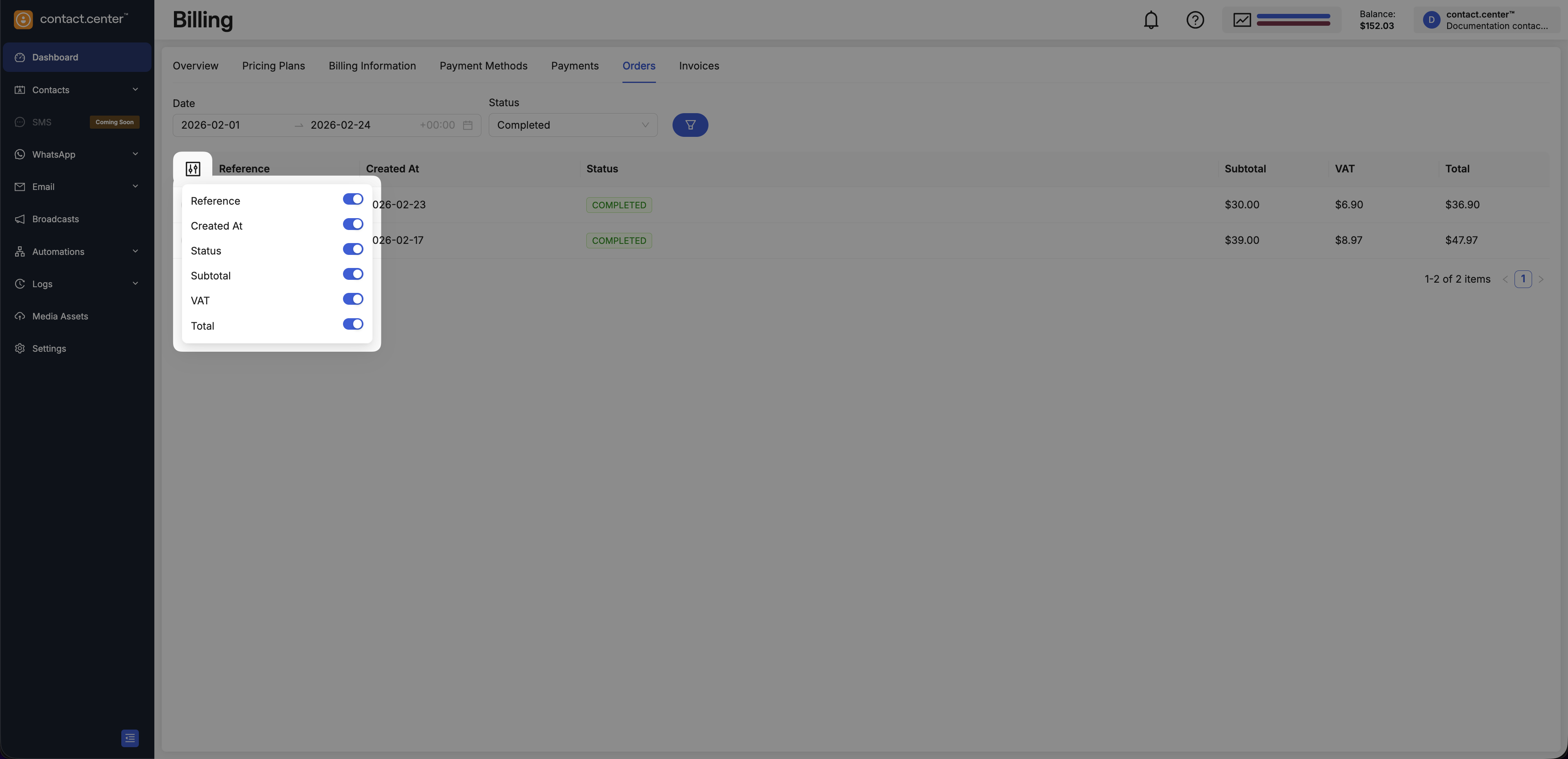
Fig. 3. Customize visible columns
Download an Order Confirmation
You can download an order confirmation for any order listed in the table.
In Billing → Orders, locate the order record.
Click the download icon in the first column.
The order confirmation opens in a new browser window, where you can download or print it.
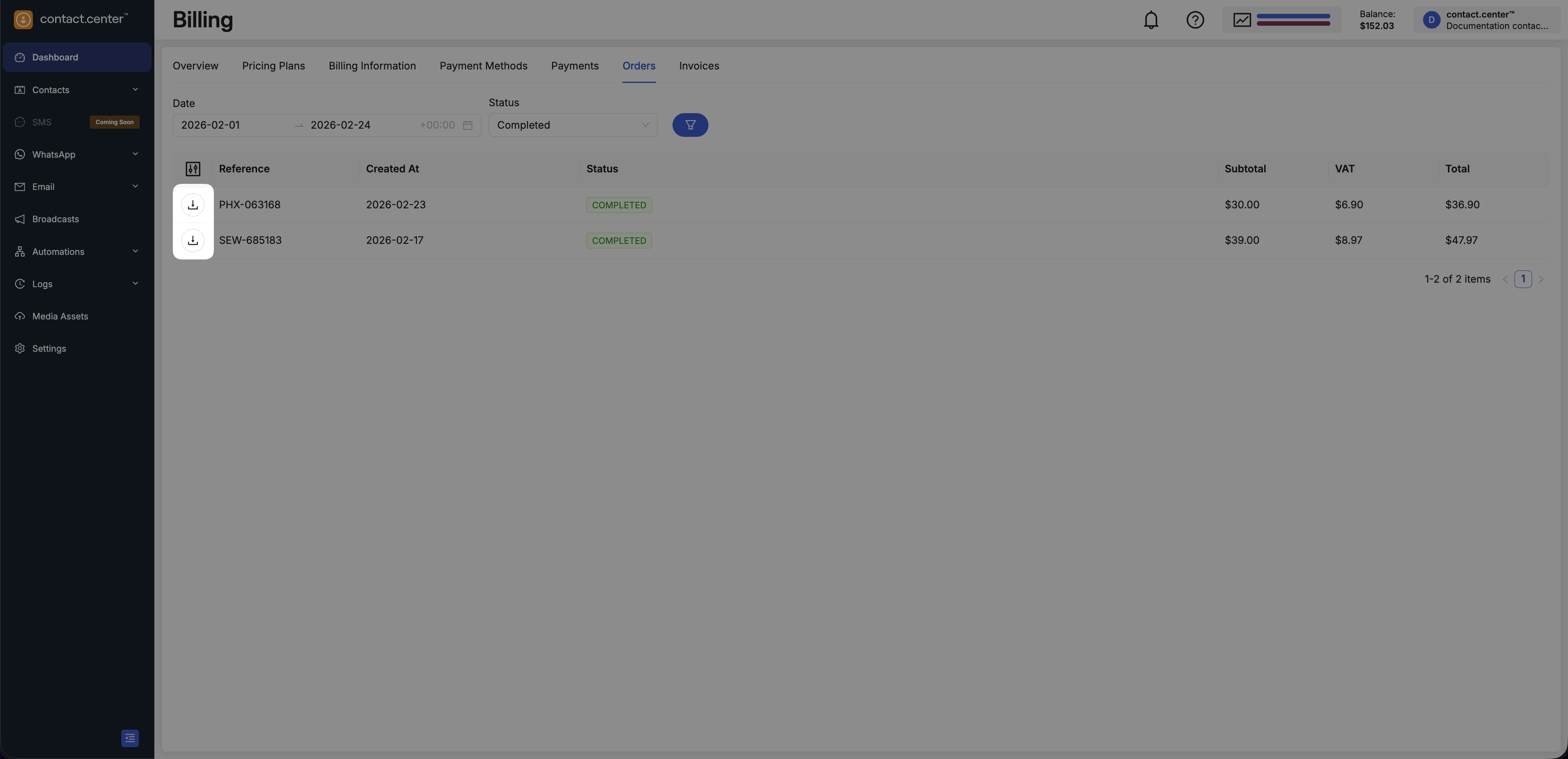
Fig. 4. Download order confirmation