
 contact-center
Save and Reuse Email Sections
Save time when designing your emails by saving sections that you can reuse across your email templates. This is useful for recurring layouts such as headers, footers, and other branded content areas.
Before You Start
Create an Email Template and open the Email Editor.
Add or build the section you want to save in the canvas.
Save a Section
Select the section you want to save in the canvas.
Click the Save icon in the section action bar.
In the Save Email Template Section modal, enter a name for the section.
Select an existing category, or click Add Category to create a new one.
Click OK to save the section.
Note
Only sections can be saved for reuse. Individual content blocks such as a single image or text block cannot be saved on their own. Learn more about sections.
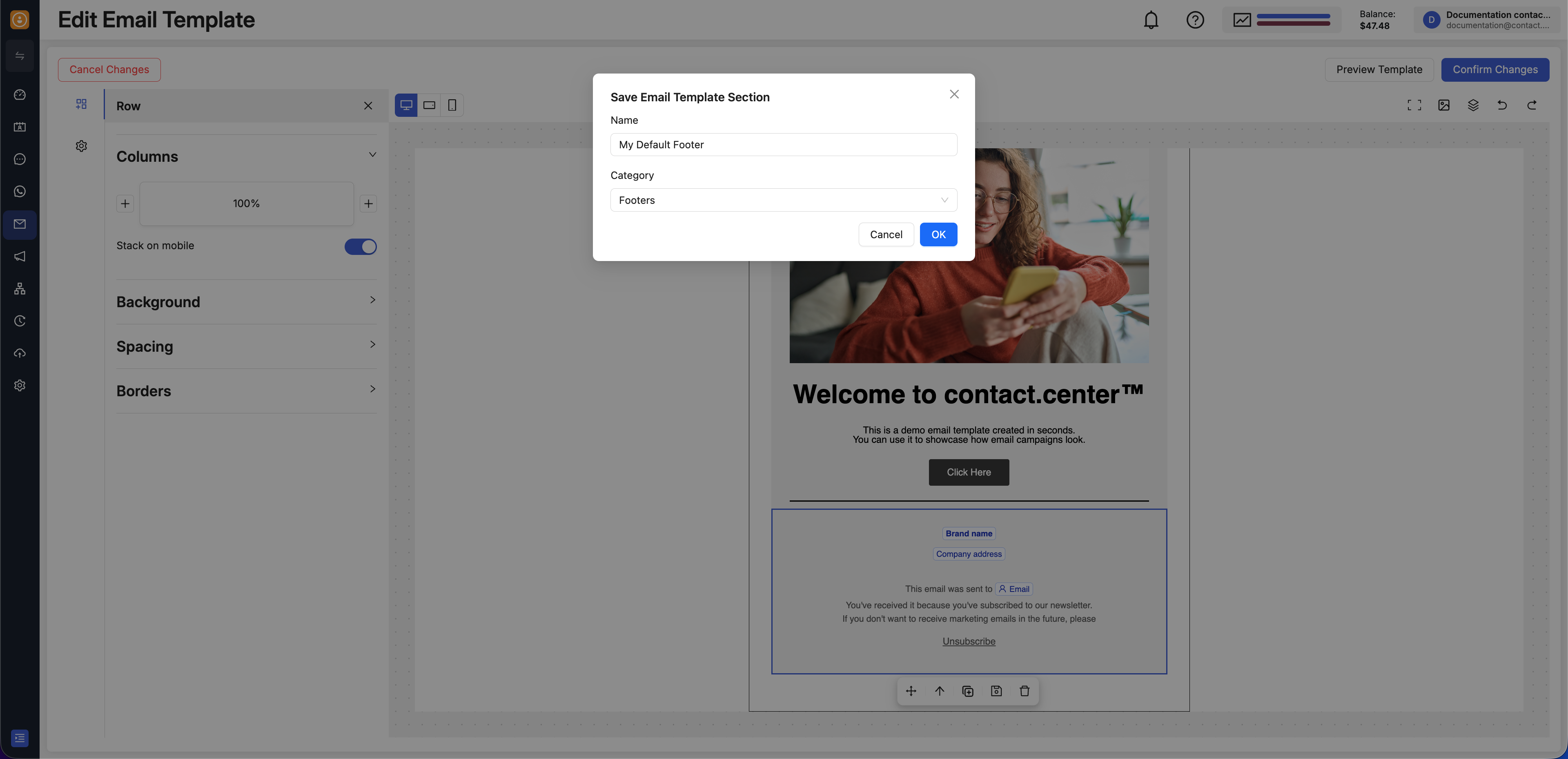
Fig. 1. Name the section and choose a saved-section category.
Saved sections are available in the Saved tab in the left panel of the Email Editor.
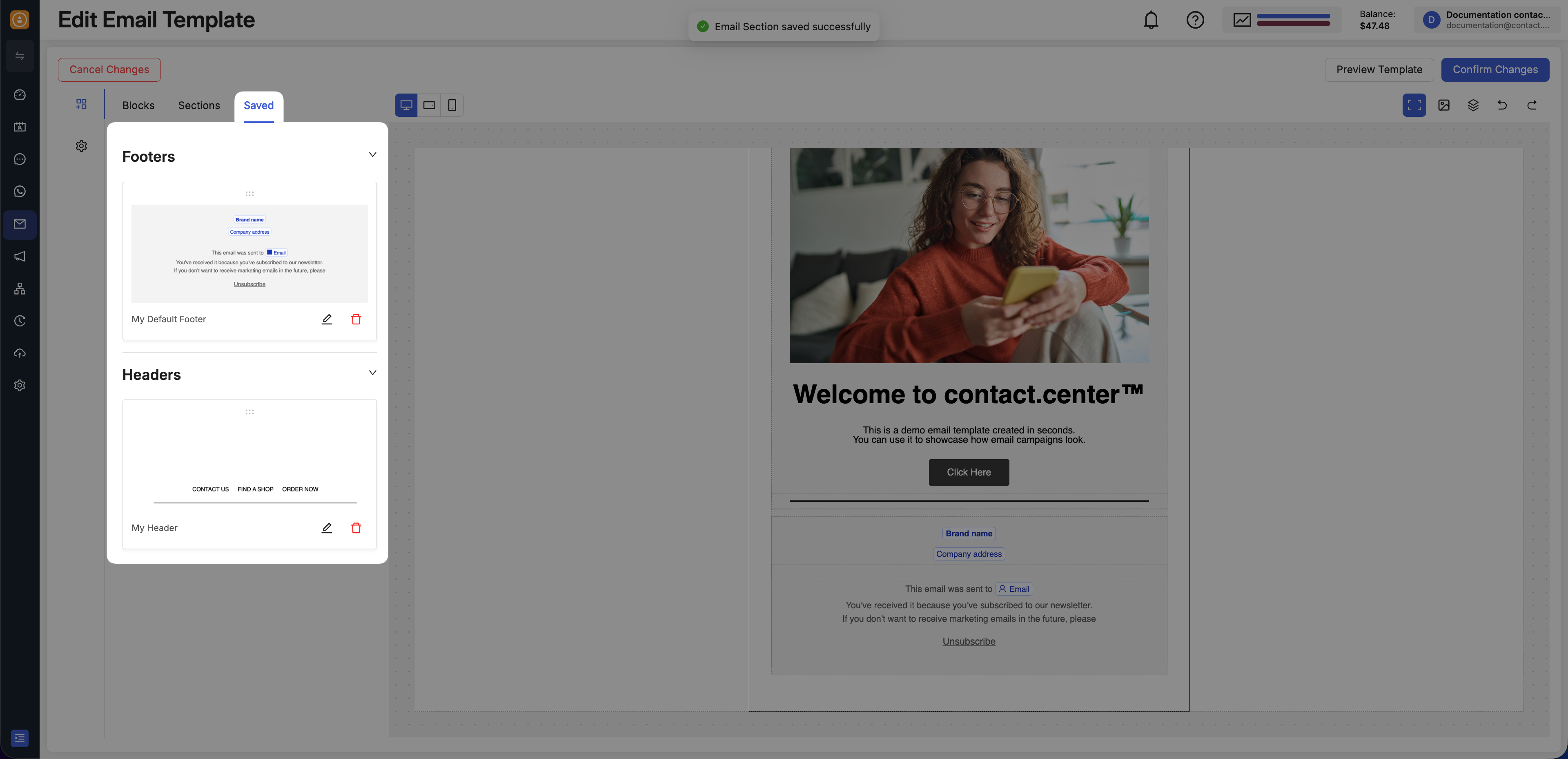
Fig. 2. Find your saved sections in the Saved tab.
Reuse a Saved Section
In the left panel of the Email Editor, open the Saved tab.
Expand the category that contains the section you want to reuse.
Drag and drop the saved section into the email canvas.
Continue editing the email as needed.
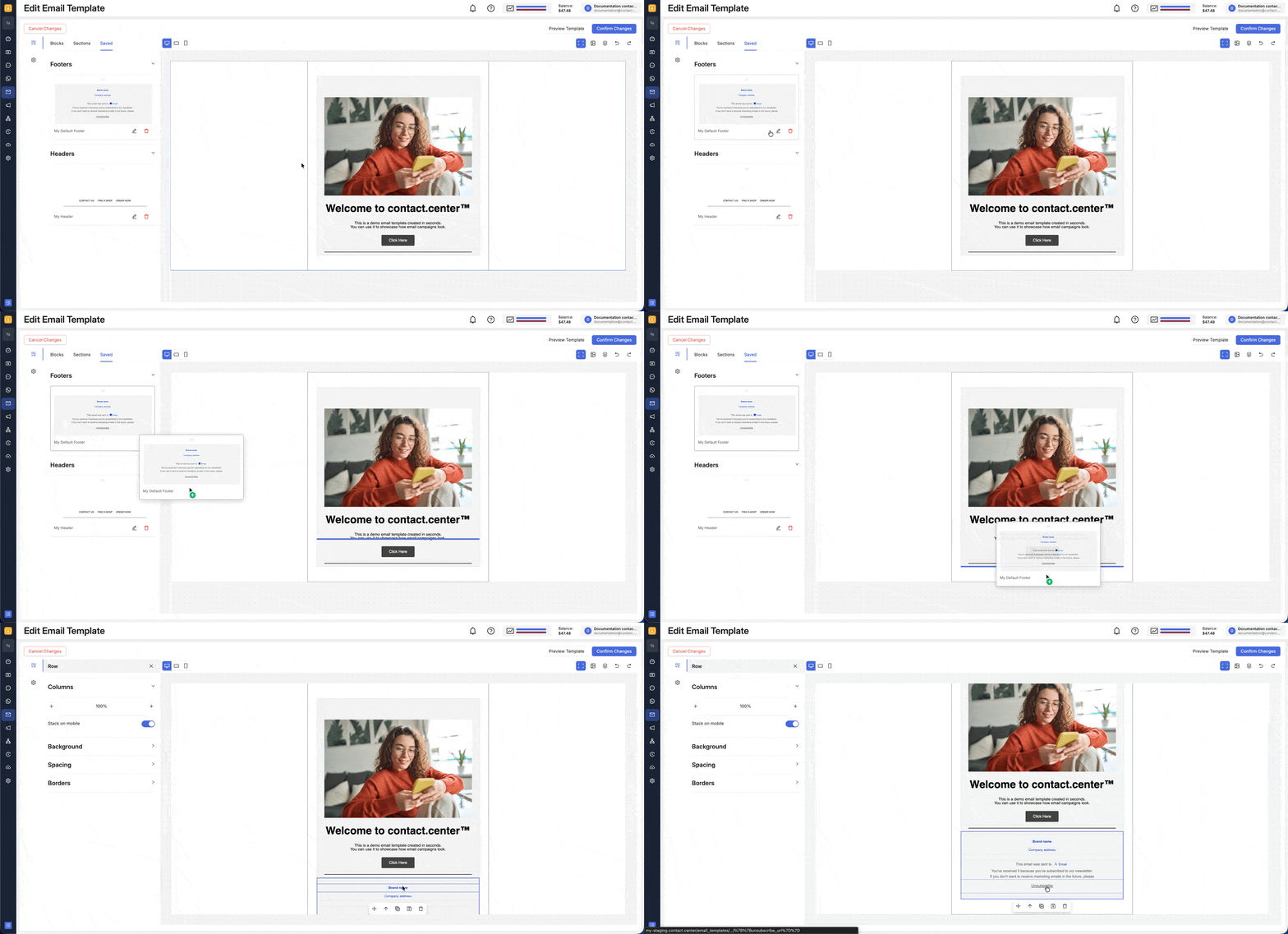
Fig. 3. Reuse a saved section by dragging it from the Saved tab into the canvas.
Delete a Saved Section
Note
Deleting a saved section removes it from the Saved tab only. If the section is already inserted in the email canvas, it remains in the current email and is not removed automatically.
In the left panel of the Email Editor, open the Saved tab.
Find the saved section you want to delete.
Click the delete icon next to the section name.
Confirm the deletion.
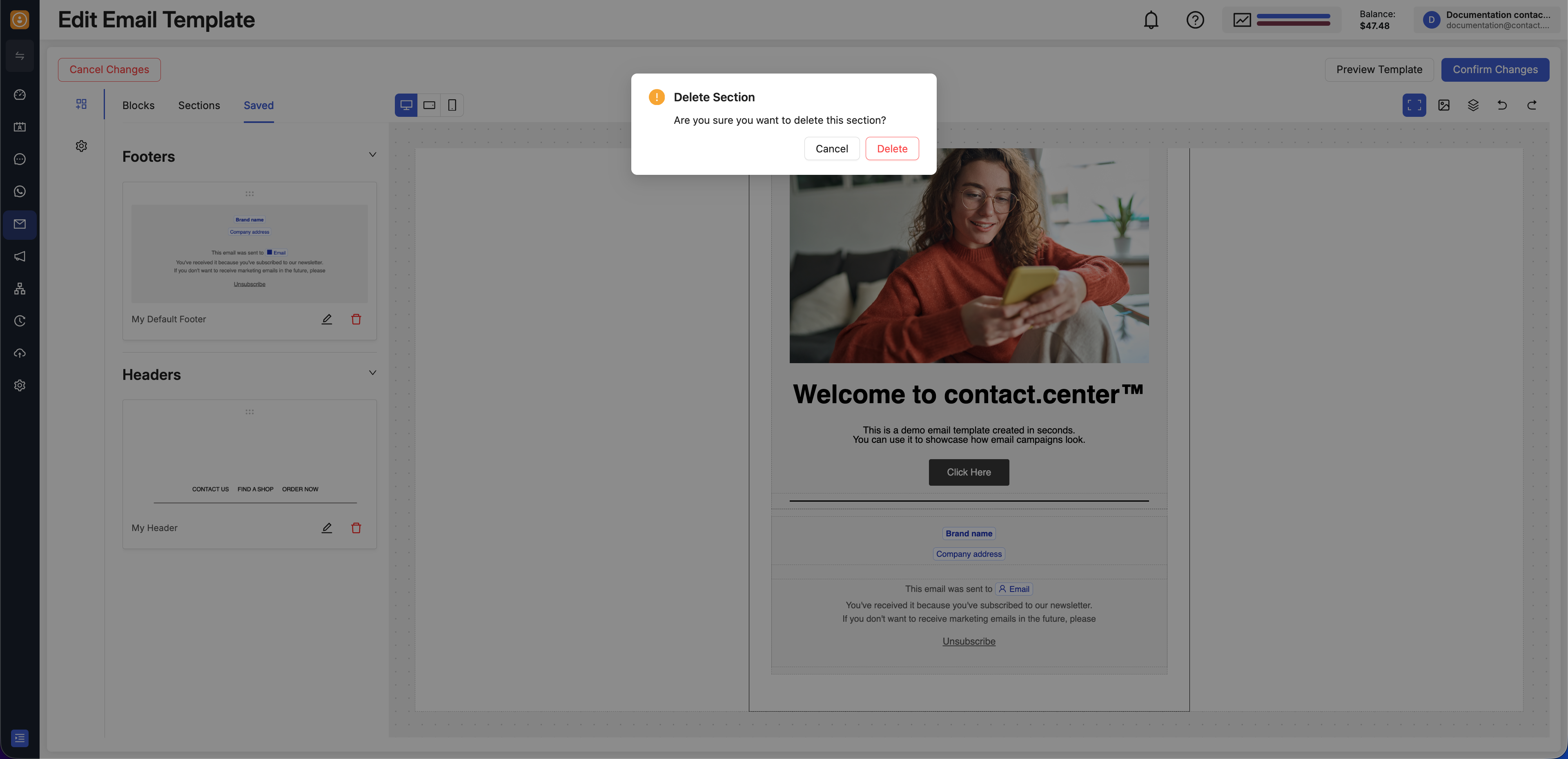
Fig. 4. Delete a saved section.