
 contact-center
Email Editor Settings
The Settings tab provides controls for configuring email-wide properties that affect the overall layout and presentation of the email content.
It defines the base configuration of the content edited in the Email Editor, including its width, background, language, and compatibility behavior. These settings apply globally within the editor and help ensure consistency across sections, rows, and content blocks.
Use this tab at the beginning of the design process to establish a consistent foundation before customizing individual elements in the canvas. For example, you can set the email width to match your layout requirements, define the background color before styling sections, and configure the language and text direction before adding localized content.
Editor-wide settings work together with row and block settings. Global settings define the overall canvas, while individual elements allow you to fine-tune specific content areas.
Available Settings
In the editor settings panel, you can configure:
Width – Set the maximum width of the email layout to control how content is displayed across devices.
Background color – Define the background behind the content area. This setting applies to the full email canvas.
Language – Specify the language of the email content. This can affect how content is interpreted by email clients.
- Direction – Set the text direction:
LTR (left-to-right) – for most languages
RTL (right-to-left) – for languages such as Arabic or Hebrew
Auto – Automatically detect and apply the appropriate text direction.
Support OWA – Enable compatibility behavior for Outlook Web Access to improve rendering in Outlook environments.
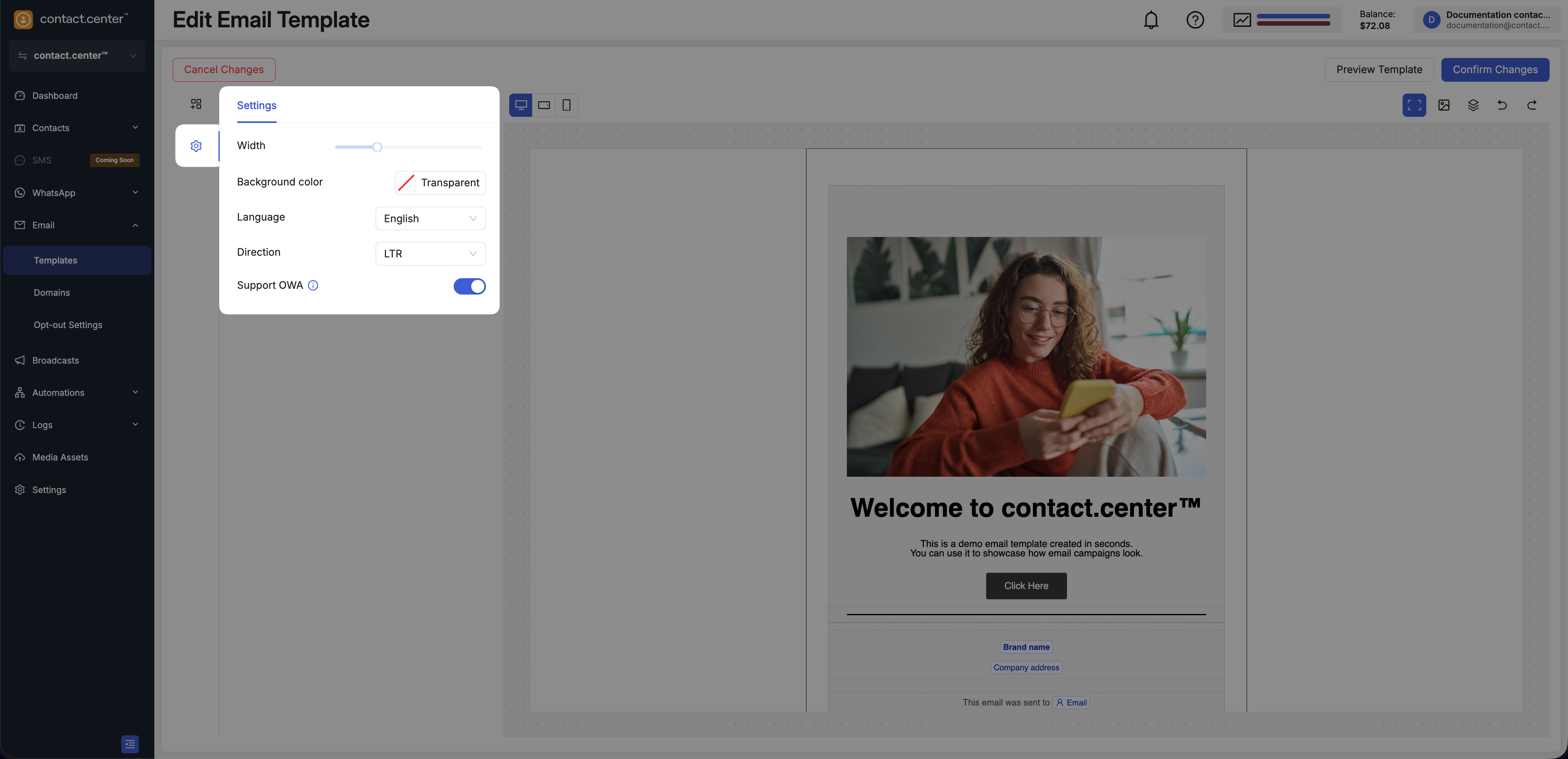
Fig. 1. Email-wide settings in the Email Editor.