
 contact-center
Call-to-action Buttons
Create eye-catching buttons to encourage readers to take action in your email campaigns. Use the Button content block in the Email Editor to guide recipients toward the next step, whether that means visiting your website, signing up for an event, or contacting your team. A clear and well-designed call to action can make a meaningful difference in how recipients interact with your email.
Before You Start
Before adding a button to your email design, it helps to:
understand the difference between a section and a content block
add any fonts you want to use for button text through Add Web Fonts to Your Email Design
Add a Button
To insert a button into your email design:
Drag and drop a Button content block into the email canvas.
Click the button and replace the default label text with your own call to action.
In the left panel, open Link Settings and choose the tab that matches the type of link you want to add to the button:
Use this option to send recipients to a webpage or any other direct URL.
In Link Type, select Absolute (URL).
In Link target, enter the destination URL.
Optionally add Tooltip.
Enable link tracking if you want to measure clicks on the button.
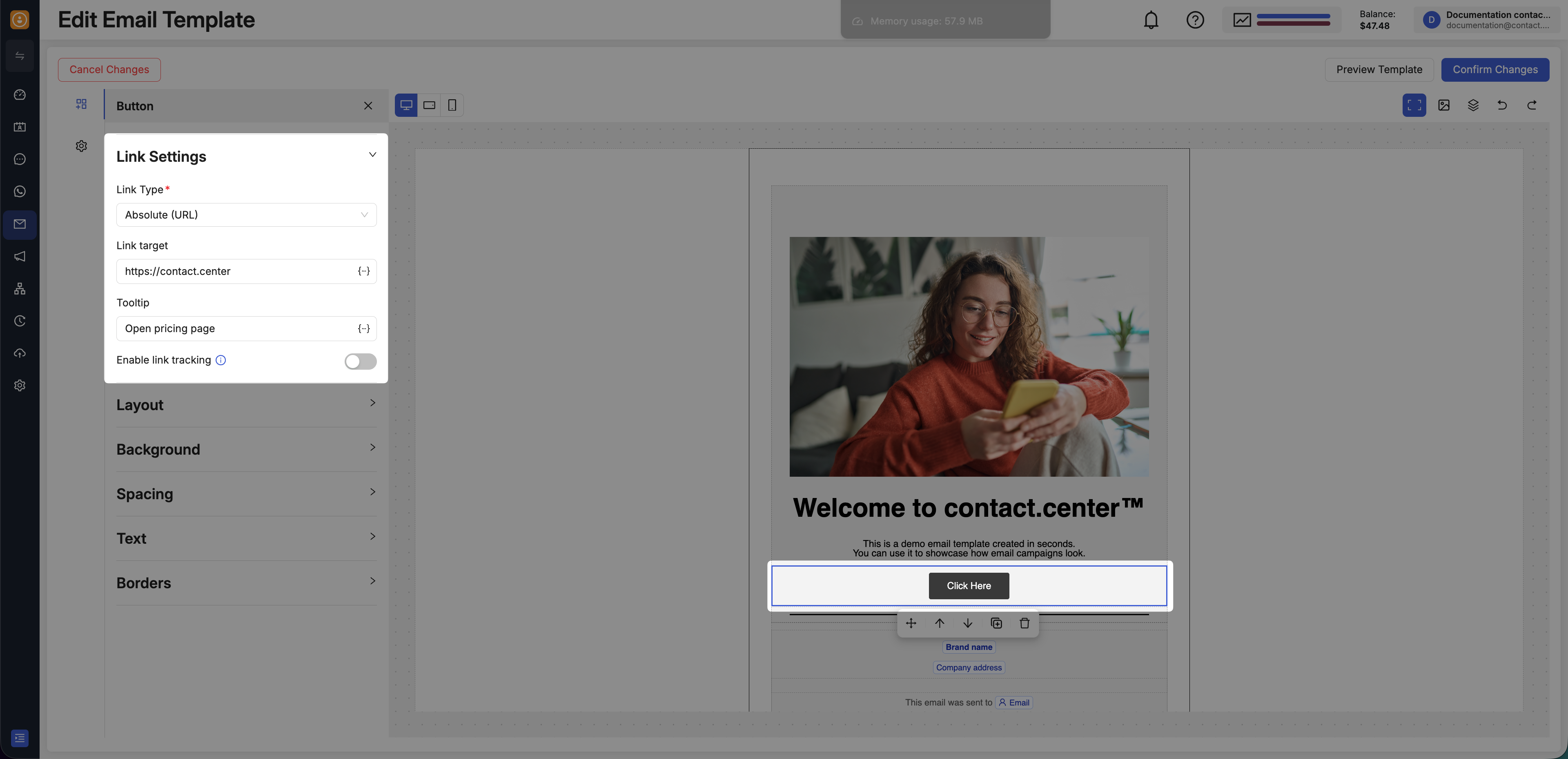
Fig. 1. Configure a button with an absolute URL.
Use this option when the button should start a phone call on supported devices.
In Link Type, select Click-to-call phone number (tel).
In Telephone number, enter the phone number you want to use.
Optionally add Tooltip.
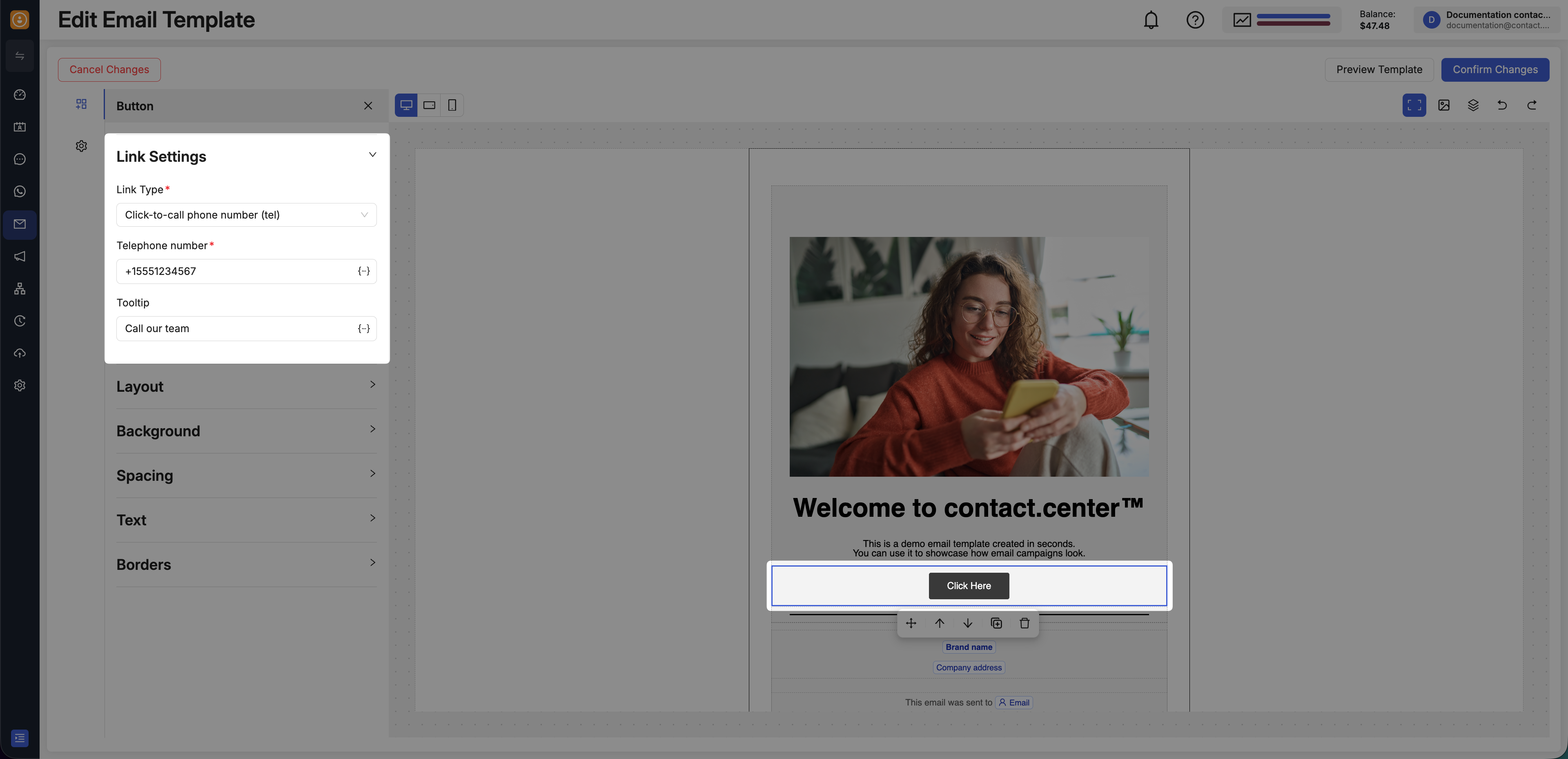
Fig. 2. Configure a button with a click-to-call phone number.
Use this option when the button should open a new email message.
In Link Type, select Email link (mail-to).
In Email address, enter the destination email address.
Fill in Email subject and Email body.
Optionally add Tooltip.
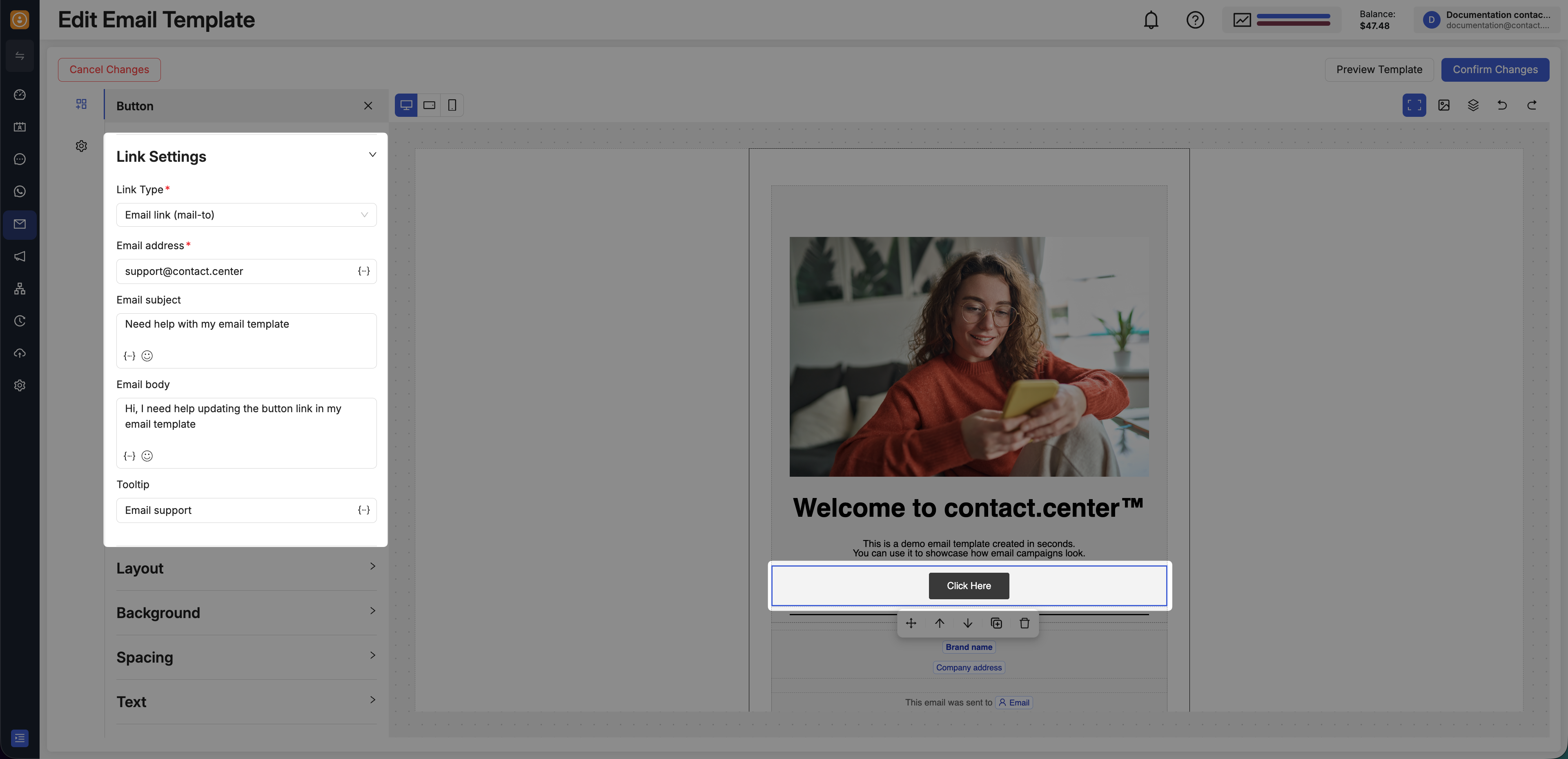
Fig. 3. Configure a button with an email link.
Use this option when the button should act as an unsubscribe action in the email.
In Link Type, select Unsubscribe link.
Optionally add Tooltip.
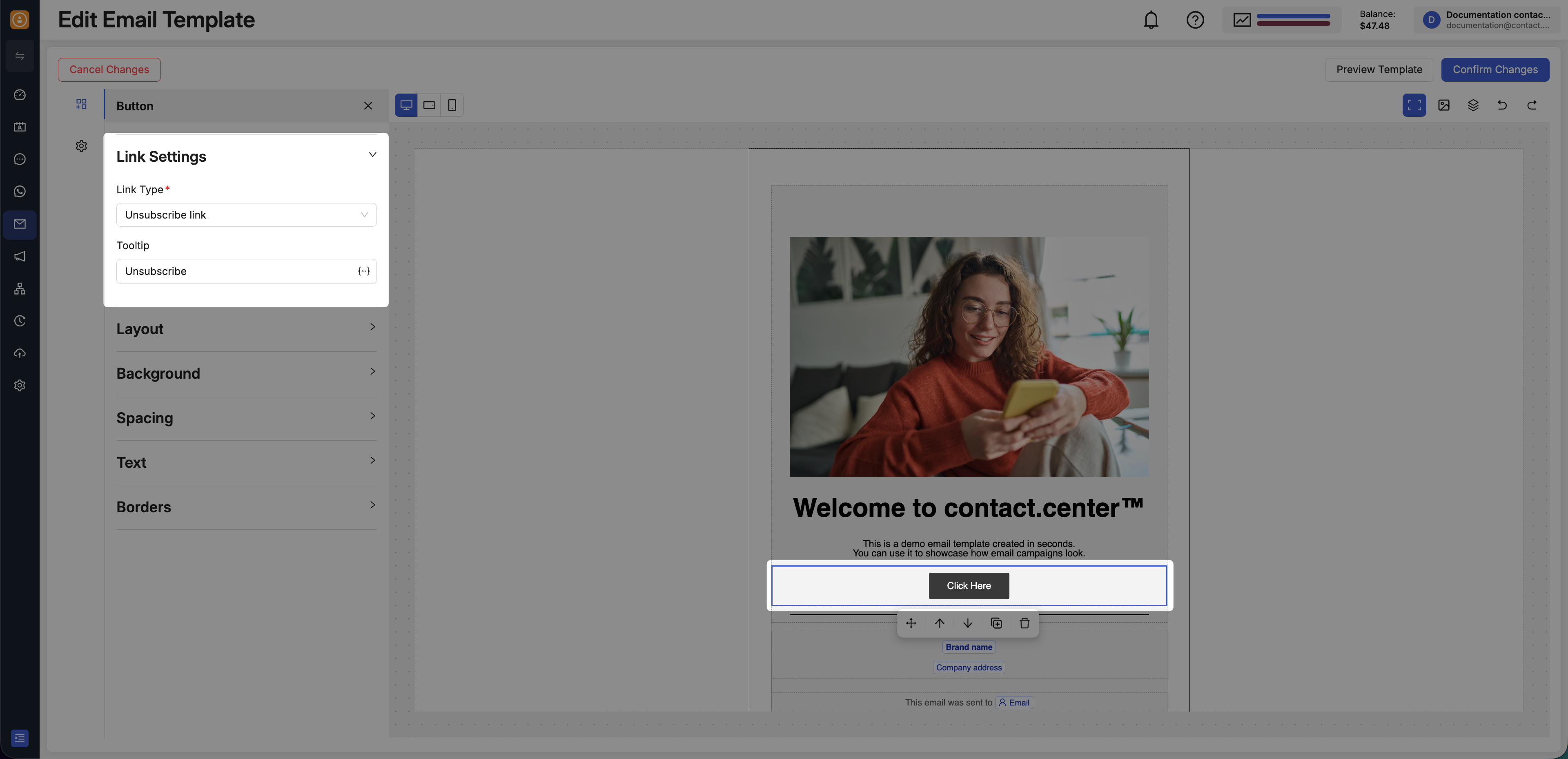
Fig. 4. Configure a button with an unsubscribe link.
Customize a Button
Now that you have added your button, you can customize its text, color, size, and shape to make the CTA more visible and aligned with the rest of your email.
Change Button Color and Size
To change your button color and size, click the button to open its settings in the left panel. From there, choose the tab that matches what you want to adjust:
To change the button width:
Click the button in the canvas.
In the left panel, open Layout.
Adjust the Width value until the button matches the size you want.
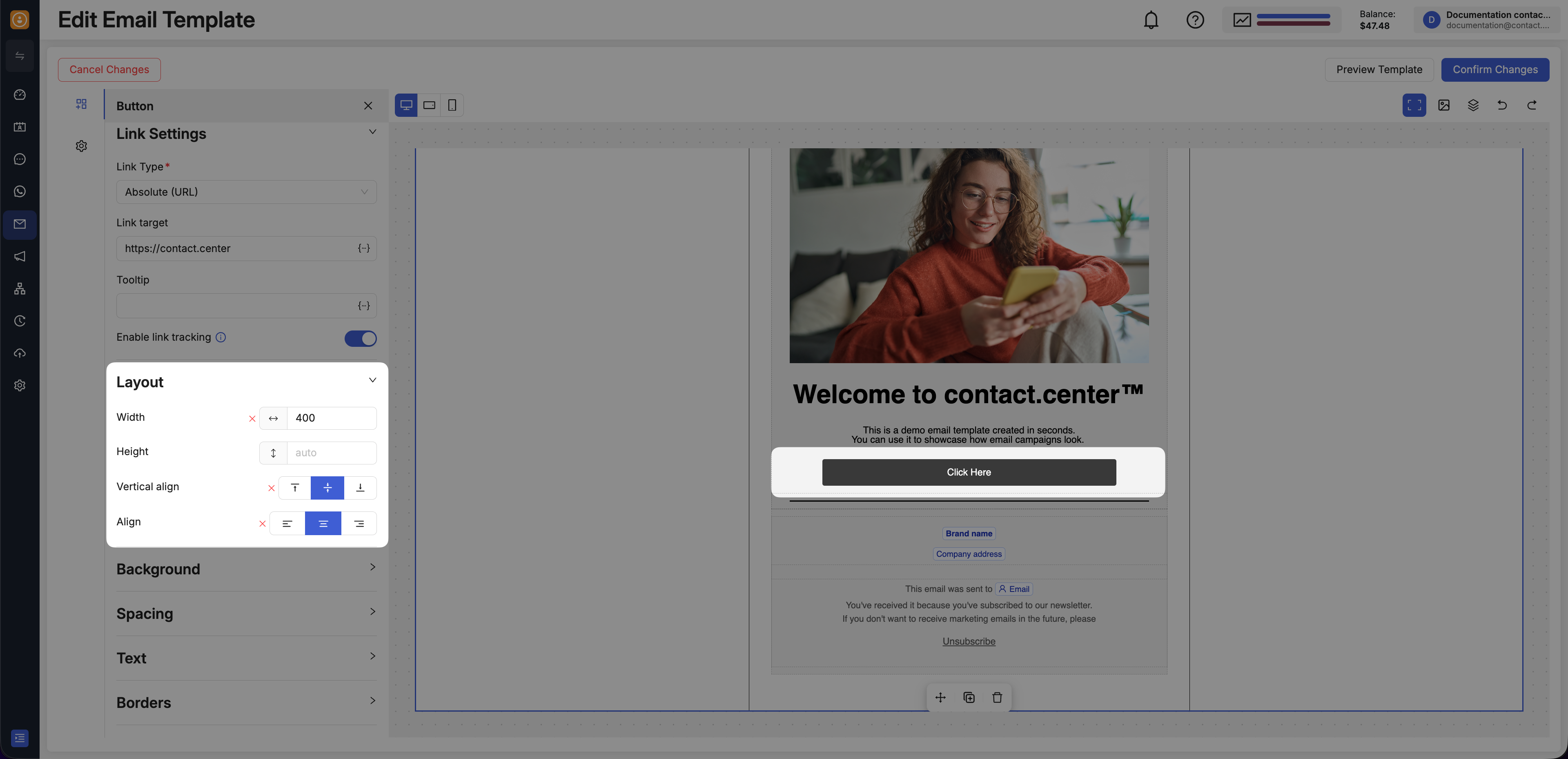
Fig. 5. Change the button width.
To change the button height:
Click the button in the canvas.
In the left panel, open Layout.
Adjust the top and bottom padding to increase or decrease the button height.
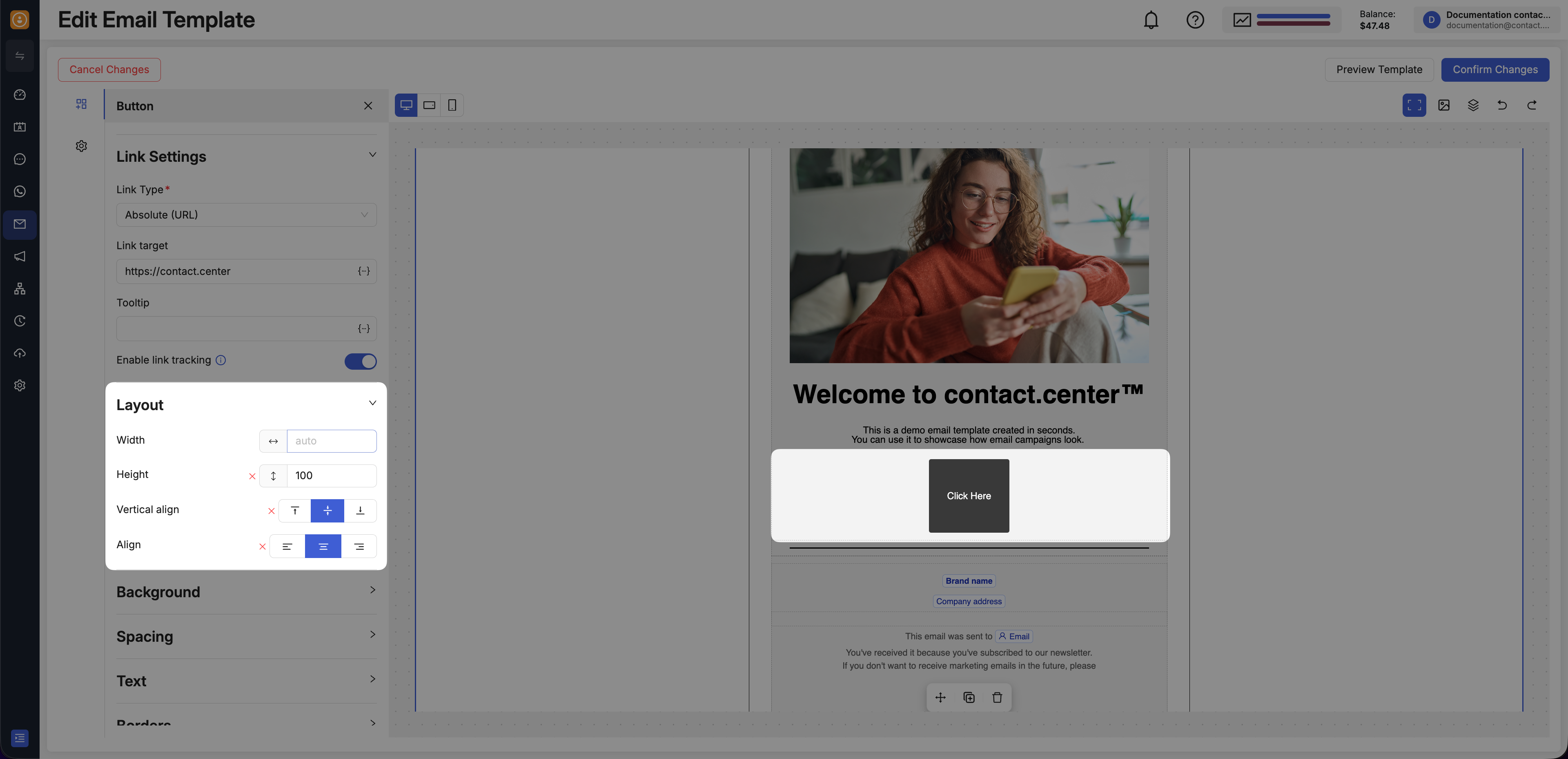
Fig. 6. Change the button height.
To change the button color:
Click the button in the canvas.
In the left panel, open Background.
Choose the button background color you want to use.
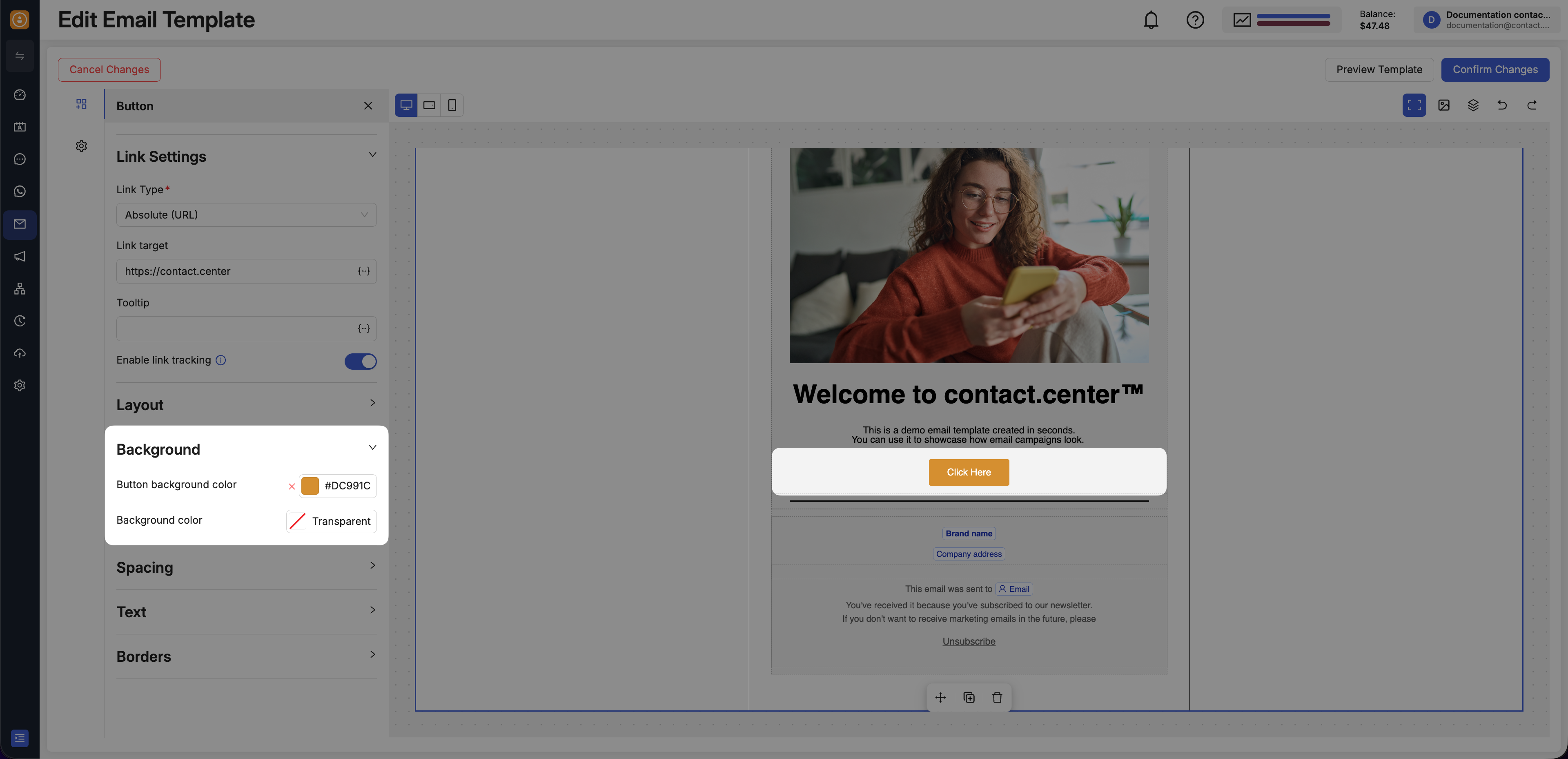
Fig. 7. Change the button color.
Change Button Text Style
To customize the button label:
Click the button text in the canvas.
Use the in-canvas text toolbar to adjust the text appearance.
From there, you can change:
font family
font size
text color
inline formatting
attribute variables
emojis
To learn more about how the in-canvas toolbar works, see Customize Your Text with the Toolbar.
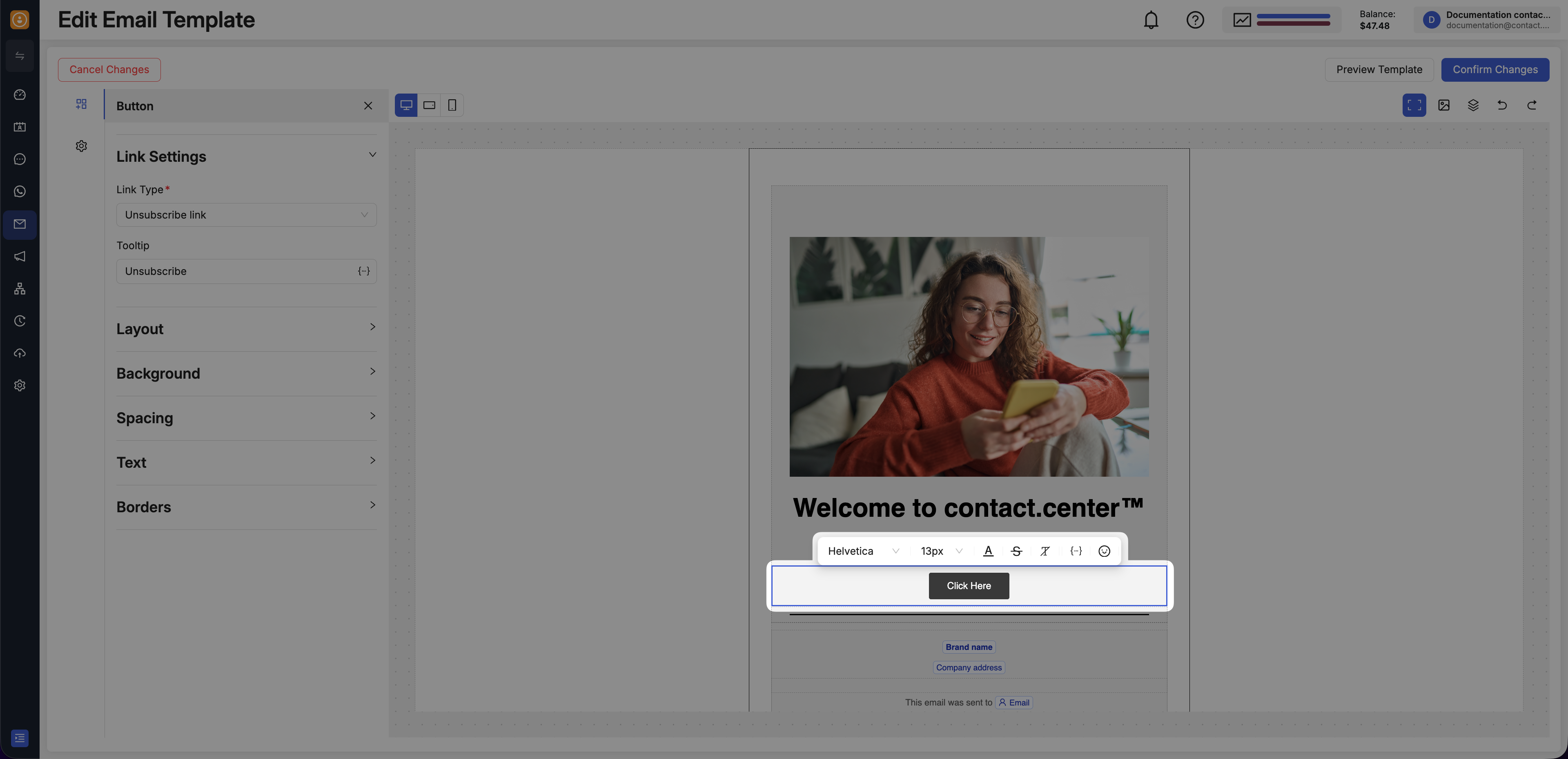
Fig. 8. Change button text color, font, size, and format from the toolbar.
Add Rounded Corners
To add rounded corners to your button:
Click the button in the canvas.
In the left panel, open Borders.
Adjust the rounded corner values to soften the button shape.
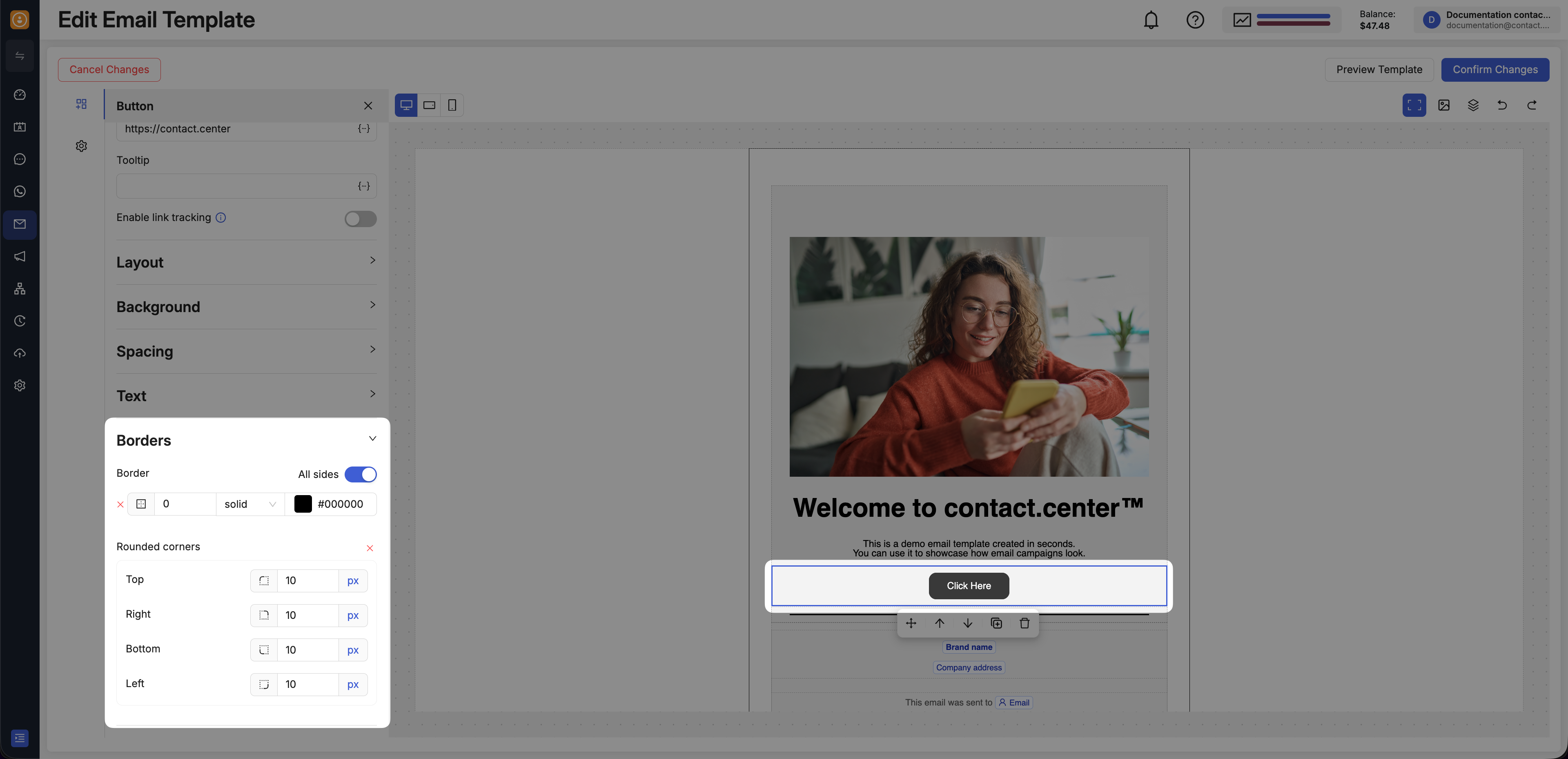
Fig. 9. Add rounded corners to a button.
Add a Border
To add a border to your button:
Click the button in the canvas.
In the left panel, open Borders.
Define the border size, style, and color.
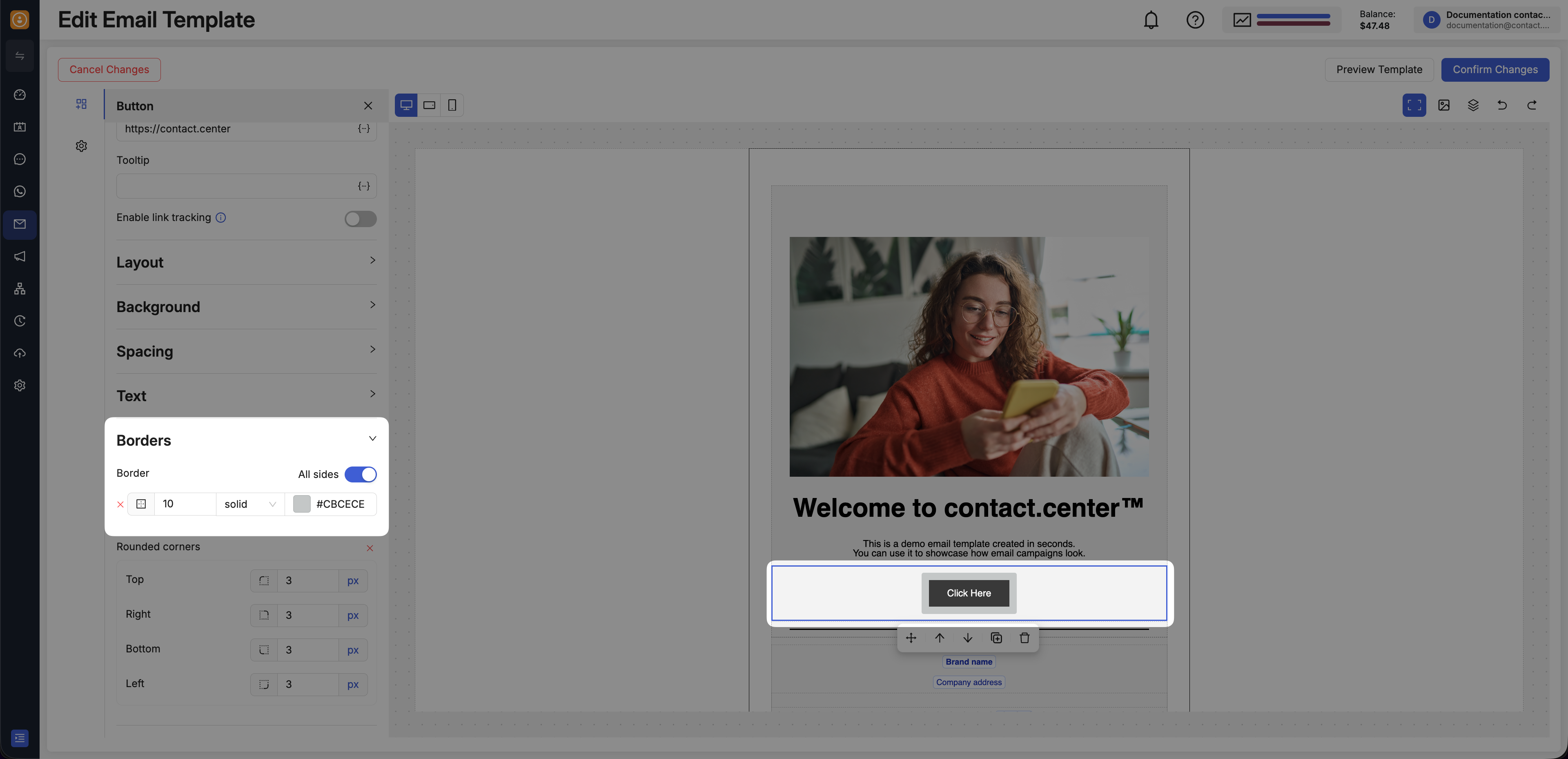
Fig. 10. Add a border to a button.